Migrating from Sage 200 to a modern cloud accounting system is a significant step for any business. Whether you are moving to Xero, QuickBooks Online, or another accounting platform, the quality of your migration depends largely on the quality of the data you transfer.
Before any migration can begin, you need to export your Sage 200 data correctly. This process involves much more than downloading a few reports. You must identify which records need to be moved, ensure the data is accurate, and verify that your financial information is complete before importing it into your new system.
An incomplete or inaccurate export can result in missing transactions, incorrect opening balances, reporting issues, and unnecessary delays. By taking the time to prepare your data properly, you can reduce migration risks and make the transition much smoother.
This guide explains everything you need to know about exporting Sage 200 data before migration, including what to export, how to prepare your records, common mistakes to avoid, and why working with experienced migration specialists can save both time and money.
Why Exporting Sage 200 Data Is an Essential Step
Every accounting migration begins with data. If the information leaving Sage 200 is incomplete or inaccurate, those same issues will appear in your new accounting software.
Exporting your data correctly helps you:
- Preserve financial history
- Maintain accurate opening balances
- Keep customer and supplier records intact
- Protect VAT information
- Improve reporting after migration
- Reduce manual corrections
- Support compliance and auditing
- Speed up the migration process
A well prepared export provides a solid foundation for your new accounting system and helps ensure the migration is completed successfully.
Why Businesses Migrate from Sage 200
Many businesses decide to move away from Sage 200 because their accounting needs have changed. Cloud accounting platforms often provide greater flexibility, easier collaboration, and lower ongoing maintenance costs.
Common reasons include:
- Access financial data from anywhere
- Improve reporting with real time information
- Reduce server and infrastructure costs
- Simplify software updates
- Integrate with modern business applications
- Support business growth
- Improve collaboration between departments
Whatever the reason for migrating, exporting your data correctly is one of the most important parts of the project.
When Is the Best Time to Export Sage 200 Data?
Timing plays an important role in any migration.
Many businesses choose to export their data:
- At month end
- After bank reconciliation
- Following VAT submission
- Before the financial year ends
- During quieter trading periods
- Before retiring an older Sage 200 system
Choosing the right time helps minimise disruption and makes financial verification much easier.
Prepare Your Sage 200 Data Before Exporting
Before creating any export files, spend time reviewing your existing records.
Preparation often includes:
Remove Duplicate Records
Duplicate customers, suppliers, and products can create unnecessary confusion after migration.
Review your database carefully and merge or remove duplicates wherever possible.
Archive Old Records
Inactive customers, discontinued products, and old suppliers may no longer be required.
Removing unnecessary information reduces migration complexity and improves system performance.
Complete Bank Reconciliations
Every bank account should be fully reconciled before exporting.
This ensures opening balances match your bank statements after migration.
Check Outstanding Transactions
Review:
- Outstanding invoices
- Outstanding supplier bills
- Credit notes
- Unallocated payments
- Unmatched receipts
Resolving these items beforehand reduces reconciliation work later.
Review VAT Records
Ensure:
- VAT returns have been submitted where appropriate
- VAT codes are correct
- VAT balances reconcile with reports
This helps maintain accurate tax reporting after migration.
What Data Should You Export from Sage 200?
A professional migration normally includes several categories of financial and operational data.
Chart of Accounts
The chart of accounts provides the structure for your financial reporting.
Export includes:
- Nominal codes
- Account names
- Categories
- Account balances
Customer Information
Customer records preserve your sales history and receivables.
Typical exports include:
- Customer names
- Addresses
- Email addresses
- Contact numbers
- Payment terms
- Credit limits
- Outstanding balances
Supplier Information
Supplier records are equally important.
Export includes:
- Supplier names
- Contact details
- Payment terms
- Outstanding balances
- Supplier references
Sales Transactions
Depending on the migration scope, businesses may export:
- Outstanding invoices
- Current financial year
- Previous years
- Complete historical records
Purchase Transactions
These include:
- Supplier bills
- Purchase history
- Credit notes
- VAT information
Bank Accounts
Exporting bank information helps ensure reconciliation remains accurate.
Data may include:
- Bank accounts
- Transactions
- Opening balances
- Unreconciled items
VAT Information
For UK businesses, VAT is one of the most important areas.
Export typically includes:
- VAT codes
- VAT rates
- VAT returns
- VAT transactions
Inventory
Inventory businesses usually migrate:
- Products
- Stock quantities
- Stock values
- Warehouses
- Product codes
Fixed Assets
Where applicable, export:
- Asset register
- Purchase values
- Depreciation
- Current book value
Historical Transactions
Businesses generally choose one of three options:
- Opening balances only
- Current financial year
- Full historical migration
Your migration specialist can recommend the most suitable approach.
How to Export Sage 200 Data
Although menu options may vary slightly depending on your Sage 200 version, the overall workflow is similar.
Step 1: Back Up Your Sage 200 Database
Before exporting anything, create a complete backup of your Sage 200 system.
This provides a recovery point if unexpected issues occur.
Step 2: Decide What Will Be Migrated
Not every business needs every record.
Your migration plan should define:
- Financial years
- Historical transactions
- Inventory
- Projects
- Payroll
- Fixed assets
- Attachments
Step 3: Generate Export Files
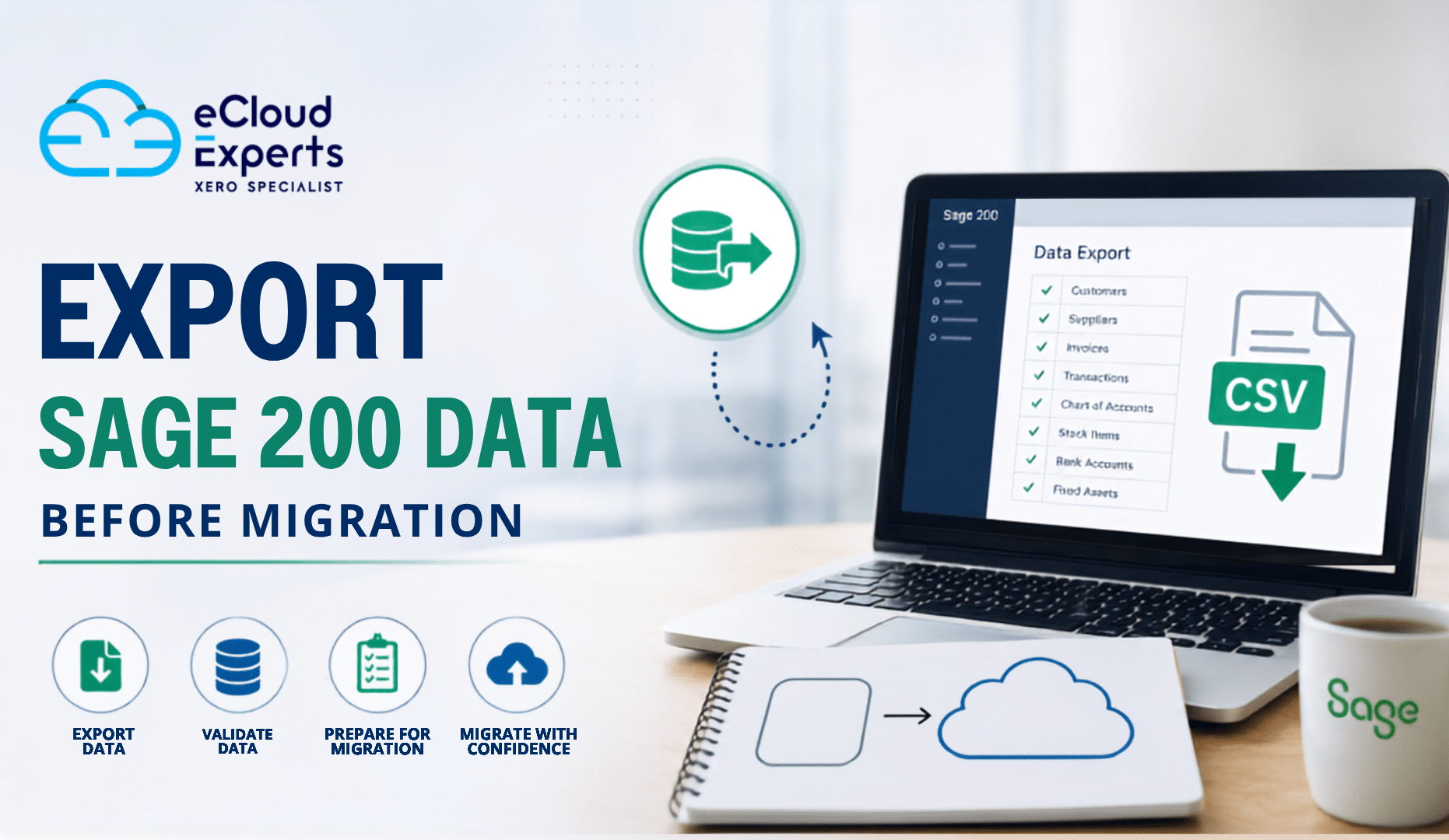
Use Sage 200 reporting tools or export utilities to create:
- CSV files
- Excel files
- Text files
These formats can normally be imported into cloud accounting software after appropriate mapping.
Step 4: Review the Export Files
Check for:
- Missing records
- Blank fields
- Incorrect dates
- Duplicate records
- Formatting issues
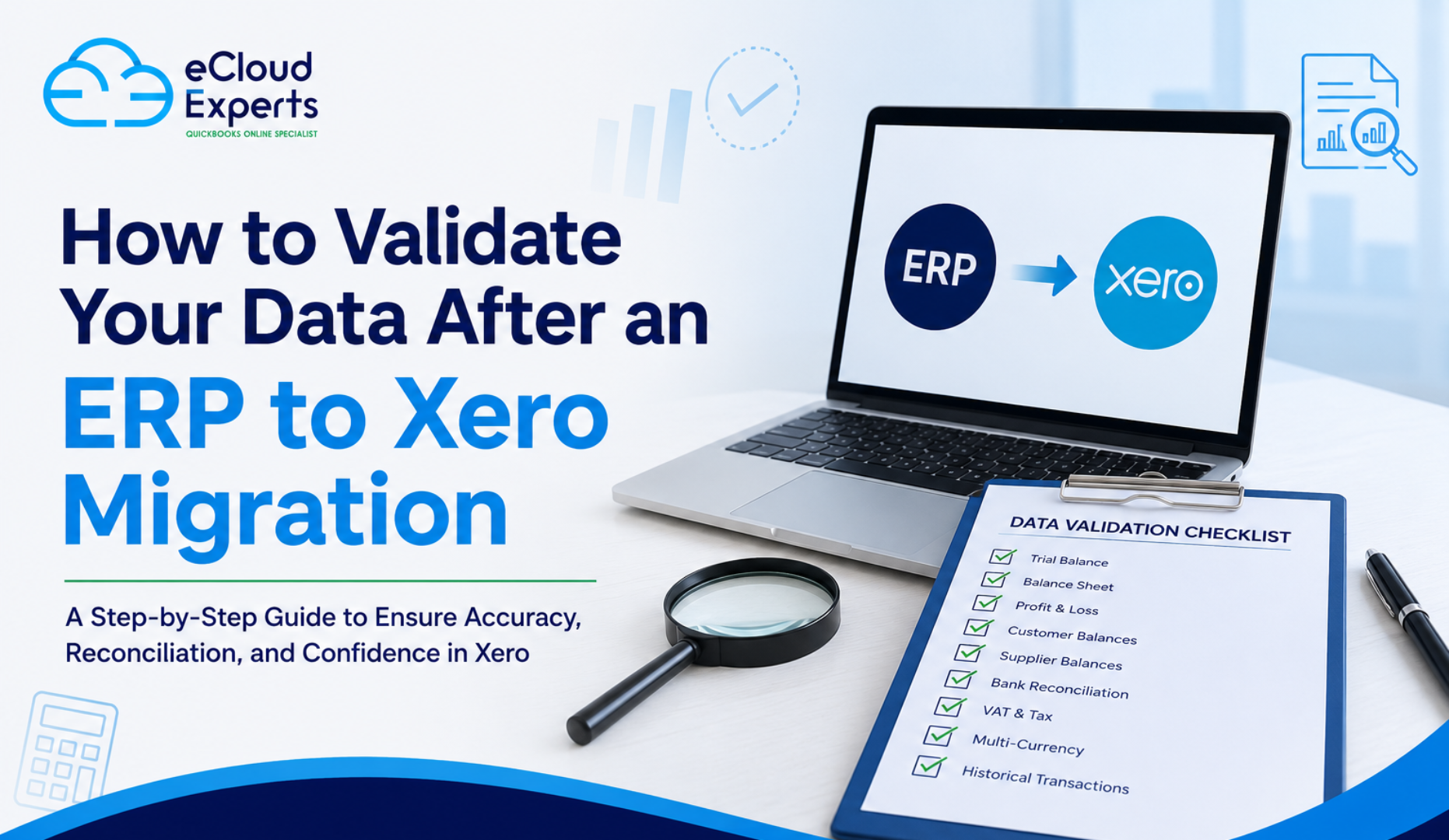
Step 5: Validate Financial Reports
Before migration begins, compare exported data against Sage reports.
Verify:
- Trial Balance
- Balance Sheet
- Profit and Loss
- Aged Receivables
- Aged Payables
- VAT reports
Everything should match before importing into the new system.
Common Mistakes When Exporting Sage 200 Data
Even experienced users can overlook important details.
Exporting Without Cleaning Data
Poor quality data leads to poor quality migrations.
Always clean your records first.
Forgetting Historical Data
Businesses sometimes export only current balances, only to realise later they need historical reporting.
Plan your reporting requirements in advance.
Ignoring Data Validation
Always compare exported reports against Sage before migration begins.
Incorrect File Formatting
Changes to CSV formatting can cause import failures.
Avoid editing exported files unless necessary.
Missing Custom Fields
Some businesses use custom fields that require separate mapping.
Review these before migration.
Best Practices for Exporting Sage 200 Data
Following best practices can significantly improve migration success.
- Plan your migration early.
- Reconcile every account.
- Clean duplicate records.
- Archive inactive data.
- Create multiple backups.
- Validate every export.
- Test imports before going live.
- Work with experienced migration specialists.
These simple steps reduce risk and help ensure a smooth transition.
Benefits of Professional Migration Support
Although exporting data yourself is possible, professional migration specialists bring valuable experience.
They can:
- Assess your Sage 200 database
- Identify potential issues before migration
- Clean and validate data
- Map records accurately
- Import data correctly
- Reconcile financial reports
- Test the new accounting system
- Provide post migration support
This expertise helps reduce downtime and improves confidence throughout the migration.
Why Choose eCloud Experts?
Migrating accounting systems requires careful planning, technical expertise, and financial accuracy. At eCloud Experts, we have helped businesses across the UK and internationally move from Sage 200 to modern cloud accounting platforms.
Our migration service includes:
- Complete migration planning
- Secure Sage 200 data export
- Data cleansing and validation
- Accurate field mapping
- Historical data migration
- Financial reconciliation
- User testing support
- Post migration assistance
We work closely with every client to ensure their financial data is transferred accurately, allowing them to move to their new accounting system with confidence.
Frequently Asked Questions
Can I export all my Sage 200 data?
Yes. Sage 200 allows you to export financial records, customer and supplier data, invoices, bank transactions, VAT information, inventory, and many other types of business data, depending on your version and configuration.
Which export format is best for migration?
CSV is the most commonly used format because it is compatible with many accounting systems and migration tools. Excel and text files may also be used in some cases.
Should I migrate historical transactions?
It depends on your reporting needs, compliance requirements, and budget. Many businesses migrate the current financial year, while others choose to transfer multiple years of historical data.
Do I need to clean my data before exporting?
Yes. Cleaning duplicate records, correcting errors, reconciling accounts, and archiving inactive data improves migration accuracy and reduces post migration issues.
Can eCloud Experts handle the complete migration?
Absolutely. We manage the entire process, including Sage 200 data export, data cleansing, mapping, migration, reconciliation, testing, and post migration support to help ensure a smooth and successful transition.
Final Thoughts
Exporting Sage 200 data is much more than a technical task. It is the foundation of a successful accounting migration. Taking the time to review, clean, validate, and verify your data before exporting helps protect your financial records and reduces the likelihood of costly errors.
Whether you are migrating only opening balances or several years of historical transactions, careful preparation will make the process smoother and more reliable. A well planned export helps preserve the integrity of your financial data, reduces the need for manual corrections after migration, and ensures your new accounting system starts with accurate information from day one.
It is also important to remember that every business has different migration requirements. Some organisations need only core financial data, while others require customer records, supplier information, inventory, fixed assets, projects, and years of transaction history. Understanding your business objectives before exporting will help you determine exactly what data should be transferred and avoid unnecessary complexity.
Before completing your migration, always compare key financial reports such as the Trial Balance, Balance Sheet, Profit and Loss, and aged receivables and payables between Sage 200 and your new accounting system. This validation step confirms that your financial records have been transferred accurately and gives you confidence that your day to day operations can continue without interruption.
Ready to Migrate from Sage 200?
If you are planning to move from Sage 200 to Xero, QuickBooks Online, or another cloud accounting platform, eCloud Experts is here to help. Our experienced migration specialists manage every stage of the process, from exporting and validating your Sage 200 data to securely importing it into your new accounting system. We carefully map your data, reconcile financial reports, verify balances, and ensure everything is accurate before your new system goes live.
Every migration is tailored to your business requirements, whether you need to transfer opening balances, multiple years of historical transactions, customer and supplier records, inventory, fixed assets, or project data. We focus on minimising disruption, maintaining data integrity, and helping your team transition with confidence.
From the initial planning stage through to post migration support, our experts are with you every step of the way. Contact eCloud Experts today for a free consultation and discover how our proven migration process can help you move from Sage 200 quickly, securely, and with complete confidence.