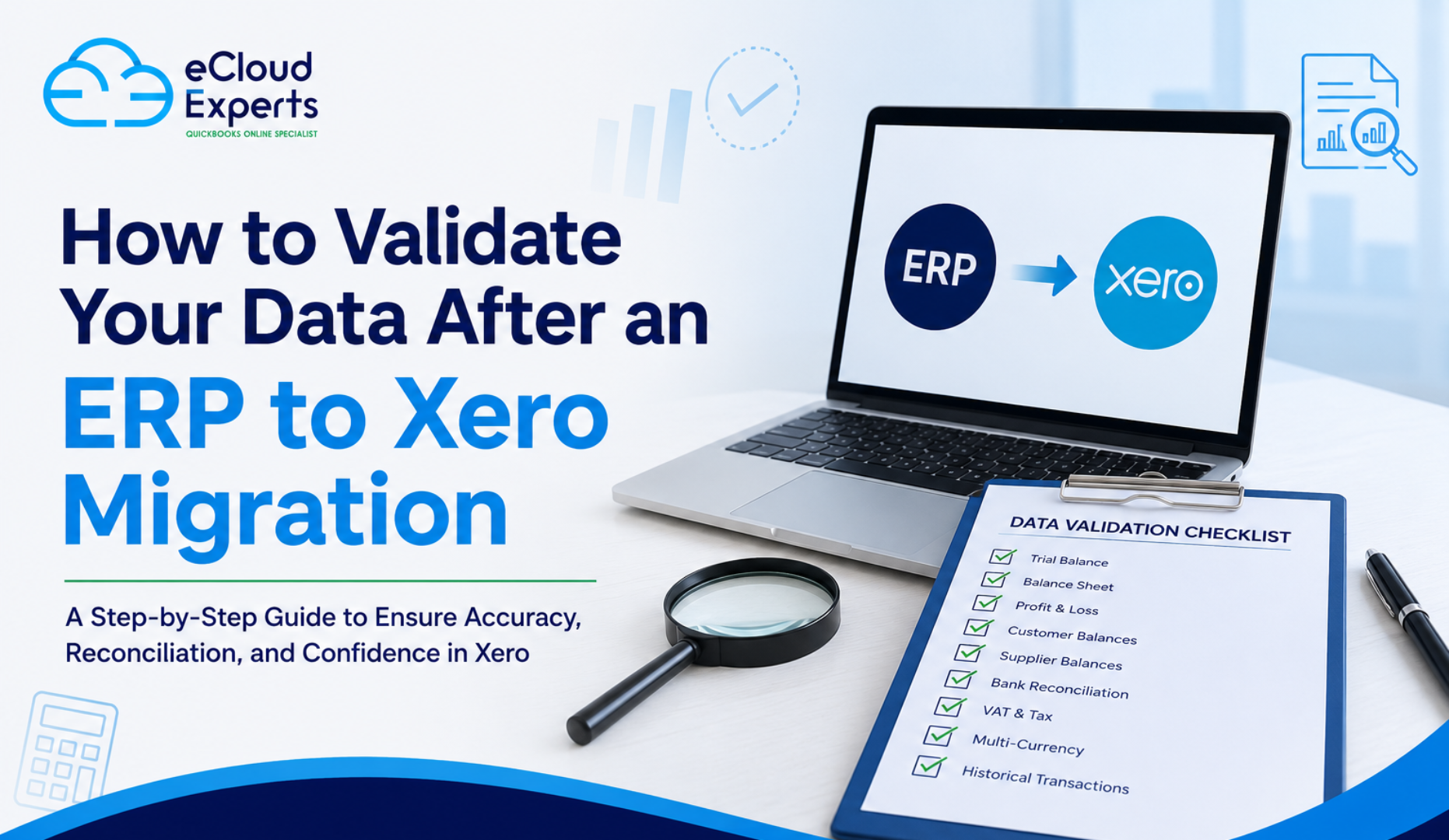
Moving from an ERP system to Xero can simplify accounting, improve access to financial information, and give your team a more flexible cloud based finance system. But completing the migration does not automatically mean the job is finished.
The next important stage is validation.
ERP to Xero data validation is the process of checking that the financial information moved into Xero is complete, accurate, and consistent with the records held in your previous ERP system.
A migration can appear successful while still containing problems. An incorrect opening balance, missing invoice, duplicated transaction, or foreign currency difference may not be immediately obvious. These issues can affect reporting, VAT returns, customer balances, supplier payments, and management decisions later.
This guide explains what you should validate after an ERP to Xero migration and how to identify problems before you start relying on Xero as your main accounting system.
What Is ERP to Xero Data Validation?
ERP to Xero data validation means comparing the information in Xero with the source ERP system and confirming that the migrated records agree.
The objective is not simply to confirm that data exists in Xero. You need to establish that the right data has arrived, the values are correct, and the accounting position remains consistent.
Depending on the scope of your migration, validation may include:
- Opening balances
- Trial balance
- Balance Sheet
- Profit and Loss
- Customer balances
- Supplier balances
- Sales invoices
- Purchase bills
- Bank accounts
- VAT information
- Credit notes
- Payments
- Chart of accounts
- Tracking information
- Foreign currency balances
- Historical transactions
The exact checks required will depend on how much history you migrated and how your previous ERP system was structured.
Why Is Data Validation Important After an ERP to Xero Migration?
ERP systems and Xero can handle accounting information differently.
Your old ERP may have used a more complex chart of accounts, multiple departments, custom fields, different tax codes, several currencies, or specialised transaction structures.
During migration, that information often needs to be transformed so that it works correctly within Xero.
That creates opportunities for differences to occur.
For example, a migration might successfully transfer 10,000 invoices, but that does not prove that every invoice has the correct date, value, tax treatment, currency, payment status, and account allocation.
Proper validation helps you identify these differences before they become part of your day to day accounting.
1. Start With the Migration Scope
Before checking individual figures, confirm what the migration was actually supposed to include.
This sounds simple, but it is an important step.
If your migration agreement covered opening balances plus two years of transaction history, you should not expect records from five years ago to appear in Xero.
Create a clear list of what should have been migrated.
Check the agreed:
- Historical period
- Financial accounts
- Customers
- Suppliers
- Invoices and bills
- Bank accounts
- Currencies
- Tracking categories
- Tax information
- Opening balances
- Outstanding transactions
This gives you a baseline for the rest of the validation process.
2. Compare the Trial Balance
The trial balance is one of the most important reports to check following an ERP to Xero migration.
Run a trial balance from the old ERP system at the agreed migration date. Then run the equivalent report in Xero.
Compare the account balances carefully.
The total debit and credit figures should agree, but do not stop there. Individual account balances also need to be reviewed.
Pay particular attention to:
- Bank accounts
- Accounts receivable
- Accounts payable
- VAT control accounts
- Payroll liabilities
- Loans
- Fixed assets
- Retained earnings
- Revenue accounts
- Expense accounts
A balanced trial balance does not necessarily mean everything is correct. Transactions can be posted to the wrong accounts while the overall debit and credit totals still balance.
3. Validate the Balance Sheet
Next, compare the Balance Sheet in Xero with the final Balance Sheet from your ERP system for the same reporting date.
Look at each major balance individually.
For example, if your previous ERP shows £80,000 in trade receivables, Xero should reflect the corresponding position based on the agreed migration scope.
Investigate unexplained differences rather than assuming they are normal migration adjustments.
Particular attention should be given to:
- Cash balances
- Trade debtors
- Trade creditors
- Tax liabilities
- Fixed assets
- Accruals
- Prepayments
- Loans
- Director or shareholder balances
- Equity
- Retained earnings
Where an account has been mapped differently in Xero, document that mapping so you understand why the presentation may differ even when the underlying financial position is correct.
4. Compare the Profit and Loss Report
If historical transactions were migrated, compare your Profit and Loss report between the ERP and Xero.
Use identical reporting periods.
Check major income and expense categories and then investigate any significant differences.
Possible causes can include:
- Incorrect account mapping
- Missing transactions
- Duplicate transactions
- Date differences
- Tax treatment
- Currency conversion
- Manual journals
- Transactions excluded from the migration
If several ERP accounts were consolidated into one Xero account, compare the combined values rather than expecting a direct account by account match.
5. Reconcile Customer Balances
Your total accounts receivable balance may agree while individual customer accounts are still wrong.
That is why customer level validation matters.
Compare the aged receivables report from the ERP with the corresponding Xero report at the migration date.
Check that outstanding invoices have the correct:
- Customer
- Invoice number
- Invoice date
- Due date
- Gross amount
- Tax amount
- Currency
- Outstanding balance
- Payment status
Pay particular attention to partially paid invoices and credit notes. These can be more complicated to reconstruct than fully unpaid invoices.
6. Reconcile Supplier Balances
Perform the same process for accounts payable.
Compare the aged payables report from the old ERP with Xero.
Check outstanding supplier bills, payments, and credit notes.
The total supplier balance should reconcile, but individual supplier positions should also make sense.
Incorrect supplier balances can create practical problems quickly because your finance team may use Xero to decide which suppliers need to be paid.
7. Check Bank Balances and Reconciliation
Bank accounts require more than a quick balance comparison.
Compare the closing balance from the ERP with the appropriate position in Xero at the migration date.
Then check whether outstanding bank transactions have been treated correctly.
Depending on the migration approach, you may need to review:
- Unreconciled transactions
- Outstanding payments
- Outstanding receipts
- Bank transfers
- Foreign currency bank accounts
- Bank feeds
- Duplicate imported transactions
Be particularly careful when activating Xero bank feeds after migration. The feed may import transactions that were already included in the migrated history, creating duplicates if the cutover date is not handled properly.
8. Validate VAT and Tax Information
Tax errors can be much more serious than cosmetic reporting differences.
Review the VAT position transferred into Xero and compare it with the previous system.
Check:
- VAT control balances
- Tax rates
- VAT treatment of migrated transactions
- Outstanding VAT liabilities
- Previous VAT return periods
- Transactions included in upcoming returns
If your business operates under a particular VAT scheme, make sure Xero has been configured appropriately before processing new transactions.
Historical data and future VAT reporting should also be considered separately. Migrated historical transactions should not accidentally appear in a future VAT return when they have already been reported.
9. Check the Chart of Accounts and Account Mapping
An ERP system may contain hundreds or even thousands of ledger accounts.
Moving every account directly into Xero is not always practical or desirable.
Some accounts may be:
- Combined
- Renamed
- Archived
- Reclassified
- Replaced by tracking categories
Review the final Xero chart of accounts against the agreed mapping document.
Make sure important reporting distinctions have not disappeared during consolidation.
The aim is not necessarily to make Xero identical to the ERP. The aim is to preserve the financial meaning of the data while creating a structure that works properly in Xero.
10. Validate Tracking Categories
Businesses moving from ERP platforms often use departments, locations, business units, projects, or cost centres.
Some of these structures may be represented using Xero tracking categories or other features.
Test several transactions from different areas of the business.
Confirm that the migrated information supports the management reporting you expect to use after going live.
Do not wait until the first month end to discover that an important reporting dimension was not carried across correctly.
11. Review Multicurrency Data
Multicurrency migrations require additional checking.
A transaction may have several relevant values, including its original foreign currency amount and its accounting value in the base currency.
Review:
- Transaction currency
- Exchange rates
- Base currency values
- Foreign bank balances
- Outstanding foreign currency invoices
- Outstanding foreign currency bills
- Exchange differences
Small differences can sometimes arise because systems use different exchange rates or rounding methods. Large or unexplained differences should be investigated.
12. Sample Test Historical Transactions
Report totals are essential, but transaction level testing provides another layer of assurance.
Select samples from different periods and transaction types.
For example, test:
- A sales invoice
- A purchase bill
- A customer payment
- A supplier payment
- A credit note
- A bank transaction
- A journal
- A foreign currency transaction
Compare each sample with the original ERP record.
Check dates, references, values, tax, account coding, currency, and payment status.
For large migrations, a structured sampling approach can help identify patterns without manually reviewing every transaction.
13. Check for Missing and Duplicate Records
Two of the most common migration risks are missing data and duplicate data.
Compare record counts where possible.
For example, if the migration scope contained 8,450 sales invoices, investigate if Xero contains only 8,310 relevant invoices.
Likewise, unusually high transaction counts can indicate duplicates.
Record counts alone do not prove accuracy, but they are a useful control when combined with financial reconciliation.
14. Test Xero Before Going Live
Validation should not only focus on historical information.
You should also confirm that Xero is ready to handle new accounting activity.
Test important workflows such as:
- Creating an invoice
- Entering a supplier bill
- Recording a payment
- Reconciling a bank transaction
- Applying the correct VAT rate
- Running management reports
- Using tracking categories
- Processing foreign currency transactions where relevant
This helps confirm that both the migrated data and the new Xero configuration are usable.
What Should You Do If the ERP and Xero Figures Do Not Match?
Do not simply enter a journal to force Xero to match the expected total.
First identify the cause.
A difference could come from incorrect mapping, omitted transactions, duplicates, exchange rates, rounding, tax treatment, timing differences, or a problem already present in the source ERP data.
Document each material difference and how it was resolved.
If the original ERP data itself is incorrect, the migration may also provide an opportunity to clean up the accounting position. However, corrections should be clearly documented rather than quietly changing historical figures.
Create a Migration Validation Record
Keep evidence of your validation work.
A useful migration validation record can include:
- Source ERP reports
- Xero comparison reports
- Trial balance reconciliation
- Balance Sheet reconciliation
- Profit and Loss comparison
- Receivables reconciliation
- Payables reconciliation
- Bank reconciliation
- VAT checks
- Account mapping
- Identified differences
- Corrections made
- Final approval
This creates a clear audit trail showing how the migrated information was checked.
Common ERP to Xero Data Validation Mistakes
One of the biggest mistakes is checking only the opening balance and assuming the rest of the migration is correct.
Other common mistakes include checking only total receivables rather than individual customers, ignoring supplier balances, failing to test multicurrency records, overlooking VAT treatment, comparing reports from different dates, activating bank feeds without considering duplicated transactions, and accepting unexplained differences because they appear small.
A good validation process looks at both the overall financial position and the detail underneath it.
How Long Should ERP to Xero Data Validation Take?
There is no single answer.
The time required depends on the size and complexity of the migration.
A relatively simple business moving opening balances and limited history may require fewer checks. A company migrating several years of ERP data with thousands of transactions, multiple currencies, complex VAT treatment, and detailed management reporting will require a much more thorough validation process.
Accuracy should take priority over speed.
Finding a migration problem before going live is usually much easier than discovering it several months later.
Final Thoughts
An ERP to Xero migration should not be considered complete simply because the data has been imported.
Reliable ERP to Xero data validation requires financial reports, balances, outstanding transactions, tax information, bank records, and selected transaction details to be checked against the original ERP system.
The goal is simple: when your team starts using Xero, they should be able to trust the information they see.
At eCloud Experts, we help businesses plan, migrate, reconcile, and validate accounting data when moving from ERP systems to Xero. Our migration process focuses not only on transferring records, but also on making sure the resulting Xero organisation provides a reliable foundation for ongoing accounting and reporting.
Planning an ERP to Xero migration or concerned about the accuracy of a completed migration? Contact eCloud Experts to discuss your data, migration requirements, and validation needs.