Xero data migration sounds simple at first. Move your data, start fresh, and everything works. But here is the reality. Not all data moves cleanly, and some data does not move at all.
That is where most businesses get stuck.
Many people assume Xero data migration is just a copy and paste job. It is not. Different accounting systems store data in different ways. That means some information fits perfectly into Xero, while other parts need to be adjusted, rebuilt, or left behind.
If you expect everything to transfer perfectly, you may end up with missing records, broken reports, or wrong balances. And once those issues show up, fixing them can take more time than the migration itself.
There is also another challenge. The quality of your existing data plays a big role. If your current system has errors, duplicates, or incomplete records, those problems will not disappear during Xero data migration. In fact, they often become more visible.
This is why planning matters.
Before starting Xero data migration, you need to understand three key things
- What data can move directly without changes
- What data needs adjustments or manual setup
- What data cannot be migrated at all
Getting this right helps you avoid surprises. It also helps you decide how far back you want to migrate your data. Some businesses choose to bring everything. Others only migrate the current financial year and keep older data as a reference.
There is no one size fits all approach.
The right strategy depends on your business size, the complexity of your accounts, and how clean your data is. A small business with simple records will have a very different Xero data migration experience compared to a company with years of detailed transactions and multiple systems.
Another important point is reporting.
Your financial reports after migration are only as accurate as the data you bring in. If key data is missing or incorrect, your profit and loss, balance sheet, and cash flow reports will not reflect reality. That can lead to poor decisions.
This guide explains exactly what you can migrate, what you cannot, and what you should prepare before starting your Xero data migration. It will help you set clear expectations, avoid common mistakes, and make sure your new system works the way it should from day one with ecloud experts.
Why Understanding Xero Data Migration Matters
Many businesses rush into Xero data migration without knowing the limits.
That leads to problems like
- Missing historical data
- Incorrect financial reports
- Time wasted fixing errors later
When you know what moves and what does not, you can plan better. You avoid surprises and keep your records accurate from day one.
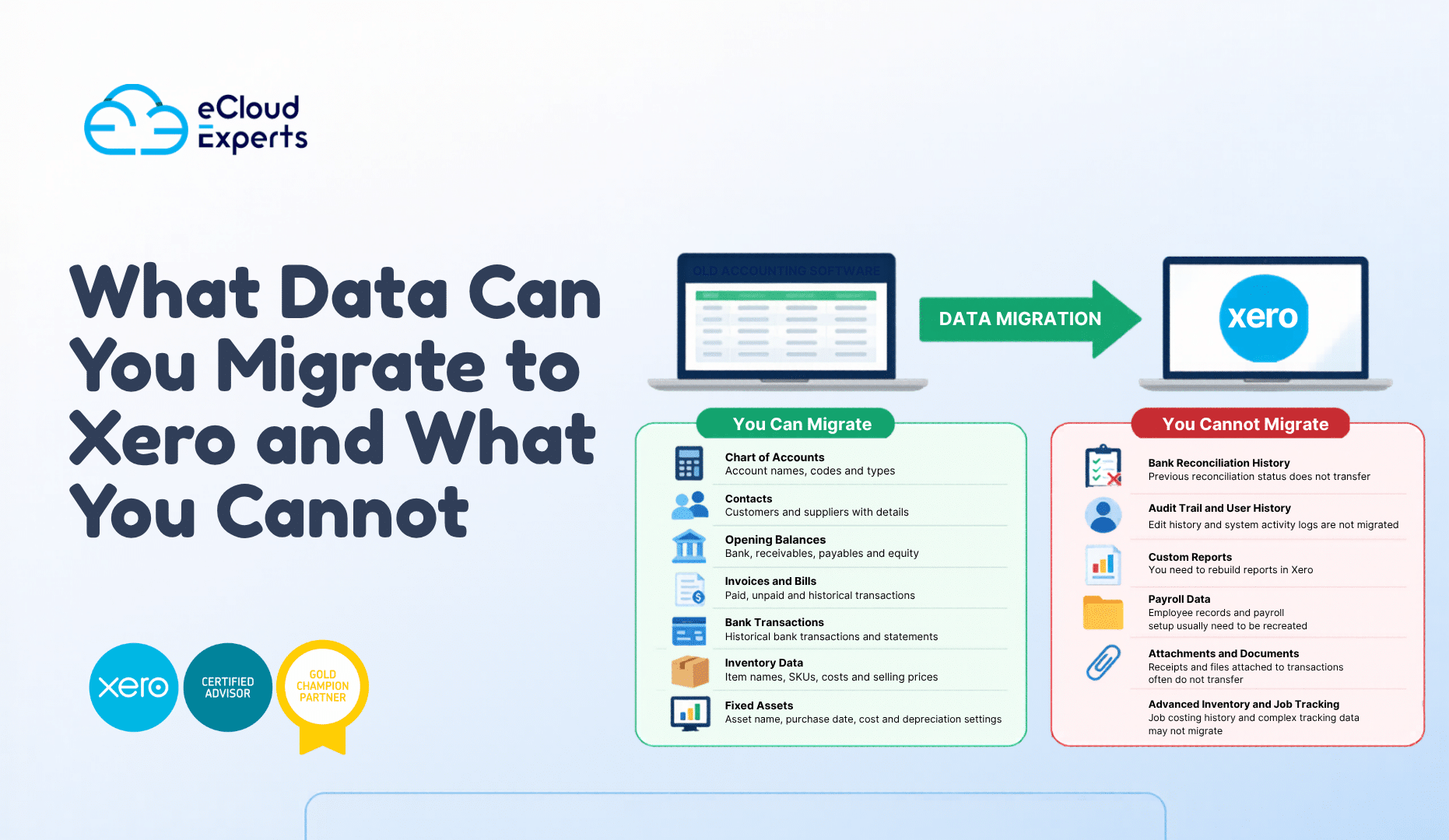
What Data You Can Migrate to Xero
Let us start with the good news. Most core financial data can be moved during Xero data migration.
1. Chart of Accounts
Your chart of accounts is the backbone of your system.
You can migrate
- Account names
- Account codes
- Account types
This helps keep your reports structured the same way as before.
2. Contacts
Customer and supplier data can be transferred easily.
This includes
- Names
- Email addresses
- Phone numbers
- Addresses
Clean contact data makes invoicing and billing much easier after migration.
3. Opening Balances
Opening balances are critical in any Xero data migration.
You can import
- Bank balances
- Accounts receivable
- Accounts payable
- Equity balances
This ensures your financial position starts correctly in Xero.
4. Invoices and Bills
You can migrate sales invoices and purchase bills.
Depending on your method, you can move
- Paid invoices
- Unpaid invoices
- Historical transactions
This helps maintain a clear record of income and expenses.
5. Bank Transactions
Bank data is one of the most important parts of Xero data migration.
You can import
- Historical bank transactions
- Statements from CSV files
- Bank feeds going forward
This keeps your cash flow tracking accurate.
6. Fixed Assets
You can move fixed asset data into Xero.
This includes
- Asset name
- Purchase date
- Cost
- Depreciation settings
However, this often needs careful setup to avoid errors.
7. Inventory Data
Basic inventory can be migrated.
You can import
- Item names
- SKU codes
- Cost prices
- Selling prices
But advanced inventory details may need extra tools.
What Data You Cannot Migrate to Xero Directly
Now comes the part most people do not expect.
Some data simply does not move during Xero data migration.
1. Bank Reconciliation History
You cannot migrate reconciliation status.
That means
- Previously reconciled transactions may appear unreconciled
- You may need to redo matching
This is one of the biggest surprises for new users.
2. Audit Trail and User History
Your system activity history does not transfer.
You will lose
- Edit history
- User activity logs
- Change tracking
Xero starts fresh in this area.
3. Custom Reports
Custom reports from your old system will not move.
You need to rebuild
- Financial reports
- Management reports
- Custom dashboards
This takes time but gives you a chance to improve reporting.
4. Payroll Data
Payroll migration is limited.
You may need to
- Re-enter employee records
- Set up payroll from scratch
- Import only summary balances
This depends on your region and payroll system.
5. Attachments and Documents
Files attached to transactions often do not migrate.
Examples include
- Receipts
- Contracts
- Supporting documents
These usually need manual upload or separate storage.
6. Advanced Inventory and Job Tracking
Detailed operational data does not transfer easily.
This includes
- Job costing history
- Project tracking
- Complex inventory movements
You may need third party tools for this.
Partial Data That Needs Special Handling
Some data sits in the middle. It can be migrated, but not perfectly.
Multi Currency Transactions
These can be tricky.
Exchange rates and conversions may not match exactly. You may need adjustments after migration.
Tax Settings and VAT Data
Tax rates can be recreated, but full history may not transfer cleanly.
Always check
- VAT returns
- Tax reports
- Filing data
Accuracy here is critical.
Common Mistakes in Xero Data Migration
Even when people know the basics, mistakes still happen.
Here are common issues to avoid
- Migrating messy data without cleaning it
- Ignoring opening balance accuracy
- Not testing reports after migration
- Expecting full system replication
- Skipping reconciliation checks
These mistakes can cost hours or even days to fix later.
How to Prepare for a Smooth Xero Data Migration
Preparation makes all the difference.
Follow these simple steps
Clean Your Data
Remove duplicates, fix errors, and close old transactions.
Decide What to Migrate
Not everything needs to move.
Sometimes it is better to
- Migrate only the current financial year
- Keep old data as backup
Backup Everything
Always keep a full backup before starting your Xero data migration.
Test Before Going Live
Run reports and compare results.
Check
- Profit and loss
- Balance sheet
- Bank balances
If something looks wrong, fix it early.
Should You Use Experts for Xero Data Migration
You can do Xero data migration yourself.
But here is the truth.
The more complex your business, the higher the risk of errors.
Experts help by
- Planning the right migration approach
- Handling complex data
- Ensuring accuracy from day one
This saves time and avoids costly mistakes.
Final Thoughts
Xero data migration is not just about moving data. It is about moving the right data in the right way.
That is where many businesses get it wrong. They focus on speed instead of accuracy. They try to move everything without understanding what actually matters.
Some data moves easily. Some data needs extra work. And some data simply does not transfer at all.
When you understand these limits, you stay in control.
You can decide what is worth migrating, what should be cleaned first, and what is better left behind. This helps you avoid messy records, broken reports, and wasted time fixing issues later.
It also gives you a chance to improve your system.
A well planned Xero data migration is not just a switch. It is an upgrade. You get cleaner data, better structure, and clearer financial visibility.
That means better decisions for your business.
So take your time. Plan carefully. Test everything before you go live. And most importantly, do not rush the process just to get it done faster.
A few extra days spent getting it right can save you weeks of problems later.
Ready to Start Your Xero Data Migration
Xero data migration can either set your business up for success or create problems that take weeks to fix.
It all comes down to how well it is done.
If you want your Xero data migration completed correctly without stress, expert support can make a real difference. Instead of guessing what to move and what to leave, you get a clear plan and a smooth process from start to finish.
At eCloud Experts, we take care of every step. From cleaning your data to checking every balance after migration, nothing is left to chance.
Here is what you get
- Clean and accurate financial data you can trust
- A properly structured Xero setup tailored to your business
- Correct opening balances and reconciled accounts
- Clear and reliable reports from day one
- Ongoing support if you need help after migration
We do not just move your data. We make sure your system works the way it should.
Get in touch today and start your Xero data migration with confidence.