
What Happens After Migration? Ongoing QuickBooks Support by eCloud Experts
Migrating to QuickBooks Online is a major step toward modernising your accounts. Once the data is moved, many businesses expect the hard part to be over. In reality, the real test begins after migration. You need to know your numbers are accurate, your VAT is correct, and your staff can handle the system with confidence. That is why QuickBooks Online support UK is more than a nice-to-have it’s the key to making sure your new setup works in daily business life. Problems often appear once the migration dust settles. A supplier balance may not match, payroll settings could be off, or reports may look confusing. Without the right aftercare, these small gaps can cause big issues. At eCloud Experts, we provide post-migration QuickBooks services that fix errors, guide your team, and keep your accounts reliable. Our clients tell us that moving to QuickBooks was only half the story ongoing care made all the difference. What makes us different is that our role does not end with the migration. We act as a long-term partner offering QuickBooks Online support UK whenever you need it, whether through training, corrections, or daily guidance. With our help, you avoid the headaches that follow many migrations. Instead, you get peace of mind and clarity. For UK businesses, our certified team delivers QuickBooks after migration support UK tailored to HMRC rules and local compliance. With dedicated QuickBooks Online support UK, you gain more than software you gain confidence in your numbers and a partner who ensures QuickBooks works for your business every single day. Why Ongoing Support Matters After Migration Many businesses believe that once they move their data to QuickBooks Online, the hard part is finished. In reality, the first weeks after migration can be the most difficult. Small errors, missing details, and staff uncertainty often appear during this stage. That’s why QuickBooks Online support UK is so important for companies that want their new system to work smoothly. Here are the main reasons ongoing support matters: In short, migration is only the first step. Ongoing support ensures QuickBooks Online becomes a tool that works every day, not just software that was installed and left behind. eCloud Experts’ Post-Migration QuickBooks Services When migration ends, the real journey with QuickBooks Online begins. Many businesses quickly discover that they need more than just data transfer they need a partner who ensures everything runs correctly afterwards. At eCloud Experts, we provide a full range of aftercare services designed to give you accuracy, confidence, and ongoing guidance. Review & Correction Service It’s common for small issues to appear after migration. Balances might not line up, tax codes could be mismatched, or old unreconciled transactions may carry forward. That’s why our QuickBooks post-migration support starts with a detailed review of your accounts. We check bank reconciliations, supplier and customer balances, and VAT settings against your historical records. If anything is missing or duplicated, our team fixes it quickly. This is where QuickBooks Online support UK makes a real difference. By focusing on HMRC compliance and local accounting standards, we ensure your books are accurate and ready for daily use. With dedicated QuickBooks post-migration support, you avoid the frustration of hidden errors that surface months later. Training & Guidance QuickBooks Online has many powerful features, but they can feel overwhelming to teams who are new to the platform. Without the right guidance, staff often underuse the system or make avoidable mistakes. That’s why we offer tailored QuickBooks Online training and support UK that focuses on your team’s actual needs. We run interactive training sessions covering invoicing, bank reconciliation, payroll, and VAT submissions. The aim is to give your staff confidence, not just instructions. Alongside training, we provide ongoing access to QuickBooks Online support UK so that when new questions arise, help is always available. With structured QuickBooks Online training and support UK, your team learns how to manage accounts efficiently from day one. Ongoing Help Desk Even after corrections and training, unexpected questions are bound to come up. A payment may not match, a report could look unfamiliar, or HMRC may update VAT rules. To deal with these situations, we provide a responsive help desk that businesses can rely on. Through QuickBooks Online ongoing support UK, you have direct access to our experts via email, Zoom, or scheduled calls. We provide clear, practical answers that solve problems quickly. For companies that want dependable help without delays, our QuickBooks support and training UK service ensures small issues never turn into major disruptions. With consistent QuickBooks Online ongoing support UK, your business enjoys stability and peace of mind. The Virtual Finance Department Model Not every business can afford a full in-house finance team, but every business needs accurate accounts. That’s where our Virtual finance department QuickBooks UK service comes in. It gives you the benefits of a professional finance team without the costs of hiring, training, or managing staff. With QuickBooks Online support UK, you gain the confidence that your accounts are always in expert hands. 1. A Smarter Alternative to In-House Teams Hiring bookkeepers, payroll clerks, and accountants is expensive for small and mid-sized businesses. By working with a Virtual finance department QuickBooks UK, you avoid salaries, pensions, and overheads. Instead, you pay only for the services you need, delivered by experienced professionals who know QuickBooks inside out. 2. Comprehensive Post-Migration Care Our role doesn’t end with migration. Through our post-migration QuickBooks services, we provide daily bookkeeping, reconciliations, and VAT management. We also handle payroll, invoicing, and monthly management accounts. With a Virtual finance department QuickBooks UK, you receive the same care as an internal team would provide — only more flexible and cost-effective. 3. Scalable and Flexible Support Businesses grow and change, and so do their accounting needs. An outsourced finance department QuickBooks model allows you to scale services up or down depending on your situation. Whether you want simple bookkeeping or a full finance department, we adapt to your needs. Alongside this, our post-migration QuickBooks services ensure that compliance
Migrating Multi-Currency Accounts to QuickBooks Online: A Complete Guide
Businesses that deal with customers, suppliers, or partners in more than one country know how challenging it can be to keep accounts accurate. Currency conversions, fluctuating exchange rates, and different reporting requirements often make bookkeeping harder than it needs to be. That’s why many international firms are now focusing on multi-currency QuickBooks migration as a way to simplify their accounting. If your company imports from Europe, exports to the U.S., or manages clients in Asia, you need a system that can handle complex money flows. QuickBooks Online (QBO) is built with these needs in mind. It allows you to invoice, receive payments, and generate reports in multiple currencies without adding confusion to your books. This makes global accounting with QBO more than just convenient—it becomes a critical part of scaling a business across borders. For UK-based import and export firms, accurate tracking of foreign sales and purchases can make the difference between profit and loss. Moving to QuickBooks Online with the right setup ensures that you don’t just move data, but also gain access to features like live exchange rate updates, automatic revaluations, and clear financial reports. That’s why a multi-currency QuickBooks migration is not simply a technical shift—it’s a strategic upgrade for growth-focused companies. Another reason many business owners choose QuickBooks Online is its ability to centralize data. Instead of juggling spreadsheets or outdated systems, you can work in one place with real-time insights. For global businesses, this is especially powerful. With QuickBooks Online multi-currency migration, you’re no longer guessing at your financial position in different regions. Instead, you get clarity, consistency, and confidence in decision-making. In this guide, we’ll walk through everything you need to know—from preparing your accounts for migration to enabling multi-currency, importing data, managing transactions, and avoiding common pitfalls. Whether you’re a small importer or a large multinational, this resource will help you understand how global accounting with QBO can transform the way you manage international finance. Why Move to QBO for Multi-Currency? Running a business that deals with international customers or suppliers comes with unique challenges. Currency exchange rates can change daily, and errors in manual conversions often lead to inaccurate financial records. This is where a multi-currency QuickBooks migration becomes highly valuable, especially for companies that want better control and visibility over their finances. One of the biggest advantages of QuickBooks Online is automation. Instead of manually calculating rates or adjusting balances, QBO updates exchange rates automatically. This ensures that your accounts reflect the most accurate figures possible. For companies working across borders, that accuracy is priceless. When you complete a multi-currency QuickBooks migration, you move away from guesswork and step into reliable financial management. Another reason to consider QuickBooks Online is its reporting capability. International businesses need to know their financial position across multiple currencies at any time. With QBO, you can run consolidated reports that show income, expenses, and profits in both your home currency and foreign currencies. This is a big win for firms focused on global accounting with QBO, as it allows them to make smart decisions based on real-time data rather than outdated spreadsheets. QBO also supports international compliance needs. Many UK-based import and export firms face strict requirements when filing reports or preparing accounts for tax purposes. By moving to QuickBooks Online, they can manage VAT in multiple currencies while still keeping everything tied to their home reporting standards. That’s why many firms see QuickBooks Online multi-currency migration not as an option, but as a necessity. Scalability is another strong point. A company might begin by trading in just two or three currencies, but as it grows, new markets open up. QuickBooks Online supports dozens of currencies, so businesses never have to worry about outgrowing their system. Whether you’re billing clients in euros, paying suppliers in dollars, or reconciling accounts in yen, the platform handles it with ease. For firms managing international accounting with QuickBooks Online, this flexibility supports long-term growth. Finally, moving to QuickBooks Online reduces the reliance on outdated desktop systems or complex manual workarounds. Instead, everything is cloud-based, secure, and accessible from anywhere. For international businesses with staff or partners in different regions, this makes collaboration much easier. In short, a multi-currency QuickBooks migration doesn’t just save time—it sets your business up for smarter decisions, stronger compliance, and greater financial clarity. Prerequisites Before Migration Before starting a multi-currency QuickBooks migration, it’s important to prepare your accounts properly. Many businesses skip this step and face problems later, such as missing balances, errors in exchange rates, or incomplete records. Getting things right from the start ensures a smoother move into QuickBooks Online. Here are the key checks to make before you begin: Taking these steps before migration may seem time-consuming, but they save businesses from major headaches later. With the right subscription, clean data, proper backups, and only the necessary currencies activated, a multi-currency QuickBooks migration becomes less about fixing mistakes and more about building a strong foundation for long-term success. Step-by-Step: Enabling Multi-Currency in QBO Once you’ve confirmed your plan, cleaned your data, and backed up your files, you’re ready to enable multi-currency in QuickBooks Online. This stage of a multi-currency QuickBooks migration is crucial because activating the feature is permanent—it cannot be switched off once turned on. Following the correct steps helps avoid costly mistakes and ensures your system is set up for accurate reporting. Here’s how to get started: Pro Tips for a Smooth Setup By carefully following these steps, you set the foundation for accurate, reliable multi-currency use in QuickBooks Online. Instead of worrying about manual conversions or errors, your business gains control and clarity. For companies managing global accounting with QBO, this stage is where the benefits of modern cloud software begin to shine. A well-executed multi-currency QuickBooks migration ensures your system is ready to support future growth, international expansion, and better financial decision-making. Importing Existing Multi-Currency Data Activating multi-currency in QuickBooks Online is only half the journey. The real challenge for many companies is importing their existing financial data
The Hidden ROI of Migrating to QuickBooks Online
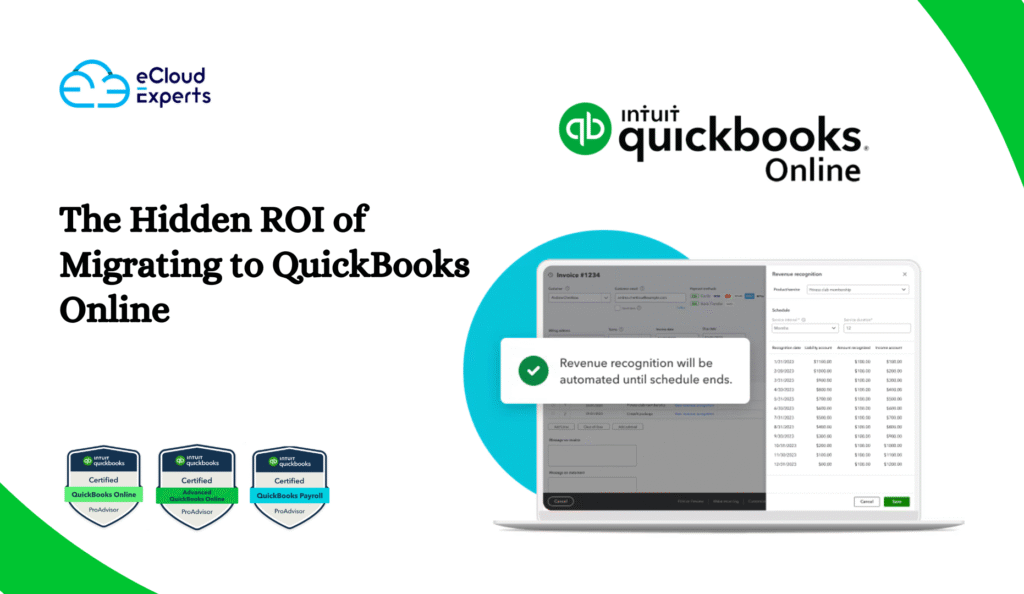
Many businesses move to QuickBooks Online because it feels modern and flexible. But the real value often goes unnoticed. The QuickBooks Online migration ROI comes from time saved, faster reporting, and smoother audits. These hidden benefits matter as much as lower costs. Time is money. Manual data entry, bank reconciliations, and invoice tracking drain hours every week. QuickBooks Online cuts this work with automation and real-time syncing. That gives business owners more time to focus on growth. Real-time reporting is another win. QuickBooks Online offers live dashboards and clear financial snapshots. Decision-making becomes faster and more accurate. Audit readiness also improves. Every record is stored with a clear trail. That builds trust with auditors, lenders, and investors. This blog explores how each of these hidden returns adds up. By the end, you’ll see why the ROI of migrating to QuickBooks Online is stronger than most expect. Time Savings That Boost Productivity Every business owner wants more time in the week. That is one of the first wins when you look at the QuickBooks Online migration ROI. The software removes many of the slow, manual jobs that eat into your day. Bank feeds update in real time. That means no more hours spent typing in transactions. Invoices can be sent in bulk with just a few clicks. Recurring bills can run on autopilot. These features reduce the time spent on data entry and checking. The savings add up quickly. A Forrester study found that companies using QuickBooks Online cut decision time by 16%. They made choices faster because reports were always current and accurate. That is another way the ROI of migrating to QuickBooks Online becomes clear. Fewer hours spent on admin means more hours for sales, customer care, or planning. In simple terms, the time-saving QuickBooks Online migration results in real money saved. Productivity improves without adding more staff. That said, the value is not only in saved hours. It is also in reduced stress. When repetitive tasks are handled by the system, the team feels less pressure. Staff can focus on higher-value work instead of chasing missing receipts. This human benefit is part of the QuickBooks Online migration advantages many businesses overlook. Gain Real-Time Clarity with Reporting Clear numbers give leaders confidence. One of the biggest returns of a QuickBooks Online migration ROI is live financial insight. Unlike old desktop systems, QuickBooks Online updates data instantly. Every bank feed, invoice, and expense shows up in real time. That speed matters. A growing business cannot wait weeks for reports. With QuickBooks Online, dashboards show cash flow, sales, and expenses on demand. Owners can check numbers from a laptop or phone at any moment. Real-time reporting helps teams make faster choices. Should you increase stock? Is it time to hire? The answers are easier when data is always current. Many firms call this the real-time reporting in QuickBooks Online advantage. Collaboration is another gain. Multiple users can log in and view the same reports. Accountants, bookkeepers, and managers no longer send files back and forth. This simple change saves time and cuts errors. The QuickBooks Online benefits also extend to deeper insights. Reports can be customized to focus on profit margins, project costs, or unpaid invoices. That level of detail makes it easier to spot risks early. Decisions are no longer based on guesses but on clear evidence. This level of visibility shows why the ROI of migrating to QuickBooks Online is more than just cost savings. It is about making smarter moves, faster. Enhance Audit Readiness & Data Integrity Audits can feel stressful for any business. One of the hidden wins in the QuickBooks Online migration ROI is how much easier audits become. The system builds an automatic trail of every record. That trail is what auditors and lenders look for. Each invoice, bill, and bank entry links back to its source. There is less risk of missing paperwork. The platform also logs who made changes and when. This creates a full history that supports compliance. Many see this as the audit readiness with QuickBooks Online advantage. Backups add another layer of trust. Data is stored securely in the cloud and updated often. That means no lost files if a laptop crashes. Businesses can restore data without delay. This level of safety is part of the QuickBooks Online migration advantages most people overlook. Accuracy is just as important. After migration, balances and reports can be checked against your old system. This double check confirms that numbers match. It builds confidence in the data and reduces errors later. When audits arrive, reports are ready in minutes. P&L, balance sheets, and tax details can be shared with a click. The result is less stress, less time spent searching, and stronger trust with auditors. These gains are a quiet but powerful part of the ROI of migrating to QuickBooks Online. Quantifying the ROI: Efficiency, Savings, Satisfaction Numbers tell the real story. The QuickBooks Online migration ROI is not only about smoother workflows. It also shows up in cost savings and higher satisfaction. First, there is less need for IT support. QuickBooks Online runs in the cloud. That means no servers to maintain and no software to update. Businesses save money by cutting these hidden costs. Subscription pricing also makes budgeting easier. Second, efficiency grows. A Forrester study found that companies using QuickBooks Online Advanced cut loan interest costs by 50%. Better cash flow tracking meant smarter financing choices. That is a clear sign of the ROI of migrating to QuickBooks Online in action. Third, user satisfaction is high. In surveys, over 80% of businesses that switched recommended QuickBooks Online. They valued the QuickBooks Online benefits like real-time reporting, easier audits, and time saved on admin. The value goes beyond the numbers. Staff enjoy tools that make work easier. Managers trust reports they can see anytime. Owners gain peace of mind knowing their data is safe. These hidden returns make the QuickBooks Online migration advantages worth the effort. When you add up the
How We Help Ecommerce Businesses Move to QuickBooks Online
Running an online store is exciting, but managing the numbers behind it often feels overwhelming. Every sale brings not just revenue but also fees, taxes, shipping costs, and payouts. When those figures don’t match up with what’s in your bank account, it can leave you second-guessing your books. That’s where setting up the right system makes all the difference. Many ecommerce owners start with spreadsheets or simple bookkeeping tools. At first, this works. But as sales grow across Shopify, Amazon, or WooCommerce, the gaps become clear. You spend more time chasing reports than focusing on sales. Mistakes creep in, inventory doesn’t line up, and tax reporting becomes stressful. These are the very pain points we solve by guiding businesses through a professional ecommerce QuickBooks Online setup. The goal is simple: give you clarity, save you hours each week, and make sure your accounts reflect reality. QuickBooks Online is designed with flexibility and integrates with the platforms you already use. The key is knowing how to migrate your data and connect the right apps without losing accuracy. That’s where our team steps in. Whether you’re moving from Shopify to QuickBooks for the first time or upgrading your current system, the process doesn’t have to be messy. We’ve helped ecommerce sellers migrate their accounts, connect integrations like A2X and Synder, and get their numbers working behind the scenes while they focus on growth. In this guide, we’ll walk through why QuickBooks Online has become the go-to for ecommerce, the tools that make integrations smooth, and how our process ensures you don’t fall into the common traps. By the end, you’ll see how your store can finally have books that make sense without extra manual work. Why Ecommerce Businesses Are Switching to QuickBooks Online If you’ve been selling online for a while, you’ve probably noticed how quickly financial tasks pile up. At first, handling a few sales is manageable, but as orders grow across multiple platforms, the numbers start to get messy. Many ecommerce owners reach this breaking point and begin looking for a smarter solution. That’s usually when QuickBooks Online enters the picture. The biggest advantage is visibility. QuickBooks Online lets you see sales, expenses, and profits in one dashboard, instead of chasing different reports from Shopify, Amazon, or WooCommerce. With the right ecommerce QuickBooks Online setup, you can match deposits to payouts, track fees, and stay on top of taxes without digging through spreadsheets. This is something small shops and fast-growing brands alike benefit from. Another reason sellers are moving to QuickBooks is the ecosystem of integrations. Tools like A2X and Synder connect ecommerce platforms directly to QuickBooks Online, making reconciliation far easier. For example, instead of recording every single order manually, these tools summarize sales, fees, and taxes into clean entries that align with your bank deposits. That means no more late nights double-checking numbers or worrying about errors. We’ve seen many store owners who started by moving their data from Shopify to QuickBooks and immediately noticed how much smoother their reporting became. Suddenly, month-end didn’t mean stress and confusion. It meant having confidence in your numbers and knowing that what QuickBooks shows actually matches your sales activity. QuickBooks Online is also cloud-based, which makes it accessible anywhere. Whether you’re traveling, managing a team, or hiring a bookkeeper, everyone can access the same up-to-date data. For ecommerce brands growing fast, this flexibility is a game-changer. The shift to QuickBooks isn’t just about convenience it’s about scaling with confidence. With the right migration process, ecommerce owners can stop worrying about the books and start focusing on growth. And that’s exactly what we help businesses achieve. Choosing the Right QuickBooks Setup for Ecommerce Not all online businesses look the same, and neither do their accounting needs. A small Shopify store selling handmade goods won’t need the same setup as a multi-channel brand running sales through Shopify, Amazon, and WooCommerce. That’s why choosing the right version and structure of QuickBooks Online is one of the most important steps in the migration process. The first decision is between QuickBooks Online and QuickBooks Commerce. For many stores, a simple ecommerce QuickBooks Online setup works perfectly. It lets you track income, manage expenses, and connect integrations that bring in sales data from different platforms. But when a business handles hundreds or thousands of SKUs, QuickBooks Commerce adds advanced inventory and order management that regular QuickBooks Online can’t fully cover. We often guide store owners who are moving from Shopify to QuickBooks through this choice. For example, a growing Shopify brand might find QuickBooks Online more than enough in the early stages. It provides clear financial visibility and supports tools like A2X for clean payout syncing. But if that brand later expands to Amazon and starts dealing with bulk inventory, then QuickBooks Commerce may be the smarter fit. The second part of the setup is mapping your Chart of Accounts. This is where many migrations go wrong. If fees, shipping, and discounts aren’t mapped properly, your reports won’t reflect the real picture. During an ecommerce QuickBooks Online setup, we align categories with how your store operates, making sure sales, taxes, and COGS are tracked accurately. This prevents confusion later when you’re analyzing profitability or preparing tax returns. Integration choices also play a role. Some sellers only need a light connection, while others need detailed order-level syncing. For businesses moving Shopify to QuickBooks, A2X works best for summarizing payouts, while Synder is ideal for multi-channel sellers who want more detail and inventory tracking. Picking the wrong tool can make reconciliation harder instead of easier, so careful selection is key. In the end, the right setup comes down to your store’s size, sales channels, and reporting needs. A setup that’s too basic will leave you patching gaps, while one that’s too advanced can add unnecessary complexity. With expert planning, your QuickBooks system will feel like it was built for your business. Shopify to QuickBooks Migration: What Sellers Need to Know If you run your store on Shopify, you
Top 5 Accounting Platforms We Migrate to QuickBooks Online (And Why Businesses Make the Move in 2025)
Many business owners reach a point where their accounting system starts to hold them back. Reports take too long, the software feels old, or the cost doesn’t match the value anymore. That’s when they begin looking at QuickBooks Online migration as the next step. In 2025, QuickBooks Online has become the go-to choice for growing businesses. It’s cloud-based, simple to use, and works well with banking, payroll, and ecommerce tools. More importantly, it gives owners a clear picture of their numbers at any time, from anywhere. That level of visibility is why so many companies choose to migrate to QuickBooks Online. At eCloud Experts, we handle migrations every day. The five most common platforms we move to QuickBooks Online are Sage, Xero, NetSuite, MYOB, and FreshBooks. Each has its strengths, but many businesses eventually outgrow them or find that QuickBooks offers features that fit their next stage of growth. In this blog, we’ll look at each of these five migrations in detail. We’ll explain why businesses make the switch, what challenges they face during the move, and how our team ensures the transition is accurate and stress-free. By the end, you’ll see why QuickBooks Online continues to be the leading choice for businesses ready to move forward in 2025. Why More Companies Migrate to QuickBooks Online One of the first things business owners notice about older accounting platforms is how limited they can feel. Reports are slow, updates cost extra, and working remotely is often difficult. That’s when many decide it’s time to look for a modern option and consider a QuickBooks Online migration. QuickBooks Online is now one of the most widely used accounting platforms in the world. Here are a few reasons why so many businesses decide to migrate to QuickBooks Online: For many owners, these benefits are enough to justify the move. But every business has its own story, and the reasons to migrate often depend on the platform they are leaving behind. In the next sections, we’ll explore the top five migrations we handle at eCloud Experts: Sage, Xero, NetSuite, MYOB, and FreshBooks. Sage to QuickBooks Online Migration Many businesses start their journey with Sage. It has been around for decades and is trusted by accountants worldwide. But as companies grow, they often find Sage too complex or outdated for daily use. Owners want quick access to reports, flexible integrations, and an easier way to manage finances. That’s when a Sage to QuickBooks Online move becomes the clear choice. One of the biggest reasons businesses leave Sage is cost. Licensing, updates, and support can add up. QuickBooks Online, by contrast, runs on a monthly subscription with updates and backups included. It’s not only easier to budget but also more predictable in the long run. Another common challenge is user experience. Sage works well for trained accountants, but it can be difficult for business owners who just want to see how their company is doing. With QuickBooks Online, dashboards are simple, clean, and designed for non-accountants too. The move itself can raise a few concerns. Sage and QuickBooks Online store information differently. Multi-currency setups, departments, and custom charts of accounts may not transfer directly. That’s where expertise matters. At eCloud Experts, we handle these issues by mapping the data carefully, testing reports, and making sure everything matches before going live. A Sage to QuickBooks Online migration is more than just moving numbers from one system to another. It’s about setting up a system that supports growth, gives owners clear visibility, and reduces the headaches that come with outdated software. Xero to QuickBooks Online Migration Xero has built a strong reputation as a modern cloud accounting tool. Many startups and small businesses love it for its clean design and simple invoicing. But as companies grow, some owners discover that Xero no longer fits their needs. That’s when they start looking at a Xero to QuickBooks Online migration. One reason for the move is advanced reporting. While Xero covers the basics, businesses that need deeper insights or industry-specific reports often find QuickBooks Online more flexible. Another reason is compliance. In regions like the United States, QuickBooks Online handles tax features that Xero doesn’t fully support. For businesses expanding internationally, these details make a big difference. There are also practical reasons. Some teams want stronger integration with banking, payroll, or inventory tools. Others find that accountants and advisors in their area prefer working with QuickBooks, which makes collaboration smoother. The migration itself can be tricky. Moving contact lists, past invoices, payroll data, and VAT records takes careful planning. If it’s not handled properly, there’s a risk of gaps in transaction history or mismatched balances. At eCloud Experts, we prepare by exporting data cleanly from Xero, importing it into QuickBooks Online with custom tools, and reconciling reports line by line. A Xero to QuickBooks Online migration is often about preparing for growth. QuickBooks offers a platform that can handle multiple users, advanced tax setups, and integrations that help businesses scale. For many owners, that’s the step that takes them from a small business tool to a system built for the future. NetSuite to QuickBooks Online Migration NetSuite is known as a powerful enterprise system. Large companies use it for advanced ERP functions, from inventory to global operations. But for many growing businesses, NetSuite can feel overwhelming and too expensive to maintain. That’s when a NetSuite to QuickBooks Online migration starts to make sense. The most common reason owners leave NetSuite is cost. Licenses, custom setups, and ongoing support quickly add up. QuickBooks Online, by contrast, offers a lower monthly fee without hidden extras. For small and medium-sized businesses, this makes budgeting much easier. Another reason is usability. NetSuite is feature-rich, but those features often go unused by businesses that don’t need full ERP functions. QuickBooks Online focuses on the essentials—bookkeeping, invoicing, bank feeds, and reports—in a way that is easier for both owners and accountants to manage. The migration itself can be complex. NetSuite stores huge volumes of data, with
QuickBooks for Accountants: Why Firms Are Moving Clients to the Cloud
The Future of Accounting Is Already Here Accounting firms are under more pressure than ever. Clients want real-time numbers, compliance deadlines are tighter, and the competition is no longer just the firm down the road it’s digital-first companies with nationwide reach. To stay competitive, firms are making one crucial shift: moving clients from desktop-based systems to QuickBooks Online. This isn’t just about keeping up with technology. It’s about giving clients the speed, flexibility, and accuracy they demand while giving firms a platform that makes advisory services more profitable. For accounting firms QuickBooks migration is becoming a strategic necessity, and for CPAs, QuickBooks is quickly becoming the platform of choice. In this article, we’ll explore why firms are leading the charge in moving clients to QuickBooks Online, what benefits it brings to CPAs, and how white-label migration partnerships help firms expand their offerings without adding extra workload. Why Accounting Firms Are Prioritizing QuickBooks Migration A Shift in Client Expectations Clients today expect more than annual tax filings or once-a-quarter updates. They want: Desktop accounting software simply doesn’t meet these demands. With cloud accounting, firms can give clients the same convenience they get from their online banking apps. The End of Desktop Dependence Legacy software like QuickBooks Desktop, Sage, or even Excel still lingers in some firms, but it has limitations. Data backups are manual. Remote work requires workarounds. Updates cost extra. Most importantly—clients are locked out unless they’re on the same network or using clunky file transfers. By contrast, QuickBooks Online updates automatically, offers multi-user access, and integrates with hundreds of apps. For firms, that means less IT hassle and more time delivering value. visit QuickBooks for CPAs: Beyond Bookkeeping Turning Compliance into Advisory For CPAs, QuickBooks has transformed how firms deliver value. Instead of spending hours reconciling outdated spreadsheets, CPAs can focus on: Cloud-based QuickBooks puts accurate data in the hands of both the client and CPA instantly. That shared access makes advisory services faster and more collaborative. Building Stronger Client Relationships In the past, clients dropped off their records at year-end and hoped for the best. Now, CPAs using QuickBooks can check in regularly with up-to-date reports, dashboards, and KPIs. This not only builds trust but makes the accountant indispensable year-round—not just at tax time. Benefits of QuickBooks Migration for Accounting Firms 1. Scalability Without the Growing Pains Whether a firm manages 10 clients or 1,000, QuickBooks scales effortlessly. Adding new clients doesn’t mean adding servers, licenses, or complex IT infrastructure. Every client gets their own secure cloud environment. 2. Real-Time Collaboration Cloud access means no more back-and-forth email attachments or worrying about version control. Both clients and accountants can log in, see the same numbers, and resolve questions instantly. 3. Time Savings on Repetitive Work QuickBooks automates bank feeds, reconciliations, and recurring invoices. This frees up accountants to focus on higher-value services. Firms that embrace automation find they can handle more clients with the same staff. 4. Better Compliance and Audit Readiness With automatic backups, real-time audit trails, and tax-ready reports, compliance becomes less stressful. For firms managing multiple industries, QuickBooks also adapts to specialized needs like construction job costing or eCommerce inventory tracking. 5. Stronger Profit Margins When firms spend less time on manual bookkeeping, they can invest more time into advisory services—services that command higher fees and deeper client loyalty. The Role of White-Label Partnerships in QuickBooks Migration Why Firms Don’t Have to Do It All Themselves Not every firm has in-house expertise to manage QuickBooks migration projects. Moving years of financial data, invoices, payroll history, and tax records requires technical skill and precision. Errors can be costly, both financially and reputationally. That’s where white-label migration specialists come in. By partnering with experts who handle the heavy lifting, firms can offer migration as a seamless service under their own brand. Benefits of White-Label Migration for Firms QuickBooks Migration in Action: A Real-World Scenario Imagine a mid-sized CPA firm with 200 small business clients. Half of them are still on QuickBooks Desktop or even Excel. The firm knows it needs to modernize, but the partners worry about: By partnering with a white-label migration provider, the firm offers clients a “done-for-you” move to QuickBooks Online. The provider handles the technical migration. The firm handles communication, onboarding, and ongoing advisory. The result? The firm adds a new revenue stream, improves client satisfaction, and positions itself as forward-thinking without overloading its staff. Overcoming Client Resistance to QuickBooks Migration Common Concerns from Clients How Firms Can Reassure Clients Accounting firms should highlight the long-term value: faster reporting, easier collaboration, and better compliance. By positioning QuickBooks Online as an investment rather than an expense, firms can guide hesitant clients through the transition. QuickBooks for CPAs: Unlocking New Advisory Opportunities From Data Entry to Strategic Partner QuickBooks reduces the need for manual data entry, freeing CPAs to become trusted advisors. Instead of explaining what happened last quarter, they can forecast what will happen next. Advisory Packages Firms Can Offer on QuickBooks For clients, this kind of proactive advice is priceless. For firms, it’s recurring revenue. Why Now Is the Time for Accounting Firms to Move Clients Competitive Pressure Is Growing Digital-first accounting firms are already leveraging QuickBooks to win clients nationwide. Firms that delay migration risk falling behind. Desktop Support Is Shrinking Software companies are phasing out support for older desktop systems. Updates, compliance patches, and integrations will only get harder. Clients Expect More Value The days of once-a-year accounting are gone. Clients want accountants who understand their business and provide ongoing advice. QuickBooks makes that possible. Partnering for Growth: The White-Label Advantage For firms that want to lead but don’t want to stretch their teams thin, white-label QuickBooks migration partnerships are the answer. How It Works: This model allows firms to scale without hiring, train staff without stress, and maintain the client relationship end-to-end. Conclusion: The Future Belongs to Cloud-Ready Firms For accounting firms QuickBooks migration is no longer optional it’s the path to growth. For CPAs, QuickBooks isn’t just a
Pegasus Opera 3 to QuickBooks Online: Modernising FX and Department-Based Reporting
Why Businesses Are Reconsidering Pegasus Opera 3 For many years, Pegasus Opera 3 was a trusted accounting platform for small and medium-sized businesses. It gave finance teams tools for payroll, accounts, and reporting, all in one system. But as the world has shifted toward cloud-based solutions, Opera 3 has shown its age. Business leaders now face a pressing question: stick with a legacy desktop system or move to something more modern? That’s where Pegasus Opera 3 to QuickBooks Online migration comes in. This shift isn’t just about new software. It’s about rethinking how finance works in today’s global, fast-moving environment. QuickBooks Online has become a leading choice for companies looking for flexibility, automation, and better insights. In particular, two areas stand out—foreign exchange (FX) reporting and department-based reporting. For businesses with international operations and multiple cost centres, moving from Pegasus Opera 3 to QuickBooks Online delivers a level of visibility that legacy systems simply can’t match. Why Companies Outgrow Pegasus Opera 3 The first thing finance leaders notice is that Opera 3 struggles to keep up with modern demands. It was designed for an era where accounting lived on a desktop, not in the cloud. While it served its purpose, many challenges have now become unavoidable: When these pain points add up, finance directors realise the system is holding them back. A Pegasus Opera 3 to QuickBooks Online migration is no longer optional it’s essential to keep pace with competitors that are already in the cloud. Why QuickBooks Online Is the Right Upgrade QuickBooks Online isn’t just accounting software; it’s a financial platform that scales with growing businesses. It’s built for companies that need real-time collaboration, accurate reporting, and flexibility. Here’s why businesses are moving from Pegasus Opera 3 to QuickBooks Online: For businesses managing multiple teams and currencies, this isn’t just an upgrade—it’s a transformation. FX Reporting: From Manual Adjustments to Real-Time Insights Managing multiple currencies in Opera 3 often meant manual adjustments and slow reconciliation. Finance teams had to track exchange rate changes outside the system, leaving room for errors. By contrast, Pegasus Opera 3 to QuickBooks Online migration brings access to advanced FX tools. QuickBooks allows businesses to: This means CFOs can finally rely on their reports without second-guessing the numbers. Department-Based Reporting: Clarity Across Teams Another reason businesses choose Pegasus Opera 3 to QuickBooks Online is for department-based reporting. Opera 3 offered basic departmental views, but the lack of flexibility meant exporting to spreadsheets became routine. QuickBooks Online changes this by letting businesses: Instead of waiting weeks for reports, leaders can access live insights whenever they need them. That’s a major advantage in a world where agility defines success. The Migration Journey Explained At first glance, moving systems may sound overwhelming. But a Pegasus Opera 3 to QuickBooks Online migration follows a structured process when handled by experts. Typical steps include: Handled properly, migration doesn’t disrupt business—it positions finance teams to work smarter almost immediately. What Changes After Migration? Businesses that complete a Pegasus Opera 3 to QuickBooks Online migration quickly notice the difference. Improvements often include: This shift isn’t just about accounting software—it transforms how finance supports the wider business. Case Study: From Delays to Real-Time Visibility Consider a UK-based wholesaler trading in GBP, USD, and EUR with sales, operations, and procurement departments. On Pegasus Opera 3, reporting lagged behind reality. Department managers received reports weeks late, and FX adjustments were always retrospective. After moving from Pegasus Opera 3 to QuickBooks Online, the business: This type of transformation is why more finance leaders are championing migration projects. Common Concerns About Migration Despite the benefits, some leaders hesitate to move. Common concerns include: With an experienced partner, these worries are quickly addressed. At eCloud Experts, we ensure all data is carried across, downtime is minimal, and training is built into the process. Training and Support Make It Work Even the best software only delivers results if people use it confidently. That’s why a successful Pegasus Opera 3 to QuickBooks Online migration includes training. Typical training covers: This means finance teams not only adopt the system but also harness its full potential. Why Choose eCloud Experts? Not every migration partner understands both Pegasus Opera 3 and QuickBooks Online. That’s where eCloud Experts stands out. We specialise in Pegasus Opera 3 to QuickBooks Online migration and have guided businesses through hundreds of successful transitions. What we bring to the table: We don’t just move your data—we modernise your finance function. Beyond Migration: Future-Proofing Finance The shift from Pegasus Opera 3 to QuickBooks Online isn’t only about today’s needs. It’s also about preparing for the future. With QuickBooks Online, businesses can: This future-proofing makes the migration an investment, not just an upgrade. Final Thoughts: Time to Act Pegasus Opera 3 served its purpose, but in today’s world, it limits more than it helps. Businesses that continue relying on it will face growing inefficiencies in FX and department reporting. Migrating from Pegasus Opera 3 to QuickBooks Online offers a proven way forward. It brings accuracy, agility, and scalability—all vital for modern finance teams. The decision isn’t about whether to move. It’s about how quickly you want to unlock the benefits. And with the right partner, the transition is smoother than most businesses expect. Call to Action At eCloud Experts, we’ve helped countless organisations move from Pegasus Opera 3 to QuickBooks Online successfully. If you’re ready to modernise your financial reporting, improve FX accuracy, and empower departments with real-time data, now is the time. Book your free consultation with eCloud Experts today and let us show you how a migration can transform your finance function.
SAP Business One to QBO Advanced: Migrating ERP Data Without Losing Integrity
Moving from an ERP system like SAP Business One to QBO Advanced is more than a software upgrade — it’s a critical business decision that can shape your operations for years to come. While QuickBooks Online Advanced offers greater flexibility, lower running costs, and powerful cloud-based features, many businesses hesitate to make the move. The biggest fear? Losing data integrity during migration. ERP data isn’t just numbers and names it’s the complete record of your financial health, operational workflows, customer history, and compliance trail. A single mismatch, missing transaction, or formatting error can throw off reports, affect decision-making, and trigger compliance issues. That’s why a structured, methodical migration plan is essential to ensure every record arrives in QBO Advanced intact and accurate. At eCloud Experts, we’ve helped countless businesses transition from SAP Business One to QBO Advanced without losing a single piece of essential data. In this guide, we’ll walk through why companies are making the switch, the challenges that can arise, and the proven strategies for keeping your ERP data clean, accurate, and audit-ready. Why Businesses Move from SAP Business One to QBO Advanced For many growing businesses, SAP Business One has been a reliable ERP solution. It offers robust functionality, but it’s also complex, resource-heavy, and often more than what a mid-sized company needs on a daily basis. Over time, the demands of maintaining SAP along with rising licensing and infrastructure costs lead business leaders to explore alternatives. QuickBooks Online Advanced (QBO Advanced) has become one of the most popular destinations for companies outgrowing SAP Business One but still requiring strong reporting, automation, and integrations. It’s a cloud-based platform that delivers: The migration from SAP Business One to QBO Advanced isn’t about losing functionality — it’s about gaining flexibility and operational agility. But to unlock those benefits, the transition must be carefully managed so the integrity of your financial and operational data is never compromised. The Risks of Losing Data Integrity During Migration Migrating from SAP Business One to QBO Advanced can unlock major efficiency gains, but the process carries significant risks if not handled correctly. ERP data is interconnected a single mismatch in one area can create a ripple effect across your entire accounting system. Here are some of the most common integrity challenges businesses face during migration: The key challenge is that SAP and QBO Advanced use different data structures. SAP stores information in complex, relational databases, while QuickBooks uses a more simplified accounting model. Without expert mapping, critical links between customers, vendors, and transactions can break, causing major reporting errors. At eCloud Experts, we’ve seen businesses lose months of financial clarity because of poorly executed migrations. The cost isn’t just in fixing the errors it’s in lost productivity, delayed reporting, and compliance headaches. That’s why every step of your SAP Business One to QBO Advanced migration must be designed with data integrity as the highest priority. Preparing for Your SAP to QBO Advanced Migration The success of your SAP Business One to QBO Advanced migration often depends on the preparation you do before the first file is moved. Skipping this stage can lead to incomplete transfers, mismatched balances, and costly rework later. Here’s how to set the foundation for a smooth transition: 1. Back Up Your SAP Data Before making any changes, create a complete backup of your SAP Business One database. This ensures you have a safe restore point if anything goes wrong during the migration. 2. Review and Clean Your Data Old or unused records, such as inactive vendors or outdated product codes, should be archived or removed. The cleaner your source data, the easier it is to ensure accuracy in QBO Advanced. 3. Audit Your Chart of Accounts Align your SAP chart of accounts with the structure you’ll use in QuickBooks. This step avoids unnecessary complexity and makes your reporting more intuitive in the new system. 4. Decide What to Migrate Not every business needs its full history transferred. Some opt for opening balances only, while others bring over all historical transactions. The choice depends on compliance requirements, audit needs, and operational preferences. 5. Identify Special Data Requirements Multi-currency accounts, VAT data, or custom fields in SAP often need special handling. These should be flagged early so your migration team can prepare accurate mapping. By investing the time to prepare, you dramatically reduce the risk of data loss, mismatched balances, and compliance issues. This step also makes the actual migration to QBO Advanced faster and more predictable. Key Data That Needs Careful Handling Not all data is created equal when migrating from SAP Business One to QBO Advanced. Some records are more complex, tightly linked, or subject to compliance rules meaning they require extra care during extraction, mapping, and import. Below are the critical data types that demand the most attention: 1. Financial Transactions Invoices, bills, credit notes, journal entries, and payments form the backbone of your accounting records. Any loss or duplication here will distort your financial statements. 2. Customer and Vendor Records Contact information, account histories, and outstanding balances need to be transferred in full to maintain smooth relationships and accurate collections/payments. 3. Inventory Items and Stock Levels If you manage inventory in SAP, stock quantities, valuations, and item details must be migrated accurately to prevent fulfilment and costing errors in QBO Advanced. 4. Tax and VAT Data VAT rates, tax codes, and historical tax reporting need careful mapping to QuickBooks’ tax settings to avoid filing mistakes. 5. Multi-Currency Transactions If your business trades internationally, currency conversions and historical exchange rates must be preserved for accurate reporting and compliance. 6. Custom Fields and Notes Many SAP systems store important operational details in custom fields. These may need special mapping or manual handling during migration. Losing or corrupting any of these data categories can lead to operational disruption and financial inaccuracy. At eCloud Experts, we create detailed data mapping blueprints to ensure each element transfers correctly when moving from SAP Business One to QBO Advanced. How eCloud Experts Preserves Data
Microsoft Dynamics 365 Business Central to QuickBooks Online Migration
Make the Switch Without Losing Your Data, Your Sanity, or Your Sense of Humor. Switching accounting software is a bit like moving house. You know it’s going to be better once you’re settled in… but right now, you’re staring at boxes (or in this case, databases), wondering where to start. If you’re currently using Microsoft Dynamics 365 Business Central and are thinking of moving to QuickBooks Online, you’re not alone. Many growing businesses are making this leap for simpler workflows, easier batch invoicing, smarter department tracking, and automation features that don’t require a team of developers to set up. In this guide, we’ll walk you through exactly how to move from Dynamics 365 Business Central to QuickBooks Online — what data can be migrated, how to handle department-level reports, and how to set up batch invoicing and workflow automations that actually make your life easier. And yes, we’ll keep it practical, clear, and maybe even a little fun. Because migrating your accounting software shouldn’t feel like reading a tax manual. Pro tip: By the time you finish this guide, you’ll know exactly how to make the switch, avoid the common pitfalls, and set up QuickBooks Online so it works for your business — not the other way around. Why Businesses Are Migrating from Microsoft Dynamics 365 Business Central to QuickBooks Online Ever feel like you’re paying for a luxury gym membership but only using the treadmill? That’s how some companies describe their experience with Microsoft Dynamics 365 Business Central. It’s a powerful system, but unless you’re making full use of every module, you might be spending more than you need — in both time and money. That’s where QuickBooks Online comes in. For many growing businesses, the switch offers: And here’s the thing: migrating isn’t just about “saving money” or “simplifying.” It’s about freeing up your finance team to focus on analysis, planning, and strategy instead of wrestling with menus and system settings. Playful thought: If accounting software were shoes, Business Central might be a pair of high-tech hiking boots sturdy, feature-packed, but heavy for daily wear. QuickBooks Online? That’s your favorite pair of trainers easy, comfortable, and ready to go. Understanding the Microsoft Dynamics 365 Business Central to QuickBooks Online Migration Process If you’ve ever tried baking a cake without a recipe, you know how messy things can get. Migrating from Microsoft Dynamics 365 Business Central to QuickBooks Online without a clear process is exactly like that except instead of flour on the counter, you end up with missing invoices, duplicate contacts, and reports that don’t add up. To keep things clean and accurate, here’s the process migration experts follow: 1. Pre-Migration Data Review Before touching a single export button, you’ll want to: Tip: Migrating “messy” data just means you’ll have messy books in QuickBooks too. Think of this as spring cleaning before the move. 2. Choose Your Migration Method You have three main options: Playful note: Doing this manually is like moving furniture without a moving truck — possible, but you’ll feel it in your back. 3. Data Mapping & Conversion QuickBooks and Business Central don’t speak exactly the same “language.” 4. Test Migration Run a small test migration with a sample of your data. 5. Final Migration & Go-Live Thinking of making the switch? Our migration experts can handle every step — so you get QuickBooks Online set up exactly the way you want, without the headaches. Key Data You Can Transfer from Dynamics 365 Business Central to QuickBooks Online One of the first questions businesses ask before migrating is: “Will all my data make it over?” The short answer? Mostly, yes — but with a few rules. Think of it like packing for a flight: most items can be taken, some require special handling, and a few are better left behind. Here’s what you can typically bring along: 1. Customers, Vendors, and Contacts 2. Chart of Accounts 3. Open Invoices and Bills 4. Product and Service Items 5. Departmental Data (Mapped as Classes) 6. Recent Transaction History What Might Not Transfer Automatically Pro tip: A good migration partner will map and test your data before the final switch so there are no surprises when you open QuickBooks Online for the first time. Preserving Department-Level Data During Migration If you’ve spent years fine-tuning your departmental reports in Business Central, the last thing you want is to lose that structure in the move. Good news — you don’t have to. QuickBooks Online can keep your department-level insights alive and well. How Departments Translate in QuickBooks Online In Microsoft Dynamics 365 Business Central, you have departments as a built-in tracking dimension. In QuickBooks Online, the equivalent feature is called classes. Think of it like changing street names — the houses are still there, they’re just on a road with a different name. Steps to Preserve Department Data During Migration Why This Matters Your finance team might not cheer for every migration step… but when they see their department reports survive the switch, you might just catch them smiling into their coffee. Setting Up Batch Invoicing in QuickBooks Online After Migration If your team sends invoices one by one, you know the pain — it’s like mailing Christmas cards individually instead of dropping the whole stack in the post. After your Microsoft Dynamics 365 Business Central to QuickBooks Online migration, batch invoicing can be your new favorite timesaver. What Batch Invoicing Is (and Why It’s a Game-Changer) Batch invoicing lets you create and send multiple invoices at once. Instead of opening each customer record, typing the details, and sending them one by one, you: In QuickBooks Online, this is especially handy for: How It Works in QuickBooks vs Business Central Step-by-Step: Creating a Batch Invoice in QuickBooks Online Pro Tips for Batch Invoicing Post-Migration Once you’ve batch-invoiced in QuickBooks Online, you might wonder how you ever had the patience to do it the old way. Leveraging Workflow Automations in QuickBooks Online Imagine if your accounting software could send invoices,
NetSuite to QuickBooks Online Advanced Migration Keep Your Global Data Intact
Switching accounting platforms isn’t just about changing software it’s about protecting years of hard-earned financial history. For companies operating in multiple countries, the decision to move from NetSuite to QuickBooks Online Advanced often comes with one major concern: Will we lose our global FX records, tax codes, and detailed entity-level reports? At eCloud Experts, we specialise in NetSuite to QuickBooks Online Advanced migration projects that preserve every layer of your data from 5–10 years of historical transactions to original exchange rates and jurisdiction-specific tax mappings. Whether you’re a global retail chain, a multinational service provider, or a growing enterprise with subsidiaries across continents, our process ensures nothing is left behind. Our clients choose us because we don’t just move your numbers we replicate your financial environment inside QuickBooks Advanced so it works exactly as you need it to, from day one. That means your multi-currency invoices still show original FX rates, your VAT/GST/Sales Tax reports remain accurate, and your consolidated profit and loss statements match perfectly with your legacy NetSuite reports. Why Businesses Are Choosing NetSuite to QuickBooks Online Advanced Migration Over the last few years, the NetSuite to QuickBooks Online Advanced migration trend has gained serious momentum among mid-sized and global businesses. While NetSuite offers robust ERP capabilities, many companies eventually find it too expensive, too complex, or too rigid for their evolving needs. QuickBooks Online Advanced, on the other hand, delivers the enterprise-level functionality they want without the ERP-level costs or IT overhead. One of the biggest draws is simplicity with power. QuickBooks Online Advanced allows businesses to keep multi-entity reporting, multi-currency transactions, and advanced automation, all in a more intuitive and accessible interface. This makes the NetSuite to QuickBooks Online Advanced migration not just a cost-saving move, but a strategic upgrade in operational agility. Companies making this switch are typically looking for: For organisations that operate across borders and industries, moving from NetSuite to QuickBooks Online Advanced can be the smart way to keep sophistication without overcomplications. The Core Challenges in NetSuite to QuickBooks Online Advanced Migration A NetSuite to QuickBooks Online Advanced migration may seem straightforward at first glance, but the reality is far more complex. Moving financial data from one system to another is never a simple export/import process — especially when your business operates globally. The first challenge is data structure differences. NetSuite and QuickBooks Online Advanced organise transactions, tax codes, and reporting fields differently. Without careful mapping, balances may not align, or critical fields like customer names, product codes, and payment terms may be mismatched. Another major obstacle is multi-currency accuracy. If your organisation deals in multiple currencies, losing original exchange rates during a NetSuite to QuickBooks Online Advanced migration can cause historical reports to become inaccurate, which in turn can lead to compliance issues. Tax compliance presents its own set of risks. Each jurisdiction may have unique VAT, GST, or sales tax codes in NetSuite that don’t have a direct match in QuickBooks. Without precise tax code mapping during your NetSuite to QuickBooks Online Advanced migration, your reports could be incomplete or misleading. And finally, there’s the issue of entity-level reporting. NetSuite’s multi-subsidiary setup is highly detailed, and replicating that same clarity in QuickBooks Advanced requires careful configuration of classes, locations, and reporting tags. If done wrong, you could lose the ability to view accurate consolidated statements for your organisation. How We Preserve Global FX Data During Migration When conducting a NetSuite to QuickBooks Online Advanced migration, one of the most critical aspects for global businesses is preserving accurate foreign exchange (FX) history. Many migration providers overlook this detail, leading to incorrect historical profit and loss reports, currency revaluation discrepancies, and even failed audits. At eCloud Experts, we take a meticulous approach to FX retention. During every NetSuite to QuickBooks Online Advanced migration, we extract transaction-level exchange rates directly from NetSuite’s database. This ensures that each invoice, bill, payment, and journal entry in QuickBooks Advanced reflects the exact historical rate from the original transaction date. Why is this so important? Imagine running a year-end report for 2019 and finding that your foreign sales figures no longer match your audited statements. Without original FX rates in place, that’s exactly what can happen. Our process prevents these discrepancies by validating imported currency values against your original NetSuite reports. This level of accuracy is especially vital for businesses with multi-entity, multi-currency operations. It ensures consistency across global financial records, making post-migration audits smooth and stress-free. That’s why every NetSuite to QuickBooks Online Advanced migration we handle comes with a currency accuracy guarantee. Mapping and Retaining Tax Codes Tax compliance can be one of the most challenging aspects of a NetSuite to QuickBooks Online Advanced migration, especially for businesses operating across multiple tax jurisdictions. NetSuite often contains years of VAT, GST, sales tax, and custom regional tax codes each with its own historical rates. Without accurate migration, these can easily be lost or mismatched. During every NetSuite to QuickBooks Online Advanced migration we manage, our team performs a detailed tax code audit before the data even leaves NetSuite. This process involves identifying every tax code in use, reviewing historical rates, and mapping them to QuickBooks Advanced equivalents. If QuickBooks doesn’t have a direct match, we create a custom tax setup to ensure reporting accuracy. The advantage of this approach is that your compliance remains intact. When you run a historical VAT return from QuickBooks Advanced after your NetSuite to QuickBooks Online Advanced migration, it matches exactly with your NetSuite figures line for line, code for code. This precision is especially critical for businesses that are subject to frequent audits or regulatory reporting. A single missing tax record can lead to costly disputes with tax authorities. That’s why we don’t just migrate your tax codes — we validate them for both historical and ongoing compliance. Entity-Level Reporting in QuickBooks Online Advanced One of the main concerns for multi-entity organisations considering a NetSuite to QuickBooks Online Advanced migration is whether they can keep the same level of