
Comparing Xero and QuickBooks Online: Which is Best for Your Business in 2025?
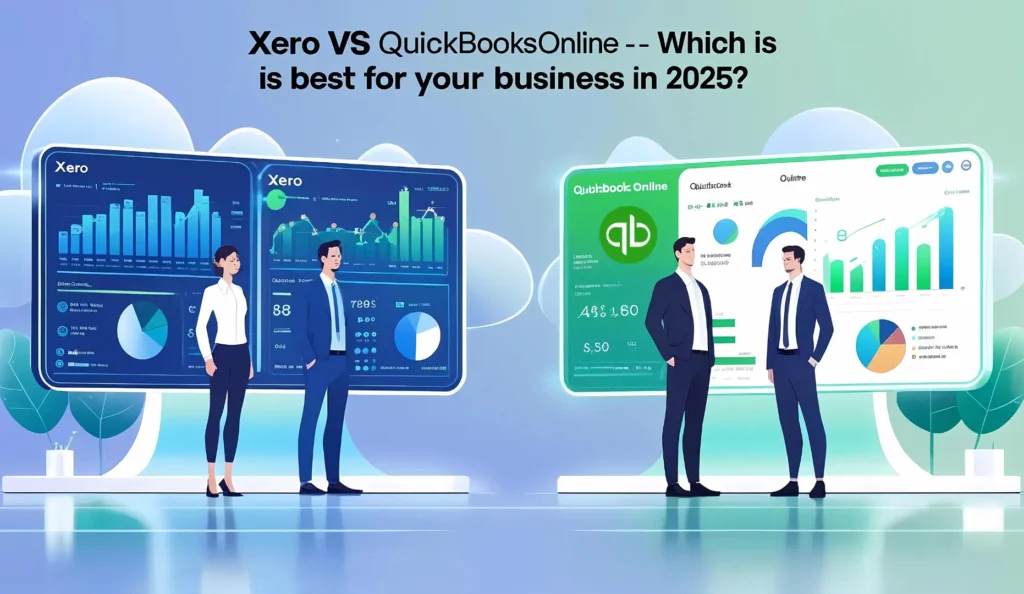
In today’s fast-paced, cloud-driven world, choosing the right accounting software can either streamline your business operations or create a bottleneck. Two of the most widely used cloud accounting platforms are Xero and QuickBooks Online (QBO) both powerful, feature-rich tools designed for small to medium-sized businesses. But when it comes to Xero vs QuickBooks Online, which one should you choose for your business in 2025? This in-depth comparison will guide you through the features, pricing, ease of use, integrations, support, pros and cons, and more so you can confidently make the right decision for your business. High-Level Overview: Xero and QuickBooks Online What is Xero? Xero is a New Zealand-based cloud accounting software designed for small to mid-sized businesses. It provides real-time financial data, intuitive dashboards, and an easy-to-navigate interface with powerful features like bank reconciliation, invoicing, expense management, and payroll (in select regions). What is QuickBooks Online? QuickBooks Online (QBO) is Intuit’s cloud-based version of its desktop accounting software. Built for businesses of all sizes, QBO offers robust accounting features, automation, and deep integration with Intuit’s broader ecosystem—especially in North America. Quick Snapshot: Xero vs QuickBooks Online Feature Xero QuickBooks Online Ease of Use Intuitive, clean UI User-friendly, more features on dashboard Payroll Integrated in some countries Integrated for US, third-party for others Bank Reconciliation Excellent, fast learning curve Excellent with automation Reporting Customizable, visual More pre-built templates Multi-Currency Support Yes (from Standard plan) Yes (only on Plus or Advanced) Pricing Flat-tiered Tiered, slightly more expensive Mobile App Powerful and user-friendly Highly functional, slightly better UX Best For Global businesses, accountants, startups US-based businesses, freelancers, larger SMEs 1. Core Features Comparison Invoicing Verdict: QuickBooks Online offers slightly better automation for invoicing, but Xero’s layout is cleaner and faster for quick edits. Bank Feeds and Reconciliation Verdict: Both are industry leaders in bank reconciliation, but Xero gets a slight edge for speed and simplicity. Reporting and Dashboards Verdict: QuickBooks Online offers better out-of-the-box reports, while Xero shines with customization and simplicity. Multi-Currency Support Verdict: Xero makes multi-currency more accessible and affordable, ideal for international businesses. 2. Ease of Use & User Interface Both platforms offer modern, cloud-based experiences, but with different styles. Verdict: Xero wins for beginners and accountants who prefer clarity, while QBO is preferred by users who need depth. 3. Pricing and Plans (as of 2025) Xero Pricing (UK/AU-based model, varies by region): QuickBooks Online Pricing (US-based model): Verdict: Xero provides better value at each pricing tier, especially for international businesses. 4. Integrations and Ecosystem Verdict: Xero has a more open integration ecosystem, but QBO’s connections are better for US-based businesses. 5. Customer Support and Resources Verdict: QuickBooks Online provides better hands-on support, but Xero’s self-service model is effective for tech-savvy users. 6. Regional Suitability Region Best Option United States QuickBooks Online (US-centric features) United Kingdom Xero (popular among accountants) Australia/NZ Xero (local support, compliance) Global Xero (multi-currency, global reach) 7. Learning Curve and User Roles Verdict: Xero is easier to learn, but QBO is more powerful once mastered. 8. Pros and Cons Pros of Xero: Clean, modern interface Unlimited users on all plans Better multi-currency support Open global integration network Easy bank reconciliation Cons of Xero: No built-in phone support Payroll limited outside UK, AU Starter plan is too limited Pros of QuickBooks Online: Built-in payroll for US users Unlimited users on all plans Robust reporting and automation Open global integration network In-product support and phone assistance Intuit ecosystem is seamless Cons of QuickBooks Online: Higher cost at scale User limits per plan Feature overload for beginners 9. Xero or QuickBooks Online for Small Business? Choose Xero if: Choose QuickBooks Online if: Final Verdict: Xero vs QuickBooks Online – Which is Best in 2025? There’s no one-size-fits-all winner Xero and QuickBooks Online are both leading accounting software solutions in 2025. If you’re a startup, global company, or need ease of use, Xero may be your best bet. If you’re a US-based company looking for robust features and support, QuickBooks Online might be the right choice. At the end of the day, the best accounting software is the one that fits your workflow, region, team, and growth plans. Need Help Choosing or Migrating? At eCloud Experts, we specialize in Xero setup, QuickBooks migrations, and accounting system health checks. Whether you’re switching from Excel, Sage, or QuickBooks Desktop, our certified advisors will guide you through a smooth transition. Book a free discovery call with our expert advisors today.
Access Dimensions to QuickBooks Online: Complete Migration Guide
Why Businesses Are Switching from Access Dimensions Access Dimensions has served as a go-to accounting solution for many years. But as business needs change, more companies are turning to modern cloud-based systems like QuickBooks Online. Access Dimensions is a desktop-based platform, and while it offers a wide range of financial features, it often requires a lot of manual work, IT support, and complicated navigation. In contrast, QuickBooks Online offers accessibility, automation, and real-time updates. Business owners and finance teams can log in from any location, track their financials instantly, and collaborate with their accountants in real time. This isn’t just about convenience it’s about giving businesses better control over their financial data. For startups, SMEs, and accounting firms managing multiple clients, QuickBooks Online offers flexibility and efficiency. It’s easier to learn, requires less maintenance, and integrates with many other business tools. The shift from Access Dimensions to QuickBooks Online is more than a tech upgrade; it’s a practical decision for long-term growth. What You Gain from Migrating to QuickBooks Online If you’re still using Access Dimensions, you may already be experiencing limitations in collaboration, remote access, or integration with other systems. QuickBooks Online addresses these pain points with a more connected and user-friendly experience. Here’s what you’ll benefit from: In short, making the move can help your team spend less time managing software and more time focusing on business operations. Step-by-Step Guide: How to Migrate from Access Dimensions to QuickBooks Online Migrating your accounting system might sound overwhelming, but it doesn’t have to be. At eCloud Experts, we break down the entire process into clear steps, ensuring you understand what’s happening at each stage. Step 1: Initial Discovery Call Before anything moves, we set up a discovery call with you. This isn’t a sales pitch—it’s a conversation where we understand: This helps us figure out the best way to move your data, and what your QuickBooks setup should look like. Step 2: Data Review and Pre-Migration Checklist We review your Access Dimensions data carefully. This includes: Our team checks the quality and format of this data to ensure it’s suitable for import into QuickBooks. If there are any gaps or inconsistencies, we address them before proceeding. Step 3: Mapping Your Data QuickBooks has a different structure from Access Dimensions, so we map your old data fields to the new format. This step is crucial to ensure your financial reports stay consistent after migration. We take care of aligning your account codes, VAT settings, invoice numbers, and more. This allows your reports in QuickBooks to reflect accurate balances and transaction histories. Step 4: Migration of Historical and Live Data Depending on your needs, we can migrate just the opening balances or include full historical data (such as the past 1-3 years of transactions). Many clients prefer to carry over full history so they can generate reports within QuickBooks without going back to the old system. We use a combination of tools and manual checks to ensure the data is moved correctly. Each part of the migration is verified, and we don’t proceed to the next stage until everything is reviewed. Step 5: Post-Migration Checks Once the data has been transferred, we double-check the following: We compare reports from Access Dimensions with those in QuickBooks Online to confirm accuracy. Step 6: Custom Setup in QuickBooks We don’t just move your data we also help set up your QuickBooks account in a way that fits your business. This includes: Step 7: Training and Support Once everything is live, we provide training for you and your team. You’ll learn how to: Our support doesn’t end at go-live. We offer ongoing assistance by the hour or through monthly support plans. Real-World Example: A Migration Success Story Case Study: SME Retailer with Complex Reporting Needs One of our clients, a medium-sized retailer using Access Dimensions for over 8 years, approached us after facing recurring IT costs and limitations in remote access. Their finance team wanted to switch to a more modern platform without losing past data. We conducted a detailed migration that included 3 years of transaction history, multi-currency support, and VAT reports. After moving to QuickBooks Online, their finance team reported: They now use QuickBooks daily and haven’t looked back. FAQs About Migrating from Access Dimensions to QuickBooks Can I migrate everything from Access Dimensions? Yes. We can move over your full data history or just your opening balances, depending on your needs. This includes invoices, bills, chart of accounts, VAT settings, and more. Is QuickBooks Online secure? QuickBooks uses bank-level security and automatic backups to protect your financial data. Only users with permissions can access sensitive information. How long does the migration take? Most migrations are completed in 1 to 2 weeks. Complex migrations may take a bit longer, but we keep you updated throughout the process. Will I receive training? Yes. We offer 1:1 and group training sessions, tailored to your team’s experience level. What if I need help later on? Our support team is always here. Whether you need monthly help, a one-off fix, or advice on using new QuickBooks features, we’ve got you covered. Why Choose eCloud Experts for Your Migration Final Thoughts Moving from Access Dimensions to QuickBooks Online can feel like a big step, but it’s one that pays off in more flexibility, better insights, and a system that works with you instead of against you. With the right support and planning, the move can set your business up for future success. At eCloud Experts, we’re here to help every step of the way from planning to training and beyond. Book your free discovery call today. Let’s talk about your current setup and how we can help you move to a better way of working with QuickBooks Online. Summary Table: Access Dimensions vs. QuickBooks Online Feature Access Dimensions QuickBooks Online Access Type Desktop-based Cloud-based User Access Single-location Multiple users, anywhere access Reporting Manual Real-time, automated Integrations Limited 700+ business apps User Interface Complex Simple and intuitive Updates Manual
FreeAgent to Xero Migration: What You Need to Know
Are you feeling stuck with FreeAgent? You’re not alone. Thousands of UK businesses are making the switch to Xero every year to enjoy more flexibility, better reporting, and seamless integrations. Whether you’re a freelancer, small business owner, or an accountant managing multiple clients, switching from FreeAgent to Xero can open the door to a world of enhanced functionality and cloud-based convenience. But if you’re wondering how to migrate FreeAgent to Xero without stress or data loss, you’re in the right place. This comprehensive FreeAgent to Xero migration guide walks you through the why, how, and what to watch out for during the transition process. By the end of this article, you’ll have all the information you need to make an informed, confident FreeAgent to Xero switch. Why Businesses Are Choosing to Switch from FreeAgent to Xero The accounting software landscape is evolving, and with it, business needs. Choosing the right platform is more than just a technical upgrade it’s a strategic business move. Many businesses are transitioning from FreeAgent to Xero to take advantage of deeper financial insights, enhanced scalability, and better connectivity across tools and platforms. 1. Advanced Reporting Features While FreeAgent is user-friendly, it lacks the depth of financial reporting that Xero offers. Xero provides more robust and customisable reports, enabling clearer visibility into profit margins, expenses, cash flow forecasts, and much more. This is especially valuable for accountants, bookkeepers, and growing businesses needing tailored insights. 2. App Ecosystem & Integrations Xero’s rich ecosystem supports over 1,000 third-party applications, making it easier for businesses to connect tools they already use. Whether it’s eCommerce (Shopify), payments (Stripe), marketing (HubSpot), or payroll services, Xero seamlessly integrates with a wide variety of software. 3. User Experience & Interface Xero’s clean and intuitive interface makes day-to-day accounting more accessible. Features such as dashboard widgets, customisable layouts, and drag-and-drop uploads reduce manual effort and improve usability. 4. Multi-Currency & Global Scalability Unlike FreeAgent, Xero supports multi-currency functionality, making it ideal for businesses trading internationally. Exchange rates update in real time, ensuring financial accuracy. 5. Cloud Accounting Migration Made Easy Cloud accounting isn’t just about working remotely. It’s about collaboration, real-time access to financials, and the ability to manage your business from any device. Xero is optimised for this, helping business owners stay connected and make decisions faster. Planning Your FreeAgent to Xero Migration Migrating from one accounting software to another isn’t a decision you should take lightly. Preparation is essential to ensure a smooth, disruption-free transition. Let’s look at how to plan your FreeAgent to Xero migration properly. 1. Assess Your Current FreeAgent Data Begin by identifying the core data you’ll need to migrate. This includes contacts, invoices, bank transactions, expense records, VAT returns, and payroll data. Make a list of essential reports and documents that will be referenced after the switch. 2. Set a Migration Date Choosing the right time to migrate is crucial. Ideally, plan the migration at the end of a VAT quarter, fiscal year, or a low-activity period. This reduces complications when reconciling balances or finalising tax reports. 3. Notify Stakeholders Ensure everyone involved—bookkeepers, accountants, team members—are aware of the migration plan. Their input can help prevent data loss and improve post-migration accuracy. 4. Choose a Professional Migration Service While it’s possible to perform the migration yourself, using a specialist provider like eCloud Experts ensures a smooth and accurate transfer. We handle everything from data cleaning to system configuration and post-migration support. Step-by-Step: How to Migrate FreeAgent to Xero Migrating from FreeAgent to Xero involves several key steps, each crucial to maintaining data integrity and ensuring financial continuity. Step 1: Export Data from FreeAgent Using FreeAgent’s export tools, download the necessary data: Step 2: Clean and Organise Your Data Before importing into Xero, review and clean your data. Remove outdated contacts, standardise naming conventions, and ensure the chart of accounts aligns with Xero’s structure. Step 3: Set Up Xero Set up your Xero organisation by configuring: Step 4: Import Your Data into Xero Using Xero’s import templates or migration tools, upload your data. For a full-service experience, your migration partner will handle bulk imports, custom mappings, and reconciliation. Step 5: Reconcile and Validate After import, validate that all balances are correct. Run trial balances, review aged receivables/payables, and ensure that VAT and bank reconciliations match historical records. What Data Can Be Migrated? Not all data types from FreeAgent have a one-to-one mapping in Xero. Below is an overview of what you can typically migrate: Data Type Migratable? Chart of Accounts Yes Contacts Yes Bank Transactions Yes Sales Invoices Yes Purchase Bills Yes Payroll Data Limited VAT Schemes Yes Projects No Time Tracking No Projects and time tracking often require manual entry or the use of a dedicated app post-migration. Common Challenges in FreeAgent to Xero Switch Switching accounting platforms comes with challenges, but knowing them in advance helps you prepare. 1. Data Formatting Issues Each platform has its own format requirements. Ensure your CSV files match Xero’s import templates. Errors in columns or data types can cause rejections. 2. Historical Data Gaps Certain elements like notes, attachments, or specific user-defined fields may not migrate automatically. Consider exporting and archiving these separately. 3. Bank Feed Set-Up Delays New bank feeds in Xero may take 1–5 days to activate, depending on your bank. During this time, use manual uploads to maintain accurate reconciliation. 4. VAT Return Reconciliation Make sure to file your last VAT return in FreeAgent and note your closing VAT position. Set the correct VAT scheme in Xero to avoid duplicate submissions. Why Use eCloud Experts for Your FreeAgent to Xero Migration? Migrating with eCloud Experts gives you: Our team ensures every FreeAgent to Xero migration is secure, timely, and aligned with best practices. Post-Migration Checklist Once migration is complete, follow this checklist to get up and running on Xero efficiently: Real-World Example: How a Small Consultancy Transformed Its Accounting James runs a small consulting firm in Manchester. He found FreeAgent increasingly limiting as his client base grew.
FreshBooks to Xero: Simplifying Your Accounting Transition
If you’re feeling stuck with FreshBooks and wondering whether switching to Xero is the right move, you’re not alone. Many businesses today are re-evaluating their accounting tools, not because FreshBooks is bad but because their business needs have grown. When things get complex, you need software that gives you more control, flexibility, and scalability. That’s where Xero comes in. At eCloud Experts, we specialize in helping businesses migrate from FreshBooks to Xero without losing valuable data or getting caught in technical confusion. In this blog, we’ll break down everything you need to know about the FreshBooks to Xero migration process, including the benefits, what to expect, and how we make it easier. Why Businesses Move from FreshBooks to Xero There comes a time when simple invoicing software isn’t enough. Businesses often need deeper financial insight, advanced reporting, payroll integration, and smoother bank reconciliation. That’s when they consider moving from FreshBooks to Xero. Here are some common reasons why businesses make the switch: Switching accounting software may sound like a big deal, but it doesn’t have to be. With the right support and plan, it becomes a step toward better financial control. The FreshBooks to Xero Migration Process Explained You don’t want to lose any data. You don’t want confusion. Most of all, you want to be sure everything works like it should from day one. Here’s a step-by-step overview of what the FreshBooks to Xero migration process looks like when you work with eCloud Experts: 1. Pre-Migration Consultation We begin by understanding your current FreshBooks setup and your specific business needs. We assess your accounting data, connected apps, and payroll setup (if any). 2. Data Extraction We extract all important information from FreshBooks, including: 3. Data Cleanup and Formatting Before importing into Xero, we make sure your data is clean, well-structured, and formatted correctly. This avoids any duplication or missing fields. 4. Importing to Xero We import all cleaned-up data into Xero. We verify that everything has been transferred properly. 5. Testing & Reconciliation We test all key functions: bank reconciliation, reporting, invoice generation, and tax reports. We ensure the accounting data reflects your true financial position. 6. Final Review & Go-Live Once you’re happy, we finalise the migration and help you go live on Xero. 7. Post-Migration Support We don’t just walk away. We offer live Zoom support and email help to assist you during the first few weeks of using Xero. What Makes eCloud Experts Different? Many companies can migrate data. Few can do it with the level of precision and support that we provide. Here’s what sets us apart: When it comes to migrating from FreshBooks to Xero, trust is everything. And that’s what we’ve built project by project, client by client. Benefits of Migrating from FreshBooks to Xero Here are just a few ways your business can benefit from switching: The real win? You gain more control and insight into your business without extra manual work. Common Questions About FreshBooks to Xero Migration Will I lose my old accounting data? No. With proper planning, we ensure that your key historical data is transferred accurately. How long does the migration take? It depends on the complexity of your FreshBooks setup, but most projects are completed in 5–7 business days. Can I still access FreshBooks after the switch? Yes. Your FreshBooks account remains accessible unless you cancel it. Many clients keep it active for a short while as a backup. What if I use FreshBooks integrations? We analyse and help re-connect compatible apps within Xero’s ecosystem. This helps reduce disruption. Ready to Move from FreshBooks to Xero? If you’re serious about upgrading your accounting software, it’s time to consider Xero. And if you want to avoid the stress of doing it alone, let eCloud Experts handle your migration with care, precision, and unmatched support. Get in touch today to book a free consultation and discover how easy it can be to switch from FreshBooks to Xero the right way. Final Thoughts Switching accounting software is a decision that can shape the future of your business. With the right partner, it’s not just a switch it’s a smart move forward. At eCloud Experts, we make sure your move from FreshBooks to Xero is done right, so you can focus on what matters: running your business. Start your accounting upgrade today with the experts who care about your numbers as much as you do.
Why Your Team Needs Xero Projects Training
In today’s fast-paced business world, many companies rely on Xero Projects to keep operations under control. Yet, it’s surprising how often businesses assume that only their accountant should understand the system in depth. The truth is, your entire team can benefit tremendously from dedicated training. Investing in team Xero Projects training equips staff at all levels with practical skills and knowledge. This is not just an operational upgrade; it’s a strategic decision that can influence how efficiently your business runs, how accurate your project data is, and how confidently your team collaborates. Let’s explore why team Xero Projects training matters, who should attend, and how it leads to tangible business gains. If you’re considering group Xero trainig or looking for help with Xero onboarding, this guide will show you why spreading knowledge across your entire team is a smart move. The Traditional Approach: Training Only the Accountant Traditionally, businesses focus their accounting software training on one person: the accountant or bookkeeper. While accountants play a crucial role, this narrow focus often causes challenges. When only one person understands how to manage project management in Xero, your business becomes vulnerable. If that individual leaves, takes time off, or is unavailable, the rest of the team may be left struggling. Relying on a single person creates bottlenecks and slows down decision-making. Moreover, Xero Projects isn’t purely an accounting tool. It connects with time tracking, expense recording, job costing, and profitability reporting all areas where different team members contribute. Limiting expertise to the finance department can mean missed opportunities, errors in project reporting, and wasted time. Instead, team Xero Projects training ensures that all key people understand how to keep projects running smoothly. Why Xero Projects Is More Than an Accounting Tool Many still view Xero Projects as simply an add-on for tracking invoices. However, it’s far more powerful. Xero Projects offers a central place to manage projects, allocate resources, and monitor profitability. With tools for Xero time tracking, expense recording, budgeting, and reporting, it helps businesses control costs and make data-driven decisions. Managers, team leads, project coordinators, and administrators all interact with the software. Without proper training, they may enter incomplete data, misuse functions, or underutilize important features. That’s why team Xero Projects training is vital. It ensures that everyone involved knows how to perform their part correctly. Instead of just recording numbers, teams can use the system to drive better business outcomes. The Benefits of Team Xero Projects Training Let’s examine the direct advantages of training your entire team rather than just your finance department. 1. Shared Knowledge Improves Efficiency When your whole team receives team Xero Projects training, workflows become faster and more accurate. Each person knows their responsibilities and understands how their data feeds into larger reports. For example, project managers who learn how to assign costs correctly reduce errors for accountants later. Similarly, team members who understand how to record time ensure that profitability reports remain precise. 2. Reduced Bottlenecks and Delays Relying on one person to manage everything creates delays. Even routine tasks like updating project budgets or reviewing reports might stall if your finance lead is unavailable. With team Xero Projects training, you spread knowledge across your business. Anyone can step in to update project details, create invoices, or check budget variances. This flexibility keeps your business moving forward without interruptions. 3. More Accurate Data for Decision-Making Project data is only valuable if it’s complete and accurate. Incomplete timesheets, incorrect expense allocations, or missing project stages can all distort financial insights. Training your team in project management in Xero means everyone knows how to enter data correctly. The result is reliable reports that empower managers to make better decisions. 4. Better Collaboration Across Departments Projects often involve people from different departments: sales, operations, admin, and finance. If each person understands Xero’s tools, they can collaborate effectively. Group Xero training encourages cross-functional communication. Staff learn how their work connects to others, improving teamwork and accountability. 5. Increased Return on Your Xero Investment Many businesses pay for Xero Projects but only use basic functions. Advanced features like project reporting, budget analysis, and multi-stage tracking remain untouched. Team Xero Projects training helps businesses fully utilise their investment. Once your staff understand how to use these tools, you extract greater value from your software. Who Should Attend Team Xero Projects Training? Some businesses assume that only finance teams need training. However, Xero Projects is relevant to various roles. Consider including: Team Xero Projects training can be adapted for any group size and experience level. Whether your team is new to Xero or seeking advanced skills, there’s value in a shared understanding. Common Topics Covered in Team Xero Projects Training A thorough team Xero Projects training program covers far more than basic navigation. Your team will learn: When your team masters these topics, they can handle day-to-day tasks confidently. Choosing Between Group and One-to-One Training When arranging team Xero Projects training, businesses often decide between group Xero training or individual sessions. Both options offer benefits. Group Xero training suits teams who need a shared understanding. Sessions encourage discussion and allow staff to learn from one another’s questions. This format also promotes consistent workflows across departments. On the other hand, one-to-one training can be tailored to specific roles. For example, a business owner might focus on reports and profitability analysis, while project managers might prioritise timesheets and budgets. Why Customised Training Makes a Difference No two businesses work in the same way. Some manage small, short-term projects, while others run complex, multi-stage projects lasting years. A tailored team Xero Projects training session ensures your team learns relevant skills. Trainers can demonstrate tasks using your real data, creating practical examples your staff will remember. Whether you choose onsite sessions or online Xero training, a custom approach prevents wasting time on irrelevant features. Your staff learns precisely what they need for their roles. Online Live vs Onsite Training: Which is Best? Businesses today have more training options than ever. Both online Xero training
From Sage Intacct to QuickBooks Online — A Seamless Migration for TransitCenter Inc
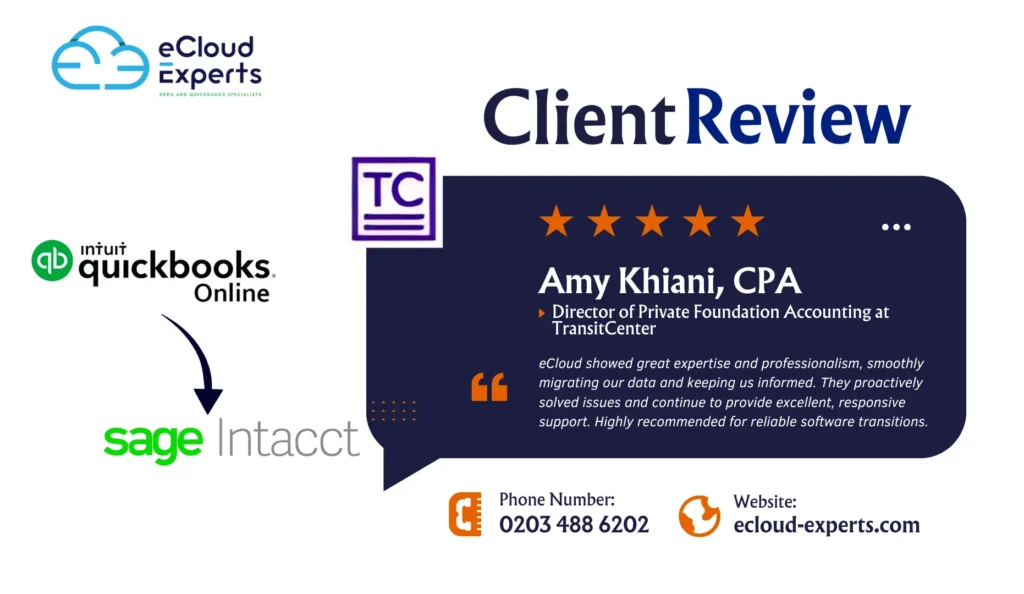
At eCloud Experts, we understand that successful software migrations aren’t just about transferring data — they’re about enabling better financial control, smoother workflows, and long-term operational success. When TransitCenter Inc., a prominent foundation working to improve public transportation systems across the U.S., decided to move from Sage Intacct to QuickBooks Online, they turned to us to get the job done — accurately, efficiently, and without disruptions. About the Client: TransitCenter Inc TransitCenter Inc. is a nonprofit foundation that funds, advises, and partners with civic organisations, governments, and advocates to improve public transit infrastructure. As a mission-driven organisation with high compliance standards and detailed financial reporting needs, they rely on robust accounting structures to track funds, grants, projects, and departmental activities. Amy Khiani, CPA, the Director of Private Foundation Accounting at TransitCenter, was tasked with managing the transition to a more scalable and user-friendly platform, without compromising on reporting complexity or audit readiness. The Challenge: Moving from a Powerful but Complex Platform TransitCenter had been using Sage Intacct, a powerful but highly technical system. Over time, the platform became: They needed a more agile system — one that offered intuitive design, seamless accessibility, and strong class/location tracking for foundation-level reporting. The transition, however, came with several challenges: The Solution: A Strategic, Hands-On Migration by eCloud Experts Our team at eCloud Experts, a certified QuickBooks ProAdvisor and global migration partner, stepped in with a clear action plan designed around TransitCenter’s unique needs. ✅ Phase 1: Discovery & Planning We began with: ✅ Phase 2: Historical Data Extraction & Mapping We migrated: We ensured a 1-to-1 mapping of classes and locations between Intacct and QuickBooks Online, preserving all tracking details needed for reporting across programs, grants, and initiatives. ✅ Phase 3: Chart of Accounts Realignment We helped simplify their Chart of Accounts to suit QuickBooks Online’s framework while maintaining alignment with fund accounting best practices and audit requirements. This ensured: ✅ Phase 4: Testing & Review Before going live, we: ✅ Phase 5: Go Live & Ongoing Support Once everything was approved, we launched the new system and provided: Client Testimonial Here’s what Amy Khiani, CPA, had to say about her experience with eCloud Experts: “The eCloud team demonstrated deep expertise and professionalism throughout the entire process. They successfully migrated all our data and ensured we were kept informed at every step. Whenever challenges arose, they were proactive in presenting clear, effective solutions. Post-migration support has also been outstanding — the team remains highly responsive and helpful with any follow-up questions. We highly recommend eCloud for anyone looking for a smooth and reliable software transition.” ⭐️⭐️⭐️⭐️⭐️— Amy Khiani, CPA, Director of Private Foundation Accounting, TransitCenter Inc What Made This Migration Successful? The Result: A Clean Break with No Compromise TransitCenter now enjoys: Thinking of Migrating from Sage Intacct to QuickBooks Online? Whether you’re a foundation, nonprofit, or growing business, switching to QuickBooks Online can improve efficiency, reduce costs, and simplify accounting — but only if done right. At eCloud Experts, we’ve completed hundreds of successful migrations across the UK, USA, Canada, Australia, and the Middle East. We’re proud to be a Xero Gold Champion Partner and QuickBooks Online-certified team, trusted by CPAs and CFOs worldwide. Let’s Talk Ready for a smoother migration? Contact us today to book your free discovery call. We’ll review your current setup and help you plan the perfect transition — from Intacct, Sage, or any other platform — to QuickBooks Online. 📩 info@ecloud-experts.com🌐 www.ecloud-experts.com
Migrating Payroll Data to Xero: Best Practices
If I’m being honest with you, payroll can be one of the most stressful parts of managing a business. Employees depend on it. Accuracy is necessary for compliance. And is there a mistake? It appears quickly. Accuracy is necessary for compliance. It’s a wise decision if you intend to switch payroll to Xero. However, it must be handled carefully. Whether you’re bringing your payroll in-house for the first time or moving from another payroll system, there are a few crucial steps that can make or ruin the process. At eCloud Experts, we have helped dozens of businesses migrate not just their books but also their entire payroll systems to Xero. In this blog, I’ll walk you through the best practices for a successful Xero payroll migration without the headaches. Why Businesses Are Moving Payroll to Xero If you’re already using Xero for accounting, adding Xero Payroll can feel like a no-brainer. Here’s why more businesses are doing it: But the real power lies in automation. Instead of manually keying in hours, deductions, and holiday accruals each month, Xero does the heavy lifting for you as long as your data is clean and properly set up. Step 1: Prepare Yourself Before You Migrate Just like moving house, a successful payroll migration starts before the move itself. You need to clean, organize, and plan. Best practices: Real-world tip: One client tried to migrate mid-month and had overlapping payslips. Starting fresh from the next pay run made reconciliation 10x easier. Step 2: Decide What Payroll Data to Bring Over When migrating, you don’t have to bring everything. Sometimes, less is more. Options You Have: If you’re switching from a system like Sage Payroll, BrightPay, or QuickBooks Payroll, check if there’s an export feature. Most systems allow you to export year-to-date summaries and employee data. Step 3: Migrate Employee Details Accurately This is where many migrations hit a snag: incomplete or incorrect employee records. Here’s what you need to input into Xero: Even a small typo in a tax code or bank account number can cause delays or payroll errors so double-check everything before going live. Pro tip: Ask employees to verify their info via a secure form. It saves time and puts accountability in their hands. Step 4: Set Up Xero Payroll Correctly Once your data is in, the real magic happens: setting up Xero Payroll to match your business structure. Things to configure: Now is also the best time to turn on employee self-service. Staff can submit leave, view payslips, and update info—all without emailing HR every five minutes. Step 5: Test Everything Before the First Live Run Testing your setup is critical. Run a mock payroll and verify: Bonus tip: Use your previous payroll reports to do a side-by-side comparison. If anything seems off, fix it now not on payday. Step 6: Don’t Skip Compliance (Seriously) Payroll compliance is not optional anymore. Depending on where you’re based, you may need to Xero Payroll makes this easier by automating submissions but it’s only as good as your setup. If you’re in doubt, you’re always welcome for consultation. Step 7: Train Your Team (and Yourself) Once you’re up and running, don’t just assume everyone knows how to do it. Payroll tools are powerful only if your team understands them. At eCloud Experts, we offer tailored Xero Payroll training so you and your staff can: Case study: A UK marketing agency moved to Xero Payroll and trained their admin team in just two sessions. Since then, they’ve cut payroll processing time by 60% and no one has missed a payday. Final Thoughts: A Smooth Payroll Migration is Possible Migrating your payroll to Xero doesn’t have to be overwhelming. If you have the right preparation, attention to detail, and expert guidance, you can make the switch smoothly. And start enjoying the benefits of cloud payroll solutions almost immediately. You need to remember these four things. First clean your data before moving it.Then Set up your payroll structure with care. Don’t forget to test before you go live. Lastly, train your team to avoid future headaches Ready to Migrate Payroll to Xero the Right Way? Don’t go it alone. At eCloud Experts, we specialize in Xero payroll migration and training tailored to your business. From setup to compliance, we make sure your transition is smooth, secure, and stress-free. Book your free consultation today, and let’s get your payroll running smarter not harder. Because your people deserve to be paid right and your business deserves a system that grows with you.
How eCloud Expert Convert Simplifies Your Xero Migration Process
Let’s be real for a second! Switching accounting software sounds about as fun as doing your own dental work. You know it needs to happen. You know the current setup is holding you back. But the idea of migrating all your data to Xero? That’s enough to make any business owner groan. If that sounds familiar, take a deep breath. Because there’s a smarter, smoother, and much less stressful way to make the leap. It’s called eCloud Expert Convert and it’s a game-changer when it comes to Xero migration. Whether you’re moving from QuickBooks, Tally, Sage, or even messy spreadsheets, eCloud Expert Convert makes it faster and easier to move into Xero without losing your history, your sanity, or your weekend. So, let’s walk through how it works, why it matters, and how eCloud Experts can help you get the most out of the process. First Things First: Why Businesses Are Flocking to Xero If you’ve already made the decision to switch to Xero, you’re probably already sold on its benefits but just in case, here’s a quick refresher. Xero is modern cloud accounting done right. It’s ideal for small to medium-sized businesses that are ready to level up their bookkeeping and gain better visibility into their finances. But here’s the catch: migrating years of data from your current system to Xero can feel overwhelming unless you have the right tools. Enter eCloud Expert Convert: Your Migration Co-Pilot Think of eCloud Expert Convert as your personal data-moving crew. They specialize in moving accounting data from more than 30 accounting platforms into Xero safely, cleanly, and accurately. They don’t just push data over. They structure it the way Xero likes it, validate it, and make sure nothing breaks in the process. Here’s what eCloud Expert Convert typically migrates for you: Basically, all the good stuff without the garbage you don’t need. The Top Benefits of Using eCloud Expert Convert for Xero Migration 1. Saves You a Ton of Time Manual data entry? Boring! Nobody has time to retype three years of invoices or play detective with historical payments. With eCloud Expert Convert, the migration can be completed in as little as 48–72 hours, depending on your data complexity. That’s days not weeks of waiting. 2. Keeps Your History Intact Many tools only move over opening balances. But eCloud Expert Convert gives you the option to migrate full transaction history, which is a big win for businesses that need continuity, like retailers or service providers with long client relationships. Your accountant will thank you. Your future self will too. 3. Supports Over 30 Platforms QuickBooks? ✅Sage? ✅Zoho, MYOB, Excel, Tally, FreshBooks? No matter where you’re coming from, eCloud Expert Convert likely has you covered. And if your data’s a bit messy (let’s be honest, whose isn’t?), they’ve seen it all before. 4. Reduces Errors with Automated Checks One of the biggest headaches with DIY migration is errors. Duplicate entries, missing contacts, or bank mismatches can create financial nightmares. eCloud Expert Convert uses automated validation tools to spot errors before they hit your Xero account, ensuring your reports and balances are spot-on from day one. 5. Built Specifically for Xero This isn’t some generic migration tool. eCloud Expert Convert is Xero-certified and tailored to how Xero works. That means cleaner data imports, less post-migration cleanup, and a much smoother onboarding experience. But What About the Tricky Bits? Good question. Migration isn’t just about pushing data—it’s about doing it right. Here are a few common challenges businesses face during Xero migration and how using eCloud Expert Convert with Cloud Accounting makes all the difference: Problem: Not Knowing What Data to Move Do you need five years of data? Just two? What about partially paid invoices? ✅ Solution: We help you decide what’s worth keeping (and what’s not), so your new Xero file isn’t bloated with junk. Problem: Trying to Migrate Mid-Year Migrating in the middle of a financial year can be messy if not done properly. ✅ Solution: We help you plan the ideal timeline, prepare your cut-off points, and ensure your year-end reporting isn’t disrupted. Problem: Post-Migration Confusion Even with clean data, Xero’s dashboard can be unfamiliar. If your team isn’t trained, mistakes can still happen. ✅ Solution: At Cloud Accounting, we don’t just migrate—we train your team so they know how to navigate Xero, use the reports, and avoid common slip-ups. A Real-World Example: From Chaos to Clarity Let’s say you’re running a boutique online store. You’ve been managing invoices in Excel, tracking expenses in your email inbox (yes, really), and using PayPal reports to approximate cash flow. It works but barely. You decide it’s time to move to Xero. We step in, help you clean up your spreadsheets, and use eCloud Expert Convert to transfer everything to Xero including the last 3 years of sales and expenses. Within a week: It’s not just a migration. It’s a transformation. Let’s Make Your Migration Simple and Stress-Free Look migrating to Xero doesn’t have to be scary. When you use the right Xero migration tools (like eCloud Expert Convert) and work with the right people (like Cloud Accounting), the process becomes painless. You don’t need to be a tech wizard. You don’t need to have perfect records. You just need the right support. Ready to Migrate to Xero Without the Stress or Guesswork? At eCloud Experts, we don’t just “do” data migration we make sure it actually works for your business. We partner with eCloud Expert Convert to bring you fast, clean, and reliable Xero migrations minus the technical chaos. Whether you’re switching from QuickBooks, Sage, Tally, or even old Excel files, we help you move into Xero with confidence. But we don’t stop there. We walk alongside you from prep to post-migration training. Book a free consultation with eCloud Experts today, and let’s talk about your Xero migration journey from cleanup to go-live and beyond. Because you deserve more than just new software you deserve accounting that actually makes life easier.
Why Migrate from Acumatica to Xero?
Introduction In today’s digital economy, businesses depend on accurate financial insights and efficient systems to stay competitive. For organizations currently using Acumatica, the question often arises: does our business still need a full ERP, or could we benefit from moving to a dedicated cloud accounting platform like Xero? An Acumatica to Xero migration can be a significant shift. Yet, many businesses are exploring this transition to better match their current needs, reduce costs, and simplify financial operations. In this article, we’ll explain what each platform offers, why companies consider switching, and how to approach the migration process with confidence. Whether you’re an accountant, finance manager, or business owner, this guide will help you navigate the Acumatica to Xero migration and make informed decisions for your organization. Understanding Acumatica and Xero What is Acumatica? Acumatica is a cloud-based ERP (Enterprise Resource Planning) system. It’s designed for mid-sized to large enterprises that need robust solutions across multiple business functions: Businesses often choose Acumatica for its flexibility and its ability to handle complex processes across departments. It’s highly customizable, and many enterprises use it to unify different parts of their organization under one digital roof. However, all of that power can come with complexity and cost which leads some businesses to question whether they still need a full ERP. What is Xero? Xero is a cloud accounting platform aimed at small to medium-sized businesses. It focuses primarily on: Xero has gained worldwide popularity due to its user-friendly design, powerful reporting tools, and integrations with thousands of business apps. While it doesn’t cover the broader ERP functionality of Acumatica, it’s highly effective for businesses whose primary need is financial management. Key Differences Between Acumatica and Xero Understanding the differences between the two platforms is crucial before deciding on an Acumatica to Xero migration. Functional Differences Cost Differences User Experience & Interface Integrations and Ecosystem Why Consider Migrating from Acumatica to Xero? Choosing an Acumatica to Xero migration is not just about changing software it’s about matching your technology to your business’s evolving needs. Business Growth and Changing Needs Many businesses outgrow or grow beyond the need for a full ERP system. Perhaps a company downsizes, pivots to a simpler business model, or simply realizes it doesn’t require enterprise-level systems for daily operations. In these situations, maintaining an ERP like Acumatica may become unnecessarily complex. A dedicated accounting platform like Xero offers financial clarity without the extra layers. Cost Optimization Software costs don’t just involve subscriptions. Businesses pay for: If you no longer require advanced ERP capabilities, switching to Xero can significantly reduce your overhead. Many businesses report substantial annual savings after migrating. Better Accessibility for Non-Technical Users ERPs often require training and dedicated IT resources. For smaller teams, this can become a bottleneck. Xero’s modern interface makes it accessible to business owners and finance teams without needing specialized ERP skills. Cloud-Native Benefits Both Acumatica and Xero are cloud solutions. However, many users find Xero’s fully online nature and app ecosystem aligns well with hybrid work and remote business operations. Updates are automatic, and you’re always working with the latest features. Challenges in Migrating from Acumatica to Xero While the benefits are clear, an Acumatica to Xero migration also involves significant challenges. Data Complexity Acumatica stores a vast amount of structured data across different modules. Migrating this data to Xero requires careful mapping, especially because: Historical Data Migration A crucial decision is how much historical data to migrate: Migrating years of transactions may not always be feasible due to differences in how each system handles data. Workflow Differences Business processes often change during migration: Teams need to understand how daily tasks will look in Xero compared to Acumatica. Integration Changes Acumatica may connect to systems that won’t automatically integrate with Xero. For instance: These integrations may need reconfiguring or replacement with Xero-compatible apps. Planning Your Migration A successful Acumatica to Xero migration starts with thorough planning. Assessing Business Needs Consider: Talk with stakeholders across finance, operations, and IT. Understanding everyone’s requirements ensures you don’t lose essential functionality in the move. Data Audit and Clean-Up Before migrating, review your existing data: Clean data reduces migration errors and helps your team transition smoothly. Choosing a Migration Partner While some businesses handle migrations internally, many prefer expert help. When evaluating partners: A knowledgeable partner helps you avoid pitfalls and ensures regulatory compliance. Timeline and Budgeting A typical migration timeline may include: Budget appropriately for consulting fees, staff training, and any third-party tools. How to Migrate from Acumatica to Xero While each project is unique, most Acumatica to Xero migrations follow similar steps. Pre-Migration Steps Data Extraction from Acumatica Use Acumatica’s built-in tools to export data. Common formats include: Work with IT to ensure you’re pulling the correct datasets. Data Transformation and Mapping This is often the most time-consuming step. Tasks include: Identify data fields in Acumatica without direct equivalents in Xero. Decide how to handle them (e.g., custom tracking categories or manual notes). Importing Data into Xero Xero supports bulk imports for: However, large volumes of transactional data may require specialized tools or custom development. Testing and Validation Run trial imports into a Xero demo company. Check: Identify discrepancies early to avoid surprises post-migration. User Training and Go-Live Educate your team on: Plan your go-live date carefully to avoid disruptions during busy financial periods. Post-Migration Considerations Migration doesn’t end once your data is in Xero. Data Reconciliation Ensure: Any differences must be documented and adjusted. Updating Integrations Check all third-party tools: Reconnect apps or replace them with Xero-compatible alternatives. Ongoing Support and Maintenance Keep training materials updated. Schedule regular check-ins with your migration partner to address new challenges as they arise. Benefits Realized After Migrating to Xero Many businesses report significant benefits after an Acumatica to Xero migration, including: Additionally, Xero’s robust integration ecosystem means you can connect specialized apps as needed without maintaining a full ERP. Frequently Asked Questions (FAQs) Is Xero suitable for businesses that previously used an ERP like Acumatica? Yes — for businesses
SaaS Business Accounting: Best Practices and Training Tips
SaaS businesses are built differently and so is the way they manage money. You’re not tracking inventory. You’re tracking subscriptions.You’re not just counting sales. You’re forecasting recurring revenue.And you’re not closing one-off deals. You’re managing a customer lifecycle. If you’re in the SaaS world, you already know this. But what many founders, operators, and even finance teams struggle with is this: accounting for a SaaS business is not plug-and-play. It requires a different mindset, smarter tools, and a little training to really get right. In this blog, we’ll break down: Let’s get into it. Why SaaS Accounting is Unique Traditional businesses track products and services as they’re delivered. For SaaS companies, your revenue model is based on subscriptions, recurring billing, and deferred revenue—which means your accounting processes need to reflect that. Here are the core challenges we see most SaaS founders face: If you’re trying to track all this in spreadsheets or using software that wasn’t built for subscription-based accounting, it’s only a matter of time before things break down. That’s where purpose-built SaaS financial management comes in. Key Accounting Principles for SaaS Businesses If you take away one thing from this post, let it be this: cash received is not always revenue earned. SaaS businesses must follow accrual-based accounting to stay compliant and accurately reflect performance. Here’s a breakdown of the most important concepts to understand: 1. Revenue Recognition Let’s say a customer signs up for an annual plan and pays you £1,200 upfront.You can’t record all that revenue immediately. According to accounting standards (like ASC 606 or IFRS 15), you must recognize the revenue as it’s earned—typically over the 12-month service period. Pro Tip: Use tools like Xero, QuickBooks Online with add-ons like SaaSOptics or Chargebee for accurate SaaS revenue tracking. 2. Deferred Revenue The portion of prepaid revenue you haven’t earned yet goes on your balance sheet as liability, not income. It’s critical to manage this correctly to avoid overstating your profitability. 3. Churn and Customer Lifetime Value (LTV) Accounting isn’t just for taxes—it’s a decision-making tool.Tracking churn (how many customers cancel) and calculating LTV helps you understand: 4. Subscription Metrics Meet Accounting Metrics SaaS metrics like MRR (Monthly Recurring Revenue), ARR (Annual Recurring Revenue), and CAC (Customer Acquisition Cost) must connect to your books. That means building reports that combine customer data with accounting data—for accurate forecasting and budgeting. Why SaaS Accounting Training Is Worth It Let’s be honest—most business owners didn’t start a SaaS company because they love accounting. And even experienced bookkeepers can struggle with the nuances of subscription-based financials. That’s why SaaS accounting training is such a smart investment. Here’s how it helps: Build Confidence in Your Numbers Training helps your team understand how to: You get clean data, timely reports, and peace of mind. Avoid Costly Errors Incorrect revenue recognition or missing deferred revenue can lead to: Training reduces these risks dramatically. Mini case study: A SaaS startup we worked with had misclassified £25k in annual subscriptions as immediate revenue. After training and cleanup, their books were corrected, and investor confidence skyrocketed. Save Time with Automation Cloud tools like Xero, QuickBooks Online, and integration platforms (like A2X, SaaSOptics, or Baremetrics) can do the heavy lifting but only if you know how to use them. Training your team unlocks the full potential of these tools. Support Strategic Decisions Well-trained finance teams can produce cash flow forecasts, margin reports, and budget vs. actuals that actually mean something. So when it’s time to raise funding, hire, or launch a new product—you’re making informed decisions. Best Practices for SaaS Financial Management Once your team understands the “why” behind the numbers, it’s time to apply some best practices to keep your SaaS business healthy and investor-ready. 1. Automate Where You Can Use cloud accounting tools that integrate with your billing platform. Recommended stack: 2. Set a Monthly Close Process Closing your books each month is critical for spotting trends, tracking KPIs, and reporting to investors. Build a checklist that includes: 3. Track Metrics That Matter Focus on metrics that give insight, not just activity: Use dashboards that combine financial and operational data. 4. Train Early and Often Bring in training during onboarding, after system changes, or when scaling your team. You don’t need to be an accountant but you do need to understand the numbers behind your business. Final Thoughts: Your Financial System Should Support Your Growth SaaS businesses grow fast and their accounting systems need to keep up. By investing in SaaS accounting training, setting up the right tools, and applying best practices, you’ll: And best of all, you’ll feel confident about your finances whether you’re talking to your team, your investors, or your accountant. Ready to Take Control of Your SaaS Accounting? At eCloud Experts, we specialize in helping SaaS founders and finance teams implement smarter systems, automate reporting, and learn the skills they need to grow with clarity. Book a free consultation today, and let’s talk about training, setup, or full financial system design for your subscription business. Because behind every great SaaS company is a solid financial foundation.