Switching your accounting software is not just a technical change. It is a business decision that affects how you track money, make decisions, and manage growth.
Many business owners start thinking about a QuickBooks to Xero migration when something feels off. Reports are harder to understand. The system feels slow. Or it simply does not match how the business operates anymore.
At that point, staying with the same system starts costing more than switching.
But here is the truth. A QuickBooks to Xero migration is not just about moving data. It is about moving your financial foundation. If it is done right, everything becomes clearer and easier. If it is rushed, problems follow you into the new system.
This guide will walk you through the process in a practical and realistic way so you can make the right decision.
Why Businesses Are Moving from QuickBooks to Xero
There is always a reason behind the switch.
For some businesses, QuickBooks works well in the early stages. But as the business grows, the limitations start to show.
This is where a QuickBooks to Xero migration becomes a logical step.
Many business owners are looking for:
- A clearer view of their financial position at any time
- Faster access to reports without delays
- A system that works smoothly across devices
- Better integration with tools like ecommerce platforms and CRM systems
- A simpler and more user friendly interface
Xero is designed to give real time financial visibility. That means your numbers update as your business runs. You are not waiting for reports. You are working with live data.
That shift alone can change how decisions are made.
What Is QuickBooks to Xero Migration
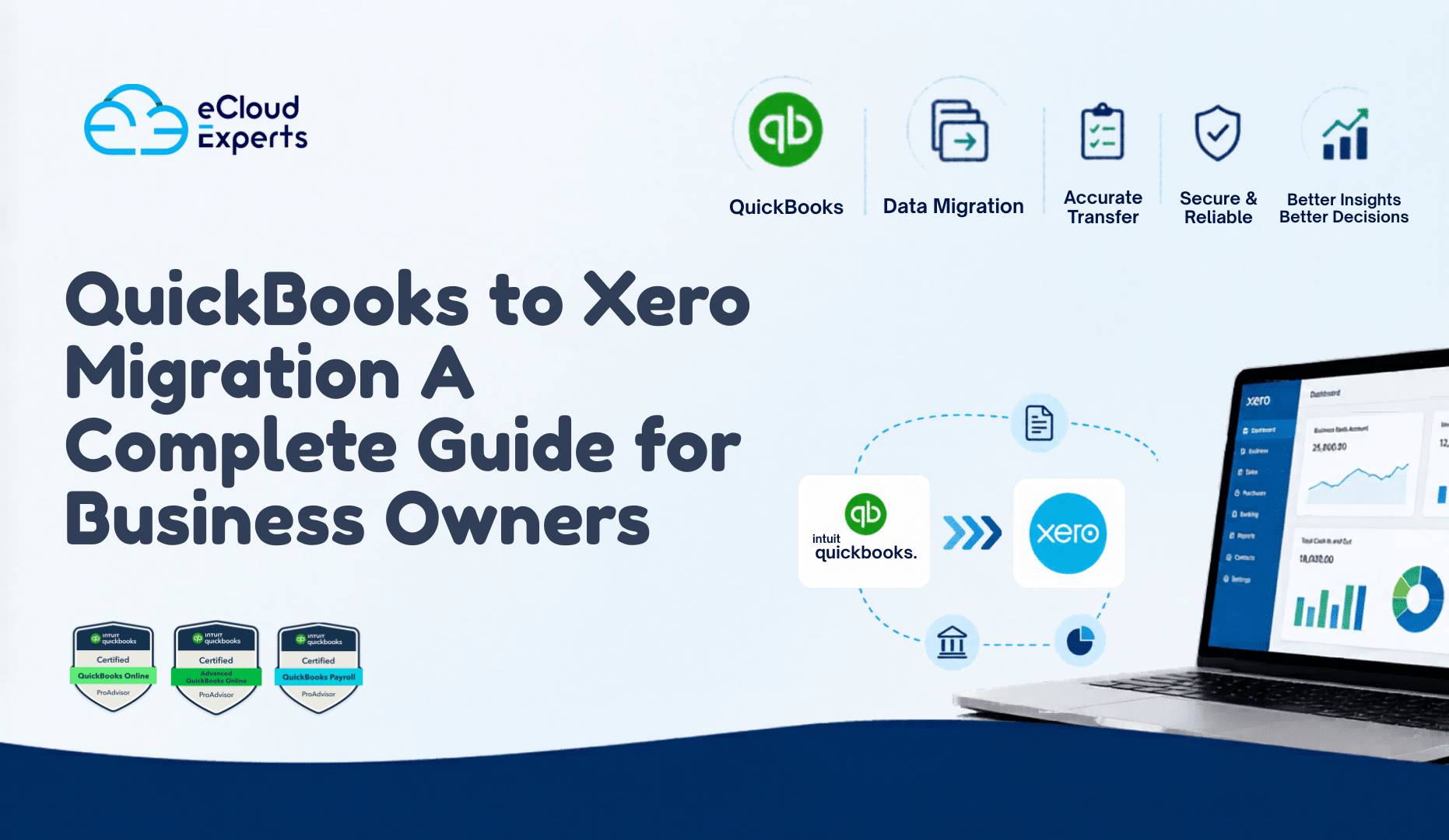
A QuickBooks to Xero migration is the process of transferring your financial data from QuickBooks into Xero so you can continue your accounting in a new environment.
But the process is more than just transferring numbers.
It involves:
- Reviewing and cleaning your existing data
- Structuring your accounts in a way that works in Xero
- Mapping data correctly so reports stay accurate
- Rebuilding parts of your financial setup where needed
- Verifying that everything matches after the move
Think of it as rebuilding your accounting system using your existing data.
You are not just moving information. You are improving how that information is organised and used.
Why Planning Your Migration Matters More Than You Think
Most issues with a QuickBooks to Xero migration do not happen during the transfer. They show up after everything is done.
You log into Xero, open your reports, and something does not match. Totals are slightly different. Some transactions look misplaced. Or certain accounts do not behave as expected.
These problems are almost always caused by poor planning.
Before starting your QuickBooks to Xero migration, you should clearly define:
- What data needs to be migrated
- What level of detail is required
- Which reports must match exactly
- How far back your data should go
- What parts of your system need to be rebuilt
Planning reduces risk. It also saves time because you avoid fixing problems later.
What Data You Can and Cannot Migrate
Understanding what moves and what does not is one of the most important parts of a QuickBooks to Xero migration.
Many business owners expect everything to transfer exactly as it is. That is not how it works.
Data You Can Migrate
Most core accounting data can be transferred successfully.
This includes:
- Customer and supplier contacts
- Chart of accounts
- Sales invoices and purchase bills
- Bank transactions
- Trial balances and opening balances
This is the essential data that keeps your business running.
When handled correctly, this data will give you continuity in your financial records.
Data That Needs Extra Work
Some data can be migrated, but it requires careful handling or partial rebuilding.
Examples include:
- Inventory and stock records
- Payroll history
- Fixed asset registers
- Multi currency transactions
- Tax configurations
These areas often behave differently in Xero compared to QuickBooks. That means they may need adjustments or manual setup.
Data That Does Not Transfer
This is where expectations need to be realistic.
Certain data simply does not move during a QuickBooks to Xero migration:
- Audit trails and system logs
- Custom built reports
- Attachments linked to transactions
- Detailed reconciliation history
This does not mean the data is lost. It just remains in QuickBooks for reference.
Knowing this early helps you avoid surprises later.
When Is the Best Time to Start Your Migration
Timing can make your QuickBooks to Xero migration easier or more complex.
The most common and practical times to switch are:
- End of financial year
- End of quarter
- Beginning of a new month
These points make it easier to close your books cleanly and start fresh in Xero.
However, not every business can wait for the perfect timing.
If your current system is slowing you down or creating errors, delaying the QuickBooks to Xero migration may cost you more in the long run.
The focus should be on preparation, not just timing.
Step by Step QuickBooks to Xero Migration Process
A structured approach makes a big difference.
Here is how a proper QuickBooks to Xero migration should be handled.
Step 1 Clean Your QuickBooks Data
Before anything is moved, your data needs to be accurate.
This includes:
- Removing duplicate contacts
- Fixing incorrect transactions
- Reconciling all bank accounts
- Closing unused or old accounts
If your data is not clean before migration, those issues will carry into Xero.
Cleaning your data is one of the most valuable steps in the entire process.
Step 2 Decide What Data to Move
Not all businesses need full historical data.
Some choose to migrate:
- Full transaction history
- Or only opening balances and current data
Moving less data reduces complexity and risk.
The right choice depends on your reporting needs and how much historical detail you actually use.
Step 3 Set Up Your Xero Account Properly
Your Xero setup should reflect how your business operates.
This includes:
- Creating a structured chart of accounts
- Setting correct tax rates
- Configuring reporting categories
- Customising invoice templates
- Assigning user permissions
A strong setup ensures your QuickBooks to Xero migration delivers long term value.
Step 4 Export Data from QuickBooks
Data is usually exported in CSV format.
Typical exports include:
- Contacts
- Invoices
- Bills
- Transactions
At this stage, it is important to review the exported data for accuracy and formatting.
Even small errors in formatting can create issues during import.
Step 5 Import Data into Xero
During this stage, your data is uploaded into Xero.
This is where mapping becomes critical.
You need to:
- Match accounts correctly
- Align tax codes
- Ensure correct dates and values
Incorrect mapping can affect your reports and financial structure.
This is one of the most sensitive parts of a QuickBooks to Xero migration.
Step 6 Reconcile and Verify Everything
After the data is imported, you must verify that everything matches.
This includes:
- Bank balances
- Profit and loss reports
- Balance sheet
- Trial balance
If there are differences, they need to be resolved immediately.
A QuickBooks to Xero migration is only complete when your numbers are accurate.
Common QuickBooks to Xero Migration Mistakes
Many issues come from avoidable mistakes.
Here are the most common ones:
- Migrating without cleaning data
- Choosing the wrong migration date
- Mapping accounts incorrectly
- Skipping reconciliation checks
- Importing unnecessary historical data
- Not testing reports after migration
Each of these can create long term problems if not handled properly.
Taking time during the migration saves time later.
How Long Does a QuickBooks to Xero Migration Take
The timeline depends on your business size and data complexity.
Typical ranges are:
- Small businesses with simple data: a few days
- Medium businesses: one to two weeks
- Larger or complex setups: up to four weeks
Factors that affect the timeline include:
- Volume of transactions
- Data quality
- Level of detail required
- Complexity of accounts and reporting
A QuickBooks to Xero migration should not be rushed. Accuracy always matters more than speed.
Do It Yourself vs Hiring Experts
This decision depends on your situation.
Doing It Yourself
This may work if:
- Your business is small
- Your accounting is simple
- You have time to learn the process
However, the risks include:
- Errors in financial reports
- Time spent fixing issues
- Lack of proper setup
Hiring Experts
This is usually the better choice for growing businesses.
Experts can:
- Prepare and clean your data
- Handle the migration process
- Set up Xero correctly
- Verify accuracy
- Provide ongoing support
A professional QuickBooks to Xero migration reduces risk and ensures your system works properly from the start.
How eCloud Experts Handle Your Migration
A QuickBooks to Xero migration should feel controlled and predictable.
At eCloud Experts, the focus is on accuracy and clarity.
The process includes:
- Reviewing your current QuickBooks data
- Cleaning and preparing your records
- Migrating data into Xero with precision
- Setting up your Xero account properly
- Reconciling and verifying all financial reports
- Supporting you after the migration
The goal is simple. You start using Xero with confidence, knowing your numbers are correct.
Real Business Impact After Migration
A successful QuickBooks to Xero migration does more than change software.
It improves how your business operates.
After switching, many businesses experience:
- Better control over cash flow
- Faster and clearer reporting
- Reduced manual work
- Fewer accounting errors
- Improved decision making
Instead of struggling with your system, you start using it as a tool to grow your business.
Final Thoughts
A QuickBooks to Xero migration is a strategic move, not just a technical task.
It gives you the chance to clean your data, improve your setup, and build a better financial system.
The key is to approach it properly.
Plan everything. Clean your data. Test your reports. Verify your results.
Do it right once, and your accounting becomes easier and more reliable.
Rush it, and you will spend months fixing issues.
Ready to Start Your QuickBooks to Xero Migration
If you want your QuickBooks to Xero migration handled correctly without stress, expert support can make all the difference.
At eCloud Experts, we manage the full process from preparation to final checks.
You get:
- Clean and accurate data
- Proper Xero setup
- Reliable financial reports from day one
Get in touch today and start your QuickBooks to Xero migration with confidence.