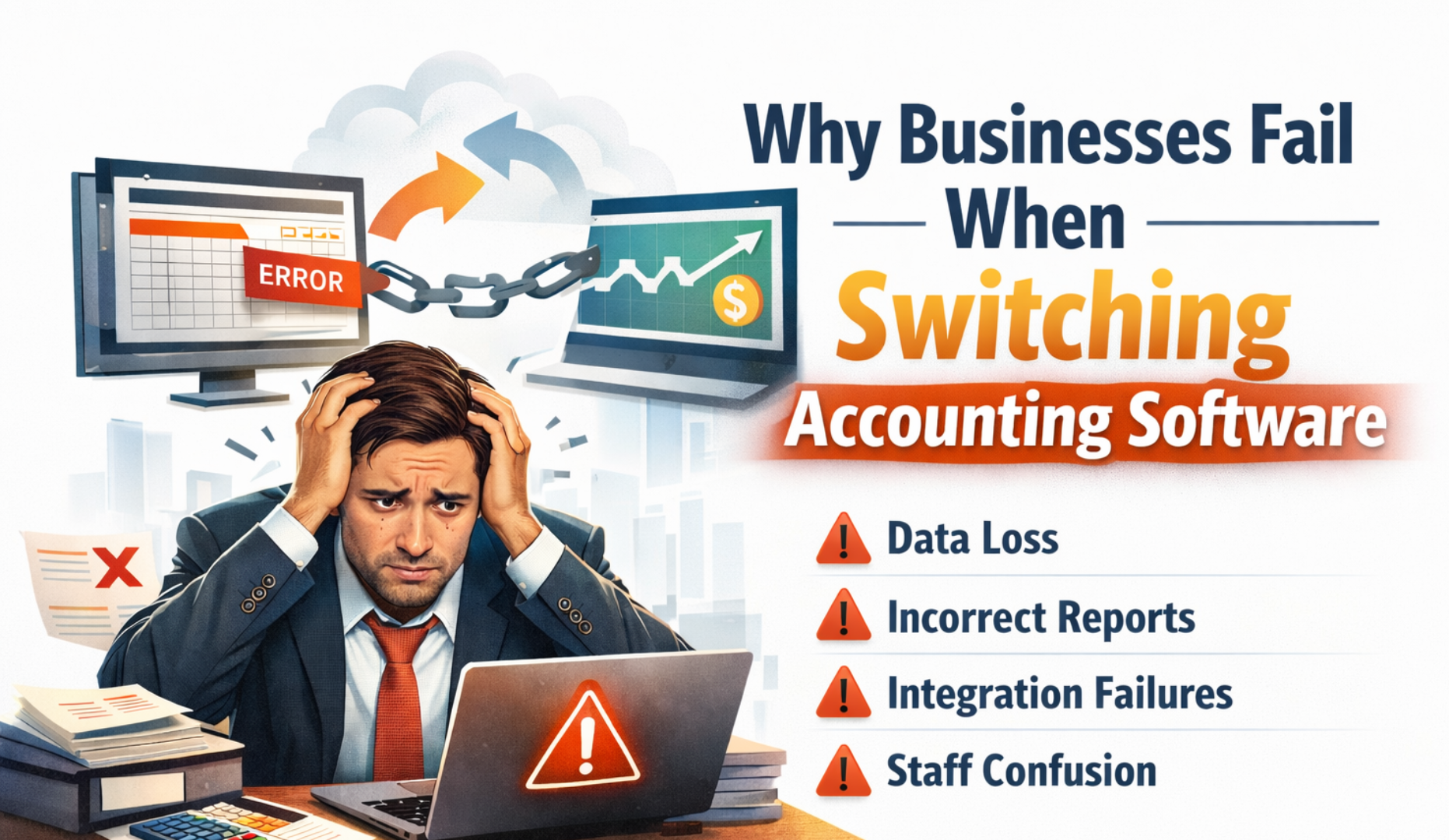
Moving your accounts into new software can feel scary. You worry about lost data broken reports and long nights fixing mistakes. The good news is that if you plan it properly you can migrate to Xero with confidence and keep your business running the whole time.
In this guide we will walk through every stage of how to migrate to Xero from any system whether you use desktop software, another cloud platform spreadsheets or a custom tool. You will see what to do in what order, what to prepare and what to check so you know your numbers are correct on day one.
Why businesses decide to migrate to Xero
Before you migrate to Xero it helps to be clear about why you are moving. That way every choice in the project can support your goals. Common reasons include
- You are stuck on old desktop software that is slow and hard to access remotely
- Your current cloud tool is too basic or too complex for your team
- You run reports in Excel because your system reports are not trusted
- You want better integrations with ecommerce payroll or payment tools
- Your accountant or new finance team prefer to work in Xero
When you understand the main reason you want to migrate to Xero you can decide which data you must bring across which add ons you need and how to train your team.
Step 1 Decide the right time to migrate to Xero
One of the biggest choices is when to cut over. Picking the wrong date can cause confusion and duplicate work.
Most businesses pick one of these options when they migrate to Xero
- Start of a new financial year
- Start of a new VAT or tax quarter
- Start of a new month
Moving at the start of a new year gives the cleanest split. All old year data stays in your previous system and you migrate to Xero with opening balances and key history. Starting at the beginning of a month is also popular if you cannot wait for year end because it keeps bank reconciliation and reporting easier.
If your accounts are very messy you may first want a clean up in your old system. Then you migrate to Xero with tidy figures instead of carrying problems across.
Tip: Pick a cut off date and freeze entries in the old system from that date onwards. From that day every new invoice bill and bank entry should go into Xero only.
Step 2 Decide what you will migrate to Xero
You do not always need to move every single transaction from the last ten years. The smart way to migrate to Xero is to choose the right level of detail for your needs and budget.
Think about these data types
- Chart of accounts
- Customers and suppliers
- Items or products
- Bank accounts and credit cards
- Outstanding customer invoices
- Outstanding supplier bills
- Fixed assets and depreciation
- Inventory balances
- Payroll opening figures if you move payroll later
- Past transactions for reporting history
Many small and medium businesses migrate to Xero using a mix of detailed open items and summary history. For example
- Bring across every unpaid invoice and bill one by one
- Bring across year to date figures as a journal per month or per year for older periods
If you need full history for audit or detailed analysis you can migrate to Xero using a specialist conversion tool or keep a read only copy of your old system for reference.
Step 3 Prepare your existing data before you migrate to Xero
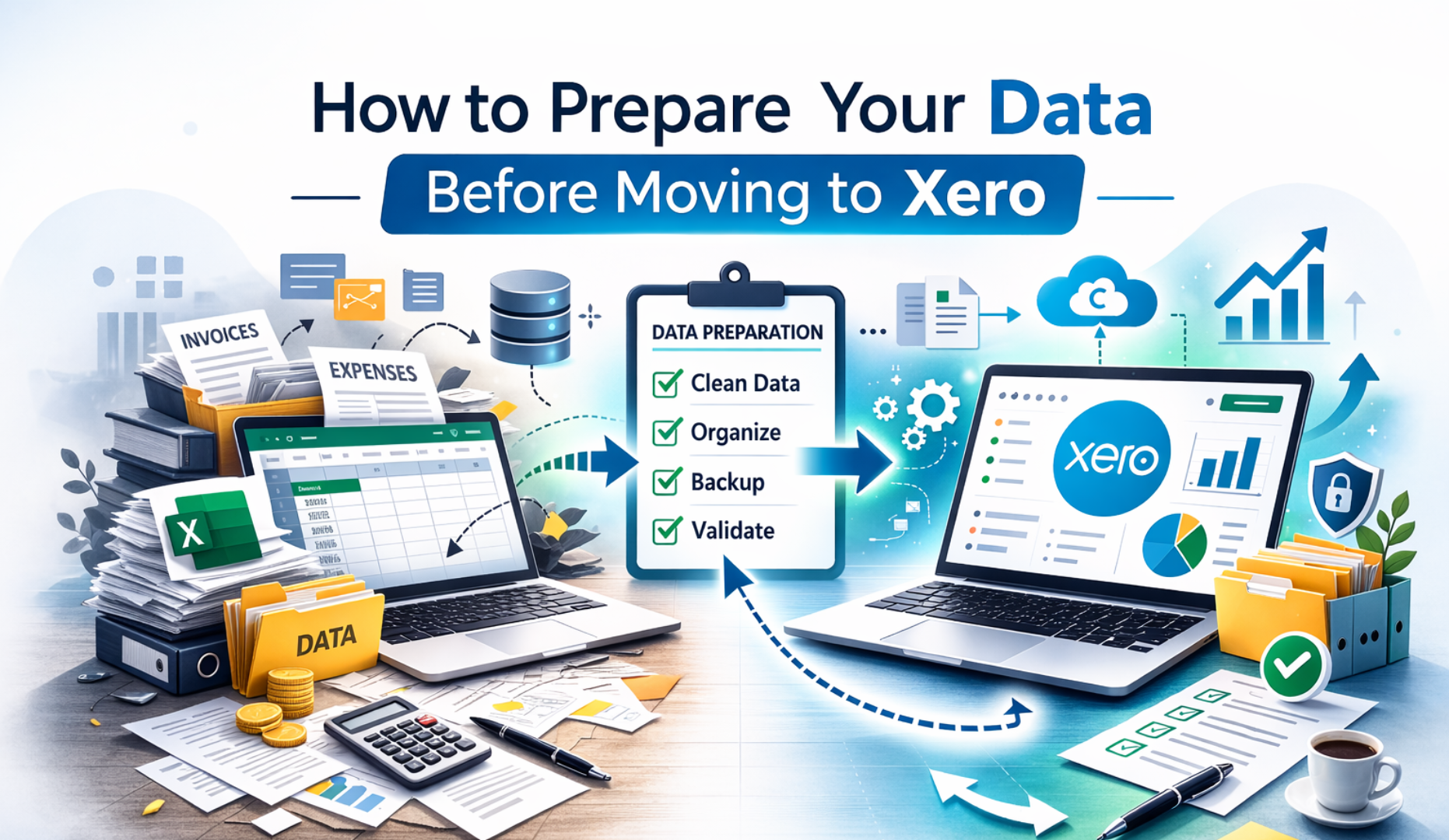
Data quality is the heart of any project to migrate to Xero. If your current data is messy then reports in Xero will also be messy. Spend time cleaning before you move. It saves many hours later.
Work through these checks in your current system
- Remove duplicate customer and supplier records
- Correct spelling and contact details for key customers and suppliers
- Close any very old unpaid invoices that will never be paid and write them off correctly
- Check your chart of accounts for unused or confusing codes and tidy where possible
- Make sure bank accounts in the system match real bank accounts
- Reconcile all bank accounts to the most recent statement
If you use inventory also check that stock quantities make sense and negative stock is fixed before you migrate to Xero.
This is also a good time to decide which contacts you still work with. If a supplier has not been used for years you may leave it behind and only migrate active contacts to Xero.
Step 4 Design your chart of accounts in Xero
Xero works best when the chart of accounts is clear and logical. Many businesses use the move as a chance to redesign the structure.
When you migrate to Xero think about
- Which revenue lines you want to track for better insight
- Which cost categories help you understand profit drivers
- How to group overheads so reports are easy to read
- Whether you need tracking categories such as locations projects or departments
You can either
- Recreate your current chart of accounts in Xero
- Simplify and redesign then map old codes to the new ones
If you redesign, keep a simple mapping table. This table links each old account to the new account in Xero. You will use this when you import balances and when you explain the new reports to your team.
Step 5 Set up your Xero organisation
Now you can log in and set up the Xero file that you will migrate to. If you are working with eCloud Experts we would usually handle this setup for you and then walk you through the key settings.
At this stage you will
- Create the Xero organisation and set the correct financial year end
- Set your base currency and tax settings
- Import or create the chart of accounts
- Add bank accounts and credit cards
- Turn on bank feeds where available
- Set up VAT or sales tax rates for your region
- Review invoice settings branding logos and payment terms
You want Xero ready to receive data before you migrate to Xero so that imports and checks go smoothly.
Step 6 Export data from your existing system
Next you need to get information out of your current software. Each tool has its own export process but the main idea is the same. You extract data into CSV or Excel files so you can then import that data when you migrate to Xero.
At a minimum export
- Customer list
- Supplier list
- Chart of accounts if you are not redesigning
- Open customer invoices as at the cut off date
- Open supplier bills as at the cut off date
- Trial balance as at the cut off date
- Fixed asset register if relevant
If you also want historic transactions to migrate to Xero then export past invoices bills and journals for the months or years you need.
Check each export file for missing columns or strange characters. Fix as much as possible in the spreadsheet before importing into Xero. This keeps your Xero data clean.
Step 7 Import core data into Xero
Now you can start bringing information into Xero. Work in a clear order so you keep control. A typical sequence when you migrate to Xero looks like this
- Import chart of accounts or confirm the accounts you created
- Import customers and suppliers
- Import items or products if you use them
- Enter or import opening balances from the trial balance
- Import outstanding customer invoices
- Import outstanding supplier bills
- Enter opening balances for fixed assets or import the register
At each import Xero will show any errors such as missing required fields or wrong tax codes. Fix these items then repeat the import for the failed rows only. Take your time and check totals as you go rather than rushing everything in one go.
Once balances are in place you can run an aged receivables report and aged payables report in Xero and compare them to the reports from your old system as at the cut off date. Both sides should match. If they do not this is the time to fix the difference.
Step 8 Connect bank feeds and import recent bank transactions
Bank reconciliation is one of the biggest daily tasks in Xero. When you migrate to Xero you want the bank position to be accurate from day one.
First make sure the opening bank balance in Xero matches the real bank statement on the cut off date. Then
- Activate bank feeds in Xero where your bank supports them
- For any period before the feed start date export transactions from online banking and import into Xero as CSV
- Check that there are no gaps or overlaps in dates and transactions
After this you can start reconciling. Use the bank reconciliation screen to match imported transactions to invoices bills and manual journal entries. If you see duplicates or missing entries work backward and adjust imports rather than forcing matches.
When bank balances in Xero match your bank statements for all accounts you can trust the bank side of the migration.
Step 9 Set up integrations and add ons
Many businesses migrate to Xero because it connects well with other tools. After you have the base data working you can start connecting these systems.
Common connections include
- Ecommerce platforms such as Shopify WooCommerce Amazon
- Point of sale systems
- Payment gateways such as Stripe GoCardless and PayPal
- Expense tools
- Time tracking and project tools
- Payroll systems
When you migrate to Xero and connect other systems do the following
- Decide which tool is the source of truth for each type of data
- Avoid connecting everything at once test one connection at a time
- Check how each integration posts to Xero which accounts tax codes and tracking categories it uses
- Run test transactions before going live
If you already used these integrations with your old software you may need to disconnect them first and reconnect them to Xero. Always follow the vendor guides or work with a specialist so data does not end up duplicated.
Step 10 Test reports after you migrate to Xero
Now that you have balances and integrations in place it is time to test. Before you fully migrate to Xero and shut down your old system make sure that Xero can produce the reports you need and that figures match.
Look at
- Profit and loss for the year to date
- Balance sheet as at the cut off date and current date
- Aged receivables and aged payables
- VAT or sales tax summary for the next return period
- Key management reports such as revenue by product or location
Compare these reports between Xero and your old software. Small differences such as rounding can be normal but large gaps indicate missing or duplicated entries.
You can also ask your accountant to review the Xero file. A fresh pair of eyes can spot issues such as wrong tax codes or posting to the wrong accounts. It is much easier to fix these now than three months later.
Step 11 Train your team to use Xero confidently
A successful project is not just about moving data. Your team also needs to feel comfortable in the new software. When you migrate to Xero, build time for training and support into the plan.
Focus training on real daily tasks such as
- Raising sales invoices and credit notes
- Entering supplier bills and expenses
- Reconciling bank transactions
- Running basic reports
- Approving payments
Short focused sessions usually work better than long theory lessons. Many businesses also create simple internal guides with screenshots for common tasks.
You can also restrict access so new users only see what they need. Xero has several user roles so you can control who can approve bills, run payroll or change settings.
Step 12 Close off the old system
Once you are confident that the migration went well and your team is working in Xero you can close down the old software. Before you do that make sure you have
- Exported copies of key reports such as year end financials VAT returns and ledgers
- Saved a full backup or read only access if the old system allows it
- Documented your cut off date and any adjustments made during the migration
Keep these records safely. If you are ever audited or need to check old detail that did not migrate to Xero you will still have a trail.
After this point all accounting work should take place in Xero only. That reduces the risk of double entry and confusion.
Common pitfalls when businesses migrate to Xero
Even with good planning there are some traps that catch many teams. Watch out for
- Bringing across too much history that you never use which adds cost and noise
- Forgetting to migrate to Xero with unpaid invoices and bills which breaks aged reports
- Missing or incorrect tax codes which cause wrong VAT or sales tax returns
- Rushed bank imports that create duplicates and messy reconciliations
- No clear owner for the project so tasks drag on and the old and new systems run in parallel for too long
Work with a clear checklist and regular progress reviews. If you work with eCloud Experts we provide structured project plans and regular updates so you always know which step comes next.
When to get expert help to migrate to Xero
Some very small businesses can migrate to Xero by themselves using guides and basic imports. Once you have multiple bank accounts, heavy transaction volume inventory or multi currency it usually pays to involve a specialist.
An expert can
- Design a smarter chart of accounts and tracking structure
- Map data correctly from the old system when you migrate to Xero
- Handle tricky areas such as historic VAT adjustments and part paid invoices
- Coordinate software vendors and integration partners
- Provide training after go live so your team uses Xero properly from the start
The cost of professional help is usually far lower than the cost of fixing months of broken data.
How eCloud Experts can help you migrate to Xero
At eCloud Experts we specialise in helping businesses of all sizes migrate to Xero from any starting point. Whether you use desktop tools, spreadsheets or another cloud system we take care of the technical work while you stay focused on running your business.
Our typical project to help you migrate to Xero follows four clear stages
- Discover and design
We learn about your business, your current software and your goals. Together we decide the best cut off date, the data you need and the ideal chart of accounts and tracking setup in Xero. - Prepare and extract
We guide you through tidying your existing data and then export the required information. At this stage we also set up your new Xero organisation and key settings. - Import and configure
We import contacts balances and transactions into Xero connect bank feeds and set up any required integrations. Then we test reports against your old system so you can see that everything matches. - Review and support
We walk you through the new Xero file and show you how to run key reports and train your team. For the first period after going live we are available to answer questions and fix any small issues that appear.
If you want to migrate to Xero without stress and guesswork our team is ready to help.
Clear call to action
If you are thinking about moving from your current accounting software and want a safe way to migrate to Xero talk to us.
- Book a short discovery call to review your current setup
- Get a clear written plan with pricing and timeline
- Decide whether you want us to handle the complete migration or support your internal team
Visit the eCloud Experts website and request a Xero migration review today. We will help you migrate to Xero with accurate data, useful reports and a setup that supports your next stage of growth.