

Xero can make accounting easier, but only when the system is set up and maintained correctly. A small mistake in a bank rule, VAT rate, invoice, or opening balance can affect reports across the entire business.
Many Edinburgh businesses start using Xero with limited training. Others move data from Sage, QuickBooks, spreadsheets, or another accounting system without checking the final balances. The problems may not become clear until a VAT return is due, the accountant reviews the year end figures, or the business owner notices that the bank balance does not look right.
If you need Xero help Edinburgh, the first step is to understand what has gone wrong. This guide explains the most common Xero problems, what causes them, and how they can be corrected.
Why Xero Problems Should Not Be Ignored
A Xero problem may look small at first. However, accounting records are connected. One incorrect transaction can affect several areas, including:
- Bank balances
- VAT returns
- Customer balances
- Supplier balances
- Profit reports
- Cash flow information
- Balance sheet accounts
- Year end accounts
For example, a duplicated bank transaction can increase an expense twice. An invoice entered with the wrong VAT rate can affect both sales and VAT. A payment applied to the wrong invoice can make one customer appear overdue while another appears to have paid too much.
Regular checks can prevent these issues from growing into expensive correction work.
1. Bank Feed Transactions Are Missing
Bank feeds bring transactions from your bank account into Xero. Sometimes the feed stops working, transactions arrive late, or a section of activity is missing.
This may happen because:
- The bank connection has expired
- The bank requires new authorisation
- The account has been disconnected
- The feed was activated from the wrong date
- A technical issue affected the connection
How to fix it
Start by comparing the Xero bank account with the official bank statements. Check the opening date, closing date, and transaction count.
If transactions are missing, reconnect the bank feed where appropriate. You may also need to import the missing activity using a bank statement file.
Do not import the same period without checking what is already in Xero. Otherwise, you may create duplicate transactions.
Xero recommends regular bank reconciliation because it helps businesses find missing entries, duplicated transactions, bank charges, and other differences earlier. Read Xero’s bank reconciliation guidance.
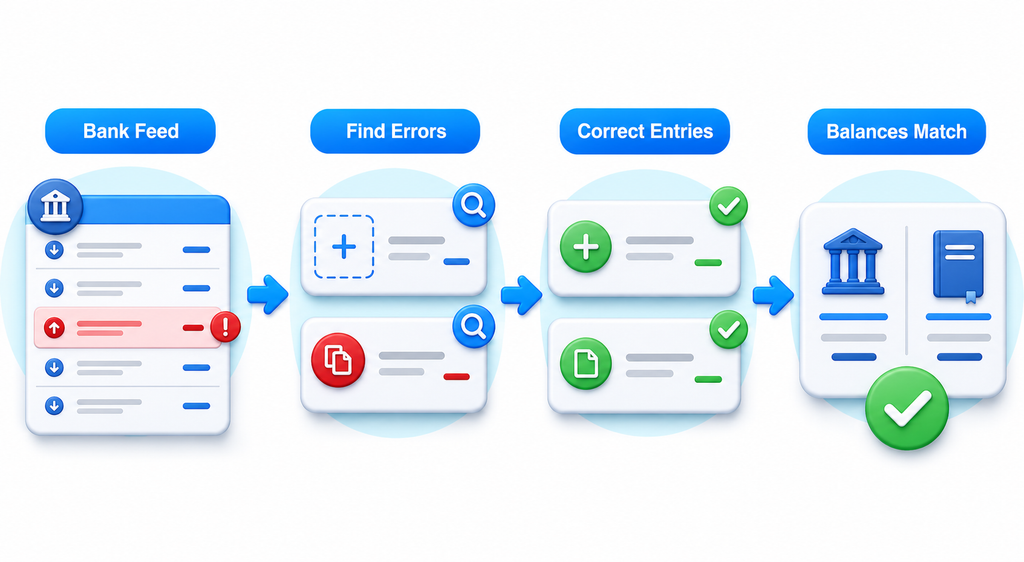
2. The Xero Bank Balance Does Not Match the Actual Bank
A common reason businesses request Xero help Edinburgh is that the balance shown in Xero does not match the balance on the bank statement.
This can happen when:
- Transactions are missing
- Transactions have been duplicated
- Payments have been entered but not reconciled
- The opening balance is wrong
- Transactions were entered in the wrong bank account
- A bank statement line was deleted
- Reconciliation started from an incorrect date
How to fix it
Compare the Xero statement balance with the official bank statement balance for the same date.
Next, review the bank reconciliation report and any unreconciled items. Work backwards from the most recent date on which the balances matched.
Avoid adding a manual adjustment just to make the numbers agree. That may hide the original error rather than correct it.
If the difference covers several months or years, a full bank reconciliation review may be needed.
3. Duplicate Transactions Appear in Xero
Duplicate transactions often appear after a bank statement is imported more than once. They can also occur when users create manual payments and later reconcile the imported bank activity as a new transaction.
Duplicates may increase income, expenses, VAT, customer balances, or supplier balances incorrectly.
How to fix it
Review transactions with the same:
- Date
- Amount
- Contact
- Reference
- Description
Before deleting anything, confirm which entry is correct and whether either transaction is linked to an invoice, bill, payment, or VAT return.
Deleting the wrong entry can create a second problem. If the transaction has already been included in a submitted VAT return, professional advice may be needed before making changes.
4. Bank Rules Are Posting Transactions Incorrectly
Bank rules can save time by suggesting how regular transactions should be recorded. However, a poorly designed rule can repeatedly send transactions to the wrong account or apply the wrong VAT rate.
For example, a broad rule based on one word may capture several unrelated payments.
How to fix it
Review each active bank rule and check:
- The conditions used by the rule
- The account code selected
- The VAT treatment
- The contact name
- The transaction description
- Whether the rule is too broad
Edit or remove rules that create inaccurate entries. Then review the transactions previously created by those rules.
A bank rule is useful only when it produces the correct accounting result. Fast mistakes are still mistakes, just with better time management.
5. Customer Invoices Show as Unpaid After Payment
A customer may have paid an invoice, but Xero may still show it as outstanding.
This often happens when:
- The payment was recorded as new income
- The payment was applied to the wrong invoice
- The payment was entered under the wrong customer
- The invoice was duplicated
- The bank receipt has not been reconciled
- The payment amount differs from the invoice total
How to fix it
Open the customer account and review the invoice, payment, and bank transaction.
If the payment was recorded as new income, remove or correct that entry and match the bank receipt with the proper invoice. If several invoices were paid together, allocate the total across the relevant invoices.
Also check for small differences caused by bank charges, discounts, refunds, or currency movements.
6. Supplier Bills Remain Outstanding After Payment
The same problem can affect supplier bills. Xero may show an unpaid bill even though the supplier has received the money.
This can make the business appear to owe more than it actually does.
How to fix it
Review the supplier account and locate the bank payment. Confirm whether the payment was matched to the bill or recorded as a separate expense.
If it was recorded separately, correct the transaction and apply it to the appropriate bill. Check the supplier statement as additional evidence, especially when several bills were paid together.
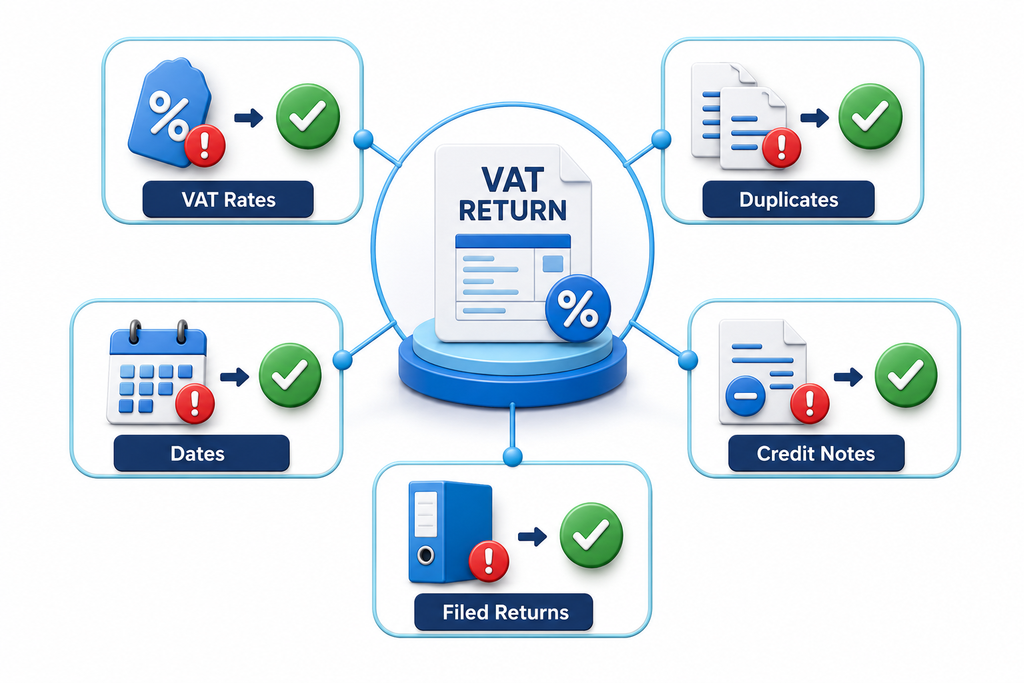
7. VAT Figures Look Incorrect
Incorrect VAT figures are a serious concern because they may affect the amount reported to HMRC.
Common causes include:
- Wrong VAT rates
- Transactions entered outside the correct period
- Duplicate invoices or bills
- Personal expenses treated as business costs
- Imported data with incorrect tax treatment
- Transactions changed after a VAT return was submitted
- Incorrect VAT registration settings
- Credit notes not applied correctly
How to fix it
Review the VAT return details before submission. Compare the figures with sales reports, purchase reports, and previous VAT periods.
Check large and unusual transactions individually. Confirm that sales, expenses, imports, exports, and reverse charge transactions have received the correct treatment.
Do not change a submitted VAT period without understanding how Xero will treat the correction. Speak with a qualified accountant or VAT adviser when the issue affects a filed return.
Businesses seeking Xero help Edinburgh should provide copies of submitted returns, VAT reports, source invoices, and relevant correspondence. This makes it easier to identify where the difference started.
8. The Chart of Accounts Is Confusing
The chart of accounts controls how transactions appear in financial reports. When too many accounts are created, or similar costs are posted to several different places, the reports become difficult to understand.
A poor chart of accounts can result from:
- An incomplete migration
- Duplicate account codes
- Old accounts that are no longer needed
- Users creating new accounts without a clear policy
- Accounts assigned to the wrong reporting category
How to fix it
Review every active account and decide whether it is still required.
Merge activity carefully where suitable, archive unused accounts, and apply clear naming rules. The chart should reflect how management needs to review the business.
Do not archive or change accounts without first checking whether they are used by bank rules, invoices, bills, payroll, apps, or reporting templates.
9. Reports Show Unexpected Profit or Loss
A profit and loss report may show unusual income, excessive expenses, or results that differ from the business owner’s expectations.
Possible reasons include:
- Transactions posted to the wrong account
- Duplicate sales or expenses
- Missing invoices or bills
- Incorrect report dates
- Cash basis and accrual basis differences
- Personal payments included as business costs
- Opening balances posted as current activity
How to fix it
First, confirm the report dates and accounting basis. Then compare the current period with the previous month or year.
Open any account with a large or unexpected movement. Review the individual transactions and correct inaccurate coding where supported by the source records.
The profit figure should never be changed simply because it looks unusual. The underlying transactions must be checked first.
10. The Balance Sheet Does Not Look Right
The balance sheet shows what the business owns, owes, and retains. Problems in this report can continue for years if nobody investigates them.
Warning signs include:
- Negative customer balances
- Old supplier balances
- Unexplained suspense account balances
- Large director loan balances
- Bank balances that do not match statements
- VAT balances that do not match submitted returns
- Opening balances that never clear
- Assets recorded as expenses
How to fix it
Reconcile each important balance sheet account with independent evidence.
For example:
- Bank accounts should match bank statements
- Customer balances should match unpaid invoices
- Supplier balances should match unpaid bills
- VAT balances should agree with VAT records
- Loans should match lender statements
- Payroll balances should match payroll reports
- Fixed assets should match the asset register
A balance should not remain unexplained simply because it has been there for a long time. Old errors do not become correct with age.
11. Opening Balances Were Entered Incorrectly
Opening balances are often entered when a business moves to Xero from another accounting system. If they are wrong, every later report may also be wrong.
Common issues include:
- Opening balances entered on different dates
- Debits and credits entered in the wrong direction
- Customer and supplier balances entered twice
- Bank balances that do not match the migration date
- VAT balances missing from the conversion
- A conversion balance account that does not clear
How to fix it
Obtain the final trial balance from the previous accounting system for the agreed conversion date.
Compare it with the Xero trial balance on the same date. Check each account rather than comparing only the total debits and credits.
Customer balances, supplier balances, bank accounts, VAT, loans, and fixed assets require separate checks. If historical transactions were migrated, confirm that opening balances were not also added for the same activity.
12. Payroll Figures Do Not Match Accounting Reports
Payroll differences may occur when payroll journals are missing, duplicated, or posted to incorrect accounts.
This can affect:
- Gross wages
- Employer costs
- PAYE balances
- Pension balances
- Net wage payments
- Director payroll
How to fix it
Compare the payroll activity summary with the payroll accounts in the general ledger.
Check whether each payroll period created one complete journal. Then confirm that wage payments and payments to HMRC or pension providers were posted against the correct balance sheet accounts.
Payroll corrections can affect employee records and tax reporting. Seek professional advice before changing completed payroll periods.
13. Users Have Too Much Access
Giving every user full access creates unnecessary risk. Staff may view payroll, change financial settings, approve payments, or edit transactions they should not control.
How to fix it
Review every user and confirm:
- Whether the person still works with the business
- Which information they need
- Whether they can approve payments
- Whether they can view payroll
- Whether they can change settings
- Whether their access should be removed
Use separate user accounts. Never ask several people to share one login. Turn on additional security controls and review access whenever responsibilities change.
14. Connected Apps Are Creating Incorrect Entries
Xero can connect with payment systems, ecommerce platforms, receipt tools, stock systems, and other business apps. Poor settings can cause duplicates, missing fees, incorrect tax rates, or large clearing account balances.
How to fix it
Review the connection settings and map every data type carefully. Check:
- Sales
- Refunds
- Fees
- Discounts
- VAT
- Payment methods
- Clearing accounts
- Payouts
Test a small number of transactions before allowing a new app to process large volumes.
If the connection has already created incorrect data, pause it before making corrections. Otherwise, the same problem may continue while the repair work is taking place.
15. Xero Has Become Slow or Difficult to Manage
The software may not be technically slow. The real problem may be an inefficient setup.
Too many bank rules, tracking options, duplicate contacts, old accounts, and incorrect workflows can make routine bookkeeping harder than necessary.
How to fix it
Review the full accounting process from the original document to the final report.
Ask:
- Who creates invoices?
- Who enters bills?
- Who reconciles the bank?
- Who reviews VAT?
- Who checks reports?
- Who approves changes?
Remove unnecessary steps and clarify responsibilities. Provide practical training based on the tasks each person performs.
When Should You Ask for Professional Xero Help?
Some problems can be corrected internally. Others require a detailed review.
You should consider professional Xero help Edinburgh when:
- Bank balances have not matched for several months
- VAT returns may contain errors
- Customer or supplier balances are unreliable
- A migration produced incorrect results
- Opening balances do not agree
- Historical transactions are duplicated or missing
- Payroll accounts do not reconcile
- Reports cannot be trusted
- Several connected apps are posting incorrect data
- Your accountant cannot complete the year end work
The longer these issues remain unresolved, the more transactions may be affected.
What a Professional Xero Review Should Include
A proper review should examine more than the visible problem. It should identify the cause and check the connected accounting areas.
The review may include:
- Xero organisation settings
- Chart of accounts
- Bank feeds and reconciliation
- Customer and supplier balances
- VAT settings and reports
- Payroll accounts
- Opening balances
- Connected apps
- User access
- Profit and loss reports
- Balance sheet accounts
- Historical migration data
The adviser should explain what was found, what needs correcting, and which records are required before changes begin.
How eCloud Experts Can Help Edinburgh Businesses
eCloud Experts provides practical Xero help Edinburgh businesses can use to correct accounting problems and improve their daily processes.
Our support can include:
- Xero setup reviews
- Bank reconciliation corrections
- VAT account reviews
- Customer and supplier balance checks
- Chart of accounts corrections
- Opening balance reviews
- Migration correction services
- Payroll account checks
- App integration reviews
- Xero training and ongoing support
We compare Xero with the available source records before making corrections. This may include bank statements, old accounting reports, invoices, VAT returns, payroll reports, and migration files.
The aim is not simply to make a warning disappear. The aim is to correct the underlying records so your reports can be used with greater confidence.
How to Prevent Future Xero Problems
Most accounting problems are easier to prevent than repair.
Use these practical controls:
- Reconcile every bank account regularly
- Review aged receivables and payables each month
- Check the VAT return before submission
- Limit access based on each user’s role
- Review bank rules before relying on them
- Test app connections with a small data sample
- Compare key balance sheet accounts with supporting records
- Keep copies of important reports
- Train users before giving them accounting responsibilities
- Arrange periodic Xero health checks
Xero offers online support through Xero Central. Xero states that subscribers receive free unlimited online support, while phone support is provided through a requested call rather than an inbound telephone line. View official Xero support information.
However, Xero product support may not investigate the full accounting history of your organisation. When the problem involves reconciliation, VAT, migration data, reporting, or transaction corrections, you may need an accounting focused review.
Frequently Asked Questions
Can incorrect Xero transactions be fixed?
Yes. Most incorrect transactions can be corrected, but the right method depends on the transaction type, date, VAT status, and whether it has been included in a submitted return.
Why does my Xero bank balance not match my bank statement?
The cause may be missing transactions, duplicates, an incorrect opening balance, deleted statement lines, or unreconciled payments. A comparison with official bank statements is needed to find the exact difference.
Can you correct a failed Xero migration?
Yes, depending on the source records available. The migration should be compared with reports from the previous system to identify missing data, duplicates, mapping errors, and incorrect opening balances.
Can you provide remote Xero help in Edinburgh?
Yes. Most Xero reviews, corrections, and training sessions can be completed remotely because Xero is a cloud based platform.
How long does it take to fix Xero problems?
Simple issues may be resolved within a short support session. Complex reconciliation, VAT, payroll, or migration problems may take longer. The timescale depends on the volume of transactions, the period affected, and the quality of the available records.
Should I correct old transactions myself?
Only when you understand how the correction will affect the accounts. Take extra care with transactions included in VAT returns, payroll periods, published accounts, or previous financial years.
How often should a business review its Xero account?
Bank accounts should be reconciled regularly. Key reports and balance sheet accounts should normally be reviewed each month. A wider health check can also be useful before VAT submissions and year end work.
Get Xero Help in Edinburgh
Unreliable figures make business decisions harder. If your bank balances do not match, VAT reports look wrong, or customer and supplier accounts cannot be trusted, waiting will usually make the correction more difficult.
eCloud Experts can review your Xero organisation, identify the cause of the problem, and recommend the right correction process.
Contact us for Xero help Edinburgh businesses can rely on.
Book a discovery call or get a quote to discuss your Xero support requirements.