
Sage to Xero Migration Cost in the UK: What Businesses Should Expect in 2026
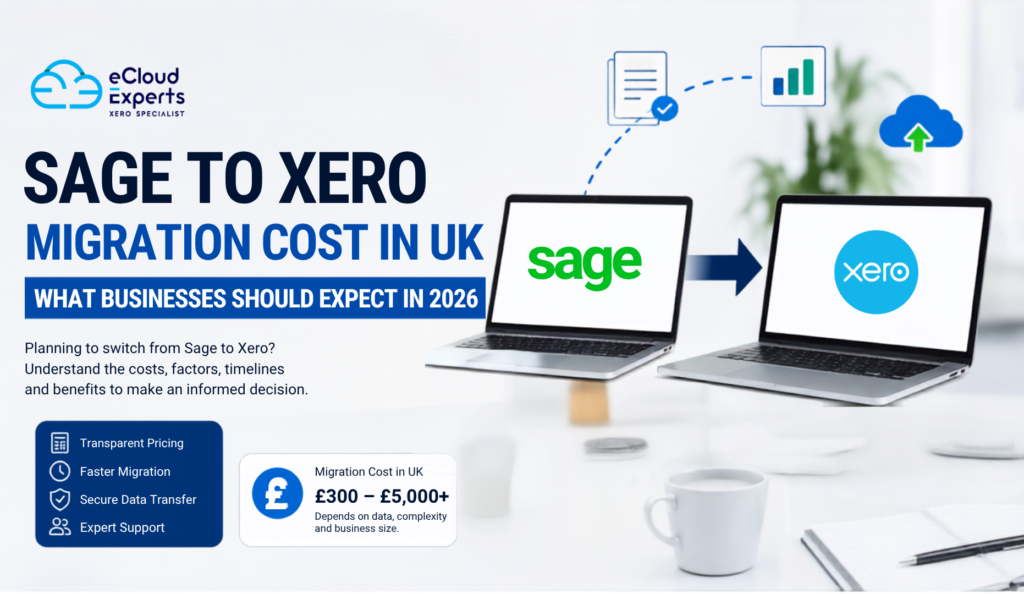
Many UK businesses are rethinking their accounting systems in 2026. Some want better visibility into their finances. Others are looking for improved automation, easier collaboration with accountants, or greater flexibility through cloud accounting. As a result, more businesses are moving from Sage to Xero. Before making the switch, however, one important question usually comes first: What is the Sage to Xero migration cost UK businesses should expect in 2026? The answer depends on several factors. The size of your business, the amount of data being transferred, the complexity of your accounts, and the level of support you require can all influence the final cost. Some businesses spend only a few hundred pounds on a simple migration. Others invest several thousand pounds for a complete migration that includes years of historical data, inventory records, payroll information, and post migration support. This guide explains everything you need to know about Sage to Xero migration cost UK services, helping you budget effectively and avoid surprises during the migration process. Thinking about switching from Sage to Xero? Get expert support and a tailored migration plan from eCloud Experts today. Why More UK Businesses Are Switching from Sage to Xero Accounting software has evolved significantly over the past decade. While Sage remains a well known accounting solution, many businesses are now prioritising cloud based platforms that provide greater accessibility and automation. Xero has become one of the leading cloud accounting systems because it offers: For many companies, these advantages justify the investment involved in a migration project. When businesses evaluate the Sage to Xero migration cost UK, they often compare it against the potential long term benefits of moving to a modern cloud accounting platform. What Does a Sage to Xero Migration Actually Involve? Many business owners assume that migration simply means exporting data from Sage and importing it into Xero. In reality, the process is much more detailed. A successful migration typically includes: Every step plays a role in ensuring the accuracy of your financial information. Skipping any of these stages can lead to reporting issues, reconciliation problems, or incorrect VAT submissions later. Factors That Affect Sage to Xero Migration Cost UK No two migrations are identical. Several factors influence how much businesses ultimately pay. Volume of Historical Data One of the biggest cost drivers is the amount of historical data being migrated. Some businesses choose to transfer only opening balances. Others want: The more history you transfer, the more time is required for extraction, validation, and testing. This often increases the overall Sage to Xero migration cost UK businesses receive. Number of Transactions Transaction volume also affects pricing. A business processing 500 transactions per month requires far less work than one processing 20,000 transactions monthly. Larger transaction volumes usually require: Consequently, businesses with high transaction volumes generally face higher migration costs. Complexity of Business Operations Every business uses accounting software differently. A simple consultancy business may have a straightforward chart of accounts and limited transaction types. Larger businesses may have: More complexity means more planning, testing, and verification. As complexity increases, so does the Sage to Xero migration cost UK. Data Quality One factor many businesses overlook is data quality. During migration planning, providers often discover: Cleaning these issues takes additional time. However, resolving them before migration usually leads to better results and cleaner reporting in Xero. Typical Sage to Xero Migration Cost UK Businesses Can Expect in 2026 While costs vary significantly, the following estimates provide a useful benchmark. Migration Type Estimated Cost Opening balances only £300 to £800 Basic migration £800 to £1,500 Standard migration with transaction history £1,500 to £3,000 Full historical migration £3,000 to £5,000 Complex enterprise migration £5,000+ These figures are intended as general guidelines. The actual Sage to Xero migration cost UK for your business will depend on your specific requirements. What Is Usually Included in a Migration Service? Comparing migration quotes can be difficult because providers include different services. Understanding what is included is often more important than simply choosing the cheapest option. Initial Consultation The migration provider reviews your requirements and discusses project goals. This stage helps determine: Data Assessment Your Sage data is analysed before migration begins. This allows specialists to identify: Data Extraction Financial records are securely extracted from Sage. Data Mapping Information from Sage must be correctly matched to Xero fields. Examples include: Data Import The prepared data is imported into Xero using approved migration procedures. Validation and Reconciliation This stage ensures balances match between both systems. Key areas checked include: User Training Many providers include introductory Xero training. This helps staff become comfortable with the new system quickly. Post Migration Support Support after migration can be invaluable. Users often have questions during the first few weeks of using Xero. Hidden Costs Businesses Should Watch For One of the most common mistakes businesses make is focusing only on the headline price. Some migration quotes exclude important services. Data Cleanup Charges Poor quality data often requires additional work before migration. Payroll Migration Fees Payroll information may require separate processing. Inventory Migration Costs Inventory records can be complex and often involve additional charges. Additional Historical Data Extra years of transaction history may increase pricing. Training Fees Not all migration providers include staff training. Custom Reporting Setup Businesses requiring specialised reports may incur additional costs. Always request a detailed breakdown before approving a migration proposal. DIY Migration vs Professional Migration Many business owners wonder whether they can save money by migrating themselves. The answer depends on the complexity of the business. DIY Migration Advantages DIY Migration Disadvantages Professional Migration Advantages Professional Migration Disadvantages For many businesses, the reduced risk alone makes professional migration worthwhile. How Long Does a Sage to Xero Migration Take? Migration timelines vary based on complexity. Typical projects take: Business Type Typical Timeline Small business 1 to 2 weeks Medium business 2 to 4 weeks Large business 4 to 8 weeks Enterprise project 8+ weeks Businesses often schedule migrations around: Proper planning helps minimise disruption. Ways to Reduce Sage to Xero
Xero Cleanup Case Study: How eCloud Experts Helped Little Spring Wonders Daycare Nursery Restore Confidence in Their Financial Data
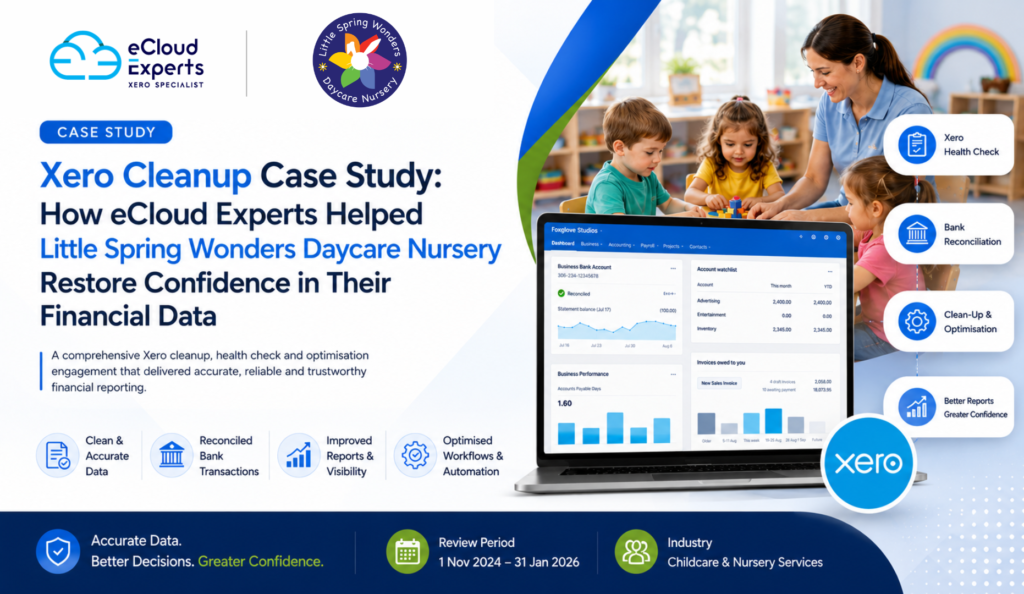
Client Overview Little Spring Wonders Daycare Nursery Limited is a growing childcare provider that relies on accurate financial information to manage cash flow, monitor performance, and support business decisions. Like many growing businesses, day-to-day operational demands meant that bookkeeping processes had evolved over time, resulting in historical reconciliation issues and uncertainty around the accuracy of financial reports. To ensure that Xero could be relied upon as the single source of truth, the directors engaged eCloud Experts to perform a comprehensive Xero Cleanup, Xero Health Check, and Xero Optimisation review. Project Summary Client: Little Spring Wonders Daycare Nursery Limited Industry: Childcare & Nursery Services Software: Xero Project Type: Xero Cleanup & Optimisation Review Period: 1 November 2024 to 31 January 2026 Delivered By: eCloud Experts Services Provided Xero Cleanup Service Xero Health Check Xero Reconciliation Service Xero Bookkeeping Review Xero Optimisation Bank Balance Verification Transaction Corrections Bank Rule Creation Workflow Review Add-On Recommendations The Challenge The management team wanted confidence that the financial information held within Xero was accurate and that the reports being used to make business decisions could be relied upon. Several areas required investigation, including: Bank balances requiring verification. Historical unreconciled transactions. Transactions requiring correction or reallocation. Inefficient reconciliation processes. Opportunities to automate recurring bookkeeping tasks. Need for improved bookkeeping controls and workflows. The objective was not simply to reconcile transactions but to ensure that Xero was operating efficiently and producing reliable financial information. What We Found During our Xero Health Check, we identified several areas that required attention. Historical Reconciliation Issues A number of bank transactions had not been fully reconciled, creating differences between bank activity and accounting records. Inconsistent Transaction Processing Some transactions required further investigation to determine whether they had been posted correctly and whether they should be amended, deleted, or recreated. Opportunities for Automation Recurring transactions that were being processed manually could be automated through bank rules and improved workflows. Process Improvement Opportunities The existing setup presented opportunities to streamline bookkeeping procedures and improve reporting accuracy. While these issues are common in growing businesses, left unresolved they can lead to unreliable reports, inefficient bookkeeping, and reduced confidence in financial data. The eCloud Experts Solution Step 1: Bank Balance Verification We reviewed the bank balances recorded in Xero and compared them against actual bank statements covering the entire review period from 1 November 2024 to 31 January 2026. Where differences were identified, we investigated the root cause and implemented corrective actions. Step 2: Full Bank Reconciliation Our team reviewed and reconciled all bank transactions within the project period. This included: Reviewing historical reconciliations. Identifying missing transactions. Resolving discrepancies. Ensuring bank balances accurately reflected real-world balances. Step 3: Transaction Cleanup Where transactions were identified as inaccurate or incorrectly processed, we reviewed whether they should be: Corrected. Reallocated. Deleted. Recreated. This process helped improve reporting accuracy and financial reliability. Step 4: Bank Rule Creation To improve future efficiency, we created bank rules where appropriate. This reduced manual data entry and simplified future reconciliation processes. Step 5: Xero Optimisation Review We carried out a broader review of the Xero environment to identify opportunities for improvement, including: Reconciliation workflows. Bookkeeping procedures. Reporting structure. Coding consistency. System configuration. Step 6: Add-On Recommendations We also provided recommendations for cloud applications and integrations that could help automate finance processes and improve operational efficiency. Results The project provided Little Spring Wonders Daycare Nursery Limited with a cleaner, more reliable, and better-structured Xero environment. Key Outcomes ✅ Bank balances reviewed and matched ✅ Historical bank transactions reconciled ✅ Transaction discrepancies identified and corrected ✅ Improved bookkeeping accuracy ✅ Bank rules implemented where appropriate ✅ Xero setup reviewed and optimised ✅ Recommendations provided for future efficiency improvements ✅ Improved confidence in management reporting Business Benefits More Reliable Financial Reports Management can now make decisions with greater confidence, knowing that the underlying financial information is accurate and up to date. Faster Bank Reconciliations Improved processes and bank rules reduce the time required to reconcile future transactions. Better Financial Visibility Clean and accurate records provide a clearer picture of business performance and cash flow. Improved Internal Controls The review highlighted opportunities to strengthen bookkeeping procedures and reduce the risk of future errors. Greater Efficiency By optimising Xero and introducing automation where appropriate, the business can spend less time on administration and more time focusing on growth. Expert Insight: Why Xero Cleanup Projects Matter One of the most common misconceptions we encounter is that Xero reporting issues are caused by software limitations. In reality, most problems originate from: Incorrect transaction coding. Unreconciled bank transactions. Duplicate entries. Inconsistent bookkeeping procedures. Lack of automation. A structured Xero Cleanup and Health Check can often uncover issues that have accumulated over months or even years. Businesses that perform regular Xero reviews typically experience: More accurate reporting. Faster month-end processes. Improved bookkeeping efficiency. Better cash flow visibility. Greater confidence in financial data. Client Feedback “We engaged eCloud Experts to review and clean up our Xero account, as we wanted confidence in the accuracy of our financial records and bank reconciliations. The team carried out a detailed review of our accounts, reconciled historical transactions, identified areas that required correction, and provided practical recommendations to improve the way we use Xero going forward. Their work has given us greater confidence in our financial data and helped establish a stronger foundation for future bookkeeping and reporting. We particularly appreciated their attention to detail, clear communication, and proactive approach to identifying opportunities for improvement. I would recommend eCloud Experts to any business looking to improve the accuracy and efficiency of their Xero accounting system.” Ross Becko Director Little Spring Wonders Daycare Nursery Limited About eCloud Experts eCloud Experts is a Xero Gold Champion Partner specialising in Xero Cleanup Services, Xero Health Checks, Xero Optimisation, Xero Bookkeeping Reviews, and complex accounting software migrations. Our team helps businesses identify errors, improve bookkeeping processes, optimise Xero, and ensure that financial reports can be trusted. Whether you need a complete Xero cleanup, a one-off health check, or ongoing support, we
SweetTree Home Care Services Successfully Migrates Four Group Companies from NetSuite to Xero with Three Years of Historical Data
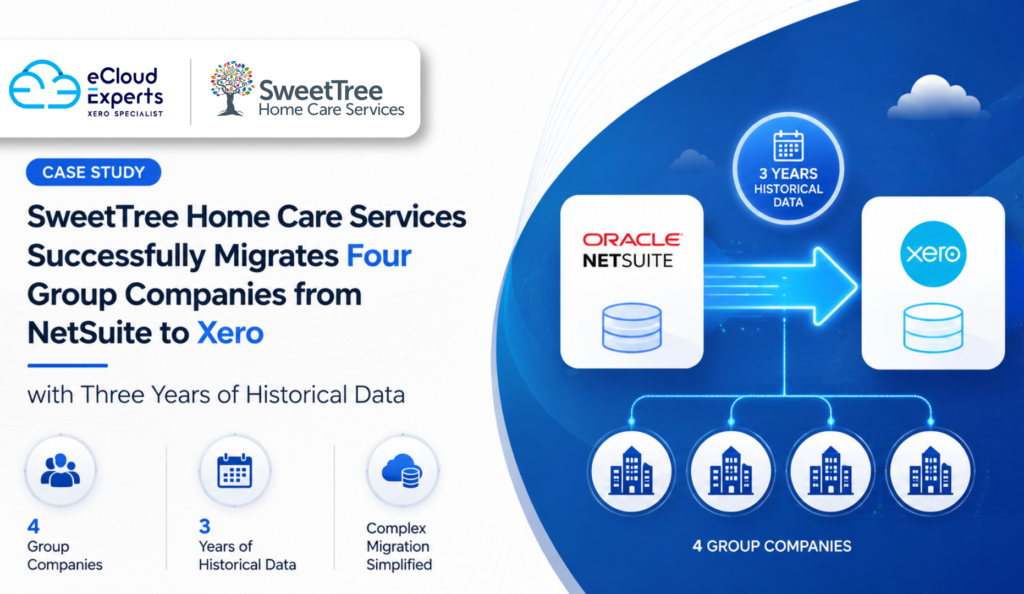
Client Overview SweetTree Home Care Services is one of the UK’s leading providers of home care and support services, delivering high-quality care solutions to individuals and families across London and the South East. As the organisation expanded, its finance team was responsible for managing the financial operations of four companies within the group. While NetSuite ERP had supported the business for many years, the finance team identified an opportunity to simplify processes, improve efficiency, and provide users with a more intuitive cloud accounting platform. To achieve this, SweetTree Home Care Services partnered with eCloud Experts, a Xero Gold Champion Partner and NetSuite to Xero migration specialist, to deliver a complete migration project. Project Summary Client: SweetTree Home Care Services Industry: Home Care Services Source System: NetSuite ERP Destination System: Xero Group Structure: 4 Companies Historical Data Migrated: 3 Years of Full Transaction History Services Delivered: NetSuite to Xero Migration Historical Data Migration Accounts Receivable Migration Accounts Payable Migration Bank Transaction Migration Credit Card Transaction Migration Xero Setup & Configuration Finance Team Training Post-Migration Support The Challenge SweetTree Home Care Services wanted to modernise its finance function while retaining access to historical financial information. The project involved migrating four companies from NetSuite to Xero while preserving three years of detailed financial history. Unlike many migration projects that only transfer opening balances, SweetTree wanted to retain complete transaction-level information to ensure continuity of reporting and maintain access to historical records without relying on the legacy ERP system. The migration scope included: Sales invoices and credit notes Purchase invoices and supplier credits Customer receipts Supplier payments Bank transactions Credit card transactions Manual journals Accounts Receivable balances Accounts Payable balances Historical reporting data In addition to the migration itself, the finance team faced several operational challenges. Slow Month-End Close Month-end reporting required significant effort due to manual processes and complex workflows. Complex Bank & Credit Card Reconciliations Reconciling bank and credit card transactions was time-consuming and often required extensive manual review. Supplier Payment Processing Managing supplier payments across multiple companies involved unnecessary administration and reduced visibility of outstanding liabilities. Expense Claim Administration Expense claims were taking longer than necessary to process, creating inefficiencies for both employees and the finance team. SweetTree’s objective was clear: implement a simpler, more efficient finance platform while maintaining complete financial accuracy. Why SweetTree Chose eCloud Experts Migrating from NetSuite to Xero is a complex process that requires both technical expertise and practical accounting knowledge. SweetTree selected eCloud Experts because of our proven track record delivering large-scale migrations involving: NetSuite ERP Sage 200 Microsoft Dynamics 365 Business Central QuickBooks Enterprise Sage Intacct Multi-company group structures Historical transaction migrations Our team specialises in ensuring organisations retain accurate historical data while improving operational efficiency through cloud accounting solutions. The Solution eCloud Experts delivered a complete end-to-end migration project covering all four companies within the SweetTree group. Discovery & Planning The project began with a detailed review of SweetTree’s existing NetSuite environment. We worked closely with the finance team to understand: Reporting requirements Group company structure Month-end procedures Supplier payment workflows Credit card management Expense claim processes Historical reporting needs This ensured that the new Xero environment would support both current and future business requirements. Historical Data Migration Our migration specialists extracted, transformed, validated, and imported three years of historical transaction data from NetSuite into Xero. The migration included: Sales invoices Credit notes Purchase invoices Supplier credits Customer receipts Supplier payments Manual journals Bank transactions Credit card transactions Customer records Supplier records Opening balances Each company was independently reconciled to ensure complete accuracy before go-live. Data Validation & Reconciliation A rigorous validation process was performed to ensure: Trial balances matched NetSuite Accounts Receivable balances reconciled Accounts Payable balances reconciled Bank balances matched Historical reports remained accurate Financial integrity was maintained across all four companies Xero Configuration Each Xero organisation was configured to support SweetTree’s operational and reporting requirements. The configuration focused on simplifying workflows while improving visibility and control. Finance Team Training Following the migration, eCloud Experts delivered tailored Xero training sessions for the finance team. Training included: Bank reconciliation Credit card reconciliation Supplier payment processing Expense management Accounts payable workflows Accounts receivable management Financial reporting Month-end procedures Xero best practices This ensured the team could confidently use Xero immediately after implementation. Results The migration was completed successfully across all four companies within the SweetTree Home Care Services group. Three years of full historical financial data were successfully migrated, allowing the finance team to access historical information directly within Xero without relying on NetSuite. Key Outcomes ✅ Successful migration of four group companies from NetSuite to Xero ✅ Three years of full transaction history successfully migrated ✅ Historical bank and credit card transactions preserved ✅ Accounts Receivable and Accounts Payable balances fully reconciled ✅ Accurate opening balances across all companies ✅ Finance team successfully trained on Xero ✅ Minimal disruption during implementation Business Benefits Faster Month-End Close The finance team significantly reduced the time required to complete month-end procedures through simplified workflows and improved reporting capabilities. Faster Bank Reconciliation Automated bank feeds and Xero’s intuitive reconciliation tools enabled transactions to be processed more efficiently and accurately. Faster Credit Card Reconciliation Credit card accounts became easier to manage, reducing the time spent matching transactions and investigating discrepancies. Faster Supplier Payments Improved visibility of supplier balances and streamlined payment workflows enabled the finance team to process payments more efficiently across all four companies. Faster Expense Claim Processing Expense claims could be reviewed, approved, and processed more quickly, reducing administration and improving employee experience. Improved Financial Visibility The finance team gained real-time access to financial information, allowing faster decision-making and better control across the group. Increased Productivity By reducing manual processes and simplifying everyday accounting tasks, the finance team was able to focus on more strategic activities that support the wider organisation. Client Feedback “Migrating four companies from NetSuite to Xero was a significant undertaking for our organisation, and eCloud Experts delivered the project professionally from planning through to implementation and training.” The team took
Why Businesses Are Switching from Akaunting to Xero in 2026
Managing business finances is becoming more challenging every year. Business owners need accurate reports, faster processes, better visibility, and software that can support growth. While Akaunting has been a popular choice for startups and small businesses, many companies are now choosing to switch from Akaunting to Xero as their accounting needs evolve. In 2026, businesses are looking beyond basic bookkeeping tools. They want automation, real time financial insights, seamless integrations, and reliable cloud access. This is where Xero stands out. Many companies that switch from Akaunting to Xero find that they spend less time on manual accounting tasks and more time focusing on growth, customers, and profitability. Whether you run an ecommerce store, a service business, or a growing company with multiple team members, Xero offers features designed to help you work smarter. Ready to streamline your accounting processes? Contact our experts today to make your switch from Akaunting to Xero smooth and hassle-free. This guide explains why businesses are making the move, what benefits Xero provides, and how to ensure a successful migration. Understanding Akaunting Akaunting is an open source accounting platform designed primarily for freelancers, startups, and small businesses. It offers a cost effective way to manage finances and provides essential accounting functions. Some of its core features include: For many new businesses, these features are enough to get started. However, as operations grow, accounting requirements become more demanding. Business owners often need: When these needs increase, many companies decide to switch from Akaunting to Xero. Why More Businesses Are Choosing to Switch from Akaunting to Xero The accounting software market has changed significantly over the past few years. Business owners now expect their accounting system to connect with other business tools, automate repetitive tasks, and provide instant financial visibility. Companies that switch from Akaunting to Xero are usually looking for: Xero has become one of the most popular cloud accounting solutions because it addresses these needs effectively. Instead of simply recording transactions, Xero helps businesses manage finances proactively and make informed decisions. Better Automation Saves Valuable Time One of the biggest reasons businesses switch from Akaunting to Xero is automation. Manual accounting processes consume time and increase the risk of errors. As transaction volumes grow, manual workflows become harder to manage. Xero helps solve this problem with automation tools that simplify everyday tasks. Automated Bank Feeds Bank transactions can automatically flow into Xero, reducing the need for manual data entry. Instead of typing transactions one by one, businesses can review and reconcile imported data quickly. This saves time while improving accuracy. Recurring Invoices Many businesses send the same invoices every month. Xero allows recurring invoices to be created automatically, ensuring consistency and reducing administrative work. Automatic Payment Reminders Late payments can affect cash flow. Xero helps businesses stay on top of outstanding invoices by sending automatic payment reminders to customers. This reduces manual follow up and encourages faster payments. Faster Bank Reconciliation Reconciling bank accounts is often one of the most time consuming accounting tasks. Xero uses smart matching suggestions to speed up reconciliation and improve efficiency. For many businesses, these automation features alone provide enough reason to switch from Akaunting to Xero. Stronger Financial Reporting and Business Insights Good business decisions depend on accurate information. As companies grow, they need more than basic reports. They need detailed insights into profitability, expenses, cash flow, and business performance. This is another major reason businesses switch from Akaunting to Xero. Xero provides comprehensive reporting tools that help business owners understand their financial position in real time. Key reporting features include: Instead of waiting until month end, business owners can access up to date financial information whenever they need it. This level of visibility supports faster and better decision making. Access to Hundreds of Business Integrations Modern businesses rely on multiple software applications. Accounting software no longer operates in isolation. It must connect with ecommerce platforms, payment gateways, customer relationship management systems, and inventory tools. Many organizations switch from Akaunting to Xero because of Xero’s extensive integration ecosystem. Popular integrations include: These integrations help eliminate duplicate data entry and improve efficiency across the business. For example, ecommerce sales can automatically sync into Xero, reducing manual work while improving reporting accuracy. As businesses grow, this connectivity becomes increasingly valuable. Easier Collaboration With Accountants and Bookkeepers Business owners often work closely with accountants, bookkeepers, and financial advisors. When companies switch from Akaunting to Xero, they frequently find collaboration becomes much easier. Because Xero is cloud based, authorized users can securely access financial information from anywhere. Benefits include: Instead of sending spreadsheets back and forth, accountants can review live data directly within Xero. This improves efficiency and helps identify issues before they become larger problems. Improved Scalability for Growing Businesses What works for a startup may not work for a growing company. As businesses expand, accounting requirements become more complex. Growing businesses often need: This is why many organizations switch from Akaunting to Xero before growth creates operational challenges. Multi Currency Support Businesses serving international customers often require multi currency functionality. Xero provides tools that make it easier to manage foreign currency transactions and international business activities. Support for Higher Transaction Volumes As transaction volumes increase, accounting software must continue performing reliably. Xero is designed to handle growth without compromising performance. Flexible for Future Expansion Whether a business is adding new services, entering new markets, or opening additional locations, Xero provides the flexibility needed to support long term growth. Many companies view the decision to switch from Akaunting to Xero as an investment in their future. Security and Reliability Matter More Than Ever Financial information is one of a company’s most valuable assets. In today’s environment, businesses need confidence that their accounting data is secure and protected. Many companies switch from Akaunting to Xero because they want the security offered by a globally trusted cloud accounting platform. Xero includes features such as: These features help protect sensitive financial information while ensuring reliable access when needed. For many business owners, stronger security provides
Can You Learn QuickBooks Without an Accountant?
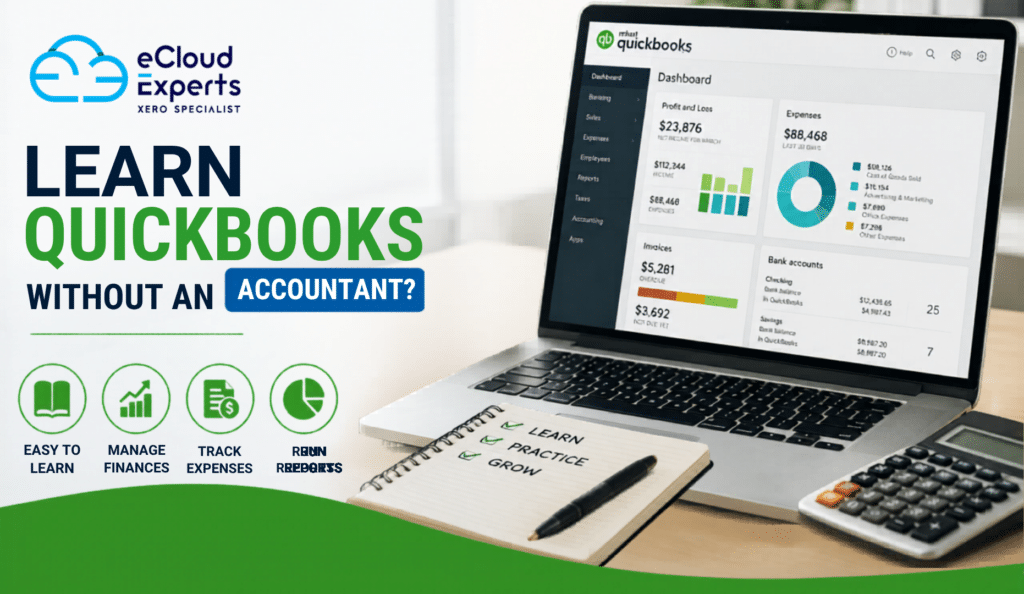
Managing your business finances can feel overwhelming at first. Many business owners assume they need an accountant beside them to learn accounting software. However, that is not always true. If you are wondering whether you can learn QuickBooks without an accountant, the simple answer is yes. QuickBooks was designed to help business owners, freelancers, and startups manage their finances without needing advanced accounting knowledge. With the right approach, you can learn the basics, handle daily bookkeeping tasks, and gain more confidence in your financial records. In this guide, we will explore how you can learn QuickBooks, what challenges you may face, and when professional support can still be useful. Why More Business Owners Want to Learn QuickBooks Many small business owners want greater control over their finances. Instead of relying on someone else for every transaction, they prefer to understand how money moves through their business. When you learn QuickBooks, you can: Having these skills can save time and help you make better business decisions. What Makes QuickBooks Beginner Friendly? One reason many people choose to learn QuickBooks on their own is that the software is built for non accountants. The dashboard presents information in a simple format. Most tasks follow step by step processes. Features are clearly labeled, making it easier to understand what each tool does. QuickBooks also includes: These features reduce the learning curve for beginners. What Can You Learn Without an Accountant? You do not need professional accounting qualifications to handle many everyday tasks. Most users can learn how to: Set Up a Company File The first step when you learn QuickBooks is creating your company profile. This includes: The setup wizard guides you through the process. Create and Send Invoices Invoicing is one of the easiest functions to master. You can learn how to: Many business owners become comfortable with invoicing within a few hours. Track Expenses Expense tracking helps you understand where your money goes. When you learn QuickBooks, you can quickly record: Accurate expense tracking improves financial visibility. Connect Bank Accounts Bank feeds automatically import transactions into QuickBooks. This feature helps reduce manual data entry and allows you to: For beginners, bank feeds make bookkeeping much easier. Run Basic Reports Reports provide valuable business insights. You can easily generate: Learning to read these reports helps you understand business performance. Common Challenges When You Learn QuickBooks Although QuickBooks is beginner friendly, some areas may require extra attention. Understanding Accounting Terms Words like assets, liabilities, equity, and reconciliation can seem confusing at first. The good news is that you do not need to become an accountant overnight. Focus on learning one concept at a time. Categorizing Transactions Correctly Choosing the correct category for income and expenses is important. Incorrect categories can affect financial reports and tax preparation. Many beginners improve their skills through practice and training. Bank Reconciliation Reconciling accounts means matching QuickBooks records with bank statements. This process helps identify errors and missing transactions. While it may seem difficult initially, it becomes easier with experience. Tax Settings Depending on your country, sales tax or VAT settings may require additional attention. Incorrect tax setup can create reporting issues later. Best Ways to Learn QuickBooks on Your Own If you want to learn QuickBooks successfully, follow a structured approach. Start With QuickBooks Tutorials QuickBooks provides official training materials for beginners. These resources explain: They are often the best place to start. Practice Using Sample Data Learning becomes easier when you apply concepts in real situations. Create sample customers, invoices, and expenses to gain confidence before working with actual business data. Follow Online Courses Many training providers offer beginner focused QuickBooks courses. A structured course helps you learn topics in the correct order and avoid confusion. Watch Video Demonstrations Video lessons show exactly how tasks are completed. Watching someone perform a task can often be easier than reading instructions. Learn One Feature at a Time Trying to master everything in one day can feel overwhelming. Instead, focus on: Building skills gradually leads to better results. When Professional Training Helps While many people can learn QuickBooks independently, professional training can accelerate the process. Training helps you: This can be especially valuable for growing businesses with more complex financial requirements. Can Small Businesses Manage QuickBooks Without an Accountant? For daily bookkeeping tasks, many small businesses successfully use QuickBooks without an accountant. Owners often manage: However, professional accountants can still provide support for: Think of QuickBooks as a tool that helps you stay organized rather than replacing professional financial advice completely. Signs You Are Ready to Learn QuickBooks Yourself You may be ready to learn independently if: With consistency and practice, most business owners can develop strong QuickBooks skills. How Long Does It Take to Learn QuickBooks? The answer depends on your goals. For basic daily tasks, many people can learn QuickBooks within a few days. For more advanced functions such as inventory management, budgeting, and custom reporting, learning may take several weeks. The key is consistent practice. Even spending 20 to 30 minutes per day can lead to rapid improvement. Why QuickBooks Training Can Save Time Many users try to figure everything out through trial and error. While this can work, it often leads to mistakes and frustration. Professional QuickBooks training provides: This helps users become productive much sooner. Final Thoughts Yes, you can absolutely learn QuickBooks without an accountant. QuickBooks was created to help business owners manage their finances more effectively, even if they have no accounting background. By using tutorials, training courses, and regular practice, you can learn invoicing, expense tracking, reporting, and other essential bookkeeping tasks. That said, professional training can make the learning process faster and easier while helping you avoid costly mistakes. If you want expert guidance, eCloud Experts offers professional QuickBooks training designed for beginners and growing businesses. Our specialists help you learn QuickBooks with confidence so you can manage your finances more effectively and make informed business decisions.
What Is Included in Professional Xero Training Services
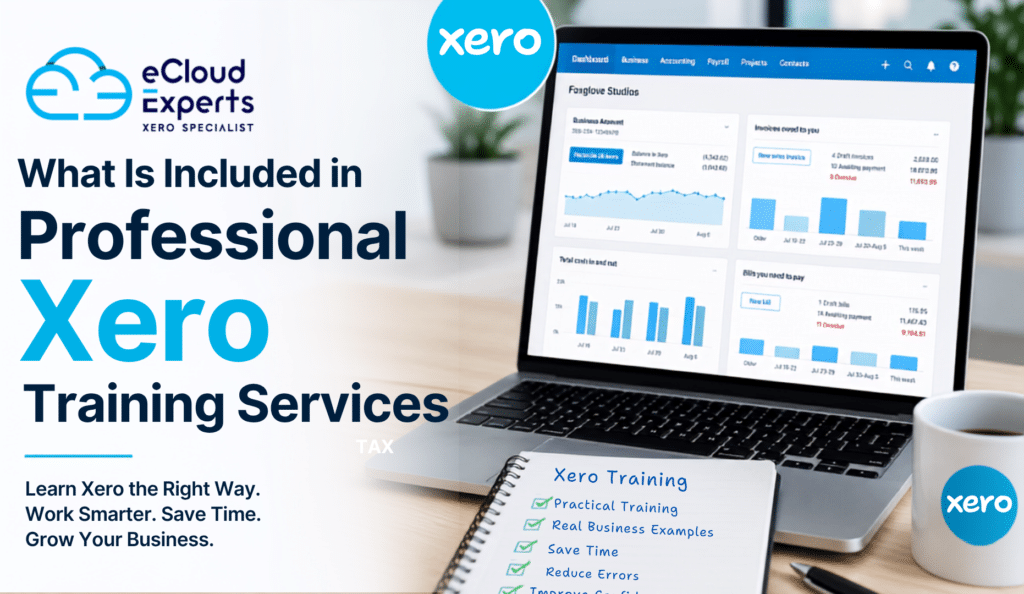
Managing accounts in Xero looks easy at first. The dashboard is clean, the menus are simple, and many tasks feel beginner friendly. But once daily bookkeeping, payroll, VAT, bank reconciliation, and reporting become part of your routine, mistakes can happen quickly. That is why many businesses invest in professional Xero training services. Good training does more than explain where buttons are located. It helps business owners, accountants, and finance teams understand how to use Xero correctly in real business situations. The right training saves time, reduces accounting errors, and helps teams feel confident using the software every day. If you are wondering what professional Xero training services actually include, this guide explains everything in simple terms. Why Businesses Choose Xero Training Services Many companies start using Xero without proper setup or training. At first, things seem manageable. Then problems appear. Common issues include: • Incorrect bank reconciliations• Duplicate transactions• Wrong VAT settings• Poor financial reporting• Payroll mistakes• Unorganised chart of accounts• Confusion around invoices and bills• Difficulty tracking cash flow Professional Xero training services help businesses avoid these problems before they become expensive. Training gives your team a clear process for managing accounts properly from day one. Initial Xero System Overview Most professional Xero training services begin with a full introduction to the platform. This section helps users understand: • The Xero dashboard• Navigation menus• Organisation settings• User roles and permissions• Financial workflow basics• How data moves inside Xero This is important because many users jump into transactions without understanding how the system connects together. A proper overview builds confidence early. Xero Setup and Configuration Training One of the biggest parts of Xero training services is learning how to set up the system correctly. Poor setup creates long term accounting problems. Professional training usually covers: Chart of Accounts Setup Users learn: • How to structure accounts properly• How to customise account categories• Which accounts businesses actually need• How to avoid unnecessary accounts A clean chart of accounts makes reporting easier later. Financial Settings Training often includes: • Financial year settings• Tax configuration• Currency setup• Invoice branding• Payment terms• Bank feed setup These small details affect how accurate your reports become. Bank Reconciliation Training This is one of the most important parts of Xero training services. Many businesses struggle with reconciliation because they do not fully understand how matching works inside Xero. Professional training teaches: • How bank feeds work• Matching transactions correctly• Creating bank rules• Managing transfer transactions• Finding reconciliation errors• Handling duplicate entries• Reconciling PayPal and Stripe accounts Good reconciliation training can save hours every month. Invoice and Billing Training Creating invoices sounds simple. However, many businesses use incorrect settings or poor workflows. Professional Xero training services normally include: Sales Invoice Training Users learn: • Creating professional invoices• Sending invoices automatically• Adding payment links• Tracking unpaid invoices• Managing recurring invoices• Credit note handling Supplier Bill Management Training also covers: • Recording supplier bills• Bill approval workflows• Managing due dates• Batch payments• Expense tracking This helps businesses improve cash flow management. VAT and Tax Training Tax mistakes can become very expensive. That is why professional Xero training services usually include detailed VAT and tax guidance. Training often covers: • VAT setup• VAT rates• VAT return preparation• Common VAT mistakes• Reverse charge VAT• EC transactions• Tax reporting checks For UK businesses especially, VAT training is extremely important. Payroll Training in Xero Payroll is another area where businesses often need extra help. Professional Xero training services may include: • Employee setup• Payroll processing• Pension setup• Holiday management• Payslip generation• Payroll reporting• RTI submissions• Statutory pay handling Payroll training helps businesses reduce payroll errors and stay compliant. Financial Reporting Training Many businesses use only basic reports in Xero. Professional training teaches users how to understand their numbers properly. Training commonly includes: Profit and Loss Reports Users learn: • How to read profit reports• Understanding expenses• Tracking profitability• Comparing periods Balance Sheet Reports Training explains: • Assets and liabilities• Business health indicators• Common balance sheet problems Cash Flow Reporting Cash flow training helps businesses: • Track incoming payments• Understand outgoing costs• Predict future cash shortages• Improve financial planning This part of Xero training services is often overlooked, but it provides huge value. Xero Automation Training One of the biggest advantages of Xero is automation. Professional Xero training services show businesses how to reduce manual work. Training may include: • Bank rules• Automated invoice reminders• Recurring invoices• Scheduled reports• Payment integrations• Expense automation• Receipt capture tools Automation training can save businesses many hours each month. Xero Add On Integration Training Many businesses connect Xero with other software. Professional training often includes guidance on: • Shopify integration• WooCommerce integration• Stripe integration• PayPal integration• Hubdoc setup• Payroll integrations• Inventory software connections Users learn how data syncs between systems and how to avoid duplicate entries. Error Detection and Troubleshooting This is one of the most valuable parts of professional Xero training services. Good trainers teach users how to spot problems early. Training may include: • Identifying reconciliation issues• Fixing incorrect transactions• Removing duplicates• Correcting VAT errors• Troubleshooting locked periods• Managing user permission issues Learning how to fix mistakes gives businesses long term confidence. Custom Training for Different Roles Not everyone uses Xero in the same way. Professional Xero training services are often customised for: • Business owners• Bookkeepers• Finance managers• Accountants• Payroll staff• Admin teams For example: A business owner may focus on reports and cash flow. A bookkeeper may need detailed reconciliation training. A payroll manager may need payroll specific guidance. Custom training makes learning faster and more useful. One to One Xero Training Many providers offer private Xero training sessions. This allows businesses to: • Ask questions directly• Learn using real business examples• Focus on specific problems• Train at their own pace One to one sessions are often more effective than generic online tutorials. Team Based Xero Training Larger businesses often choose group training. This helps create consistent accounting processes across the company. Team training usually includes: • Shared workflows• User responsibilities• Approval processes• Standard
Common QuickBooks Mistakes That Lead to Bad Financial Reports
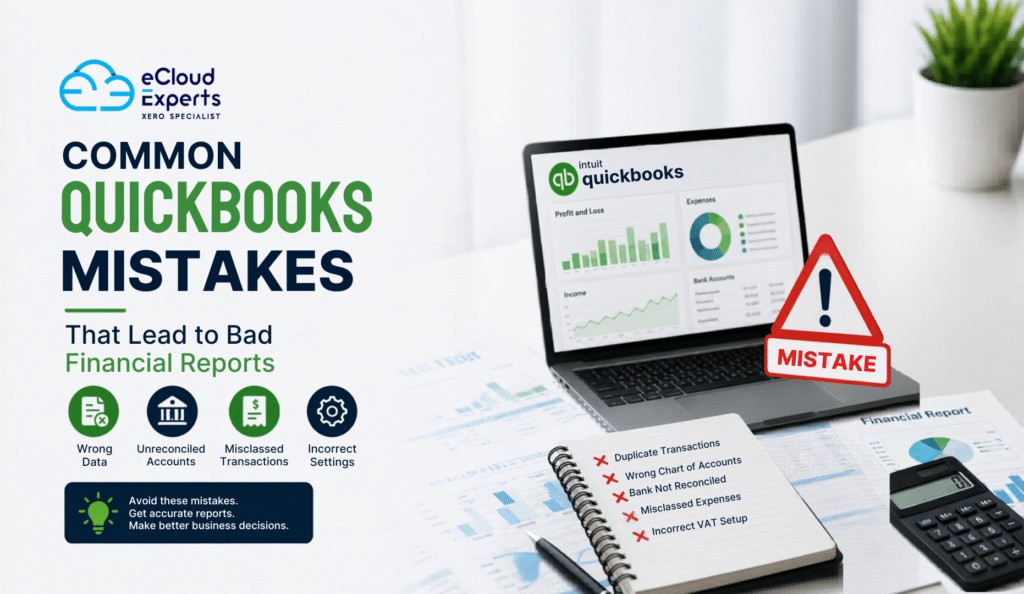
Money decisions depend on accurate numbers. But many businesses unknowingly damage their reports because of small bookkeeping errors inside QuickBooks. At first, these mistakes may seem harmless. Over time, though, they can create serious problems with cash flow, taxes, forecasting, and business planning. That is why understanding common QuickBooks mistakes matters so much. Many business owners trust their reports without checking if the data behind them is correct. Unfortunately, QuickBooks only works well when the information entered is accurate. Even one wrong setting can affect profit reports, VAT calculations, or bank balances. In this guide, you will learn the most common QuickBooks mistakes that lead to unreliable financial reports and how to avoid them before they hurt your business. Why Accurate Financial Reports Matter Financial reports are not just paperwork. They help you understand how your business is performing. Your reports affect: • Tax filing• Cash flow planning• Business growth decisions• Loan applications• Investor confidence• Payroll planning• Budgeting When reports contain errors, decisions become risky. For example, you may think your business is profitable when it is actually losing money. Or you might underpay taxes because expenses were recorded incorrectly. That is why avoiding QuickBooks mistakes should be a priority for every business owner. Using the Wrong Chart of Accounts One of the biggest QuickBooks mistakes happens during setup. The chart of accounts is the foundation of your bookkeeping system. If accounts are messy or poorly organized, your reports become confusing very quickly. Many businesses: • Create duplicate accounts• Use unclear account names• Put expenses in the wrong categories• Mix personal and business transactions As a result, profit and loss reports lose accuracy. For example, software subscriptions may be recorded under office expenses one month and marketing costs the next. That inconsistency makes reporting unreliable. A clean chart of accounts keeps your QuickBooks reports clear and useful. Not Reconciling Bank Accounts Regularly This is one of the most damaging QuickBooks mistakes. Bank reconciliation means comparing QuickBooks transactions with actual bank statements. If you skip this process, errors stay hidden for months. Businesses often forget to reconcile because they assume bank feeds are always correct. That is dangerous. Common problems include: • Missing transactions• Duplicate transactions• Incorrect amounts• Uncleared payments• Bank fees not recorded Without reconciliation, your cash balance may look healthy while your real bank account tells a different story. Monthly reconciliation helps catch errors before they become expensive problems. Duplicating Transactions Duplicate entries create inflated income and expenses. This usually happens when businesses manually add transactions after QuickBooks already imported them from the bank feed. For example: • An invoice payment gets entered manually• The bank feed imports the same payment again• Income doubles incorrectly The same issue happens with expenses and bills. This type of QuickBooks mistake can completely distort financial reports. Signs of duplicate transactions include: • Income appearing unusually high• Expense totals increasing unexpectedly• Bank balances not matching• Duplicate vendor payments Regular reviews help spot these issues early. Misclassifying Expenses Expense categorization affects every financial report. Unfortunately, many businesses guess categories without understanding accounting rules. This leads to inaccurate: • Profit reports• Tax reports• Expense summaries• Department tracking For example, recording equipment purchases as office supplies instead of fixed assets changes how profits appear. Another common QuickBooks mistake is mixing owner drawings with business expenses. When expenses are classified properly, reports become more reliable and easier to understand. Ignoring Undeposited Funds Undeposited Funds is one of the most misunderstood areas in QuickBooks. Many users accidentally leave payments sitting there for months. This creates confusion because: • Payments appear received• Bank balances do not match• Customer balances become incorrect For example, if you receive multiple payments and group them into one bank deposit, QuickBooks must handle that process correctly. If not managed properly, reports become inaccurate very quickly. Regularly checking the Undeposited Funds account prevents hidden reporting problems. Failing to Review Bank Feed Rules Bank rules save time. But incorrect rules create repeated errors. This is one of the most overlooked QuickBooks mistakes. Businesses often create automatic rules without testing them properly. As a result: • Transactions go into the wrong category• VAT codes become incorrect• Vendor names change unexpectedly• Duplicate entries appear automatically For example, a software payment may always get categorized as office supplies because of a bad rule setup. Over time, these mistakes affect every report in the system. Review bank rules regularly to make sure automation is helping instead of hurting. Not Closing Previous Accounting Periods Leaving old periods open creates serious risks. Anyone can accidentally edit past transactions, which changes historical reports without warning. This often happens when: • Old invoices get deleted• Prior expenses are edited• VAT codes change after filing• Reconciled transactions get modified Suddenly, last year’s reports no longer match filed tax returns. That can create major accounting headaches. Closing periods after month end or year end helps protect report accuracy. Incorrect VAT Setup VAT mistakes are extremely common in QuickBooks. Wrong VAT settings can lead to: • Incorrect tax returns• Overpaid VAT• Underpaid VAT• HMRC compliance issues Some businesses apply VAT codes incorrectly to every transaction. Others forget to apply VAT completely. Another major QuickBooks mistake is using the wrong VAT rate for international transactions. Because VAT rules can be complex, proper setup matters from the start. A quick VAT review inside QuickBooks can prevent large reporting errors later. Forgetting to Match Transfers Transfers between accounts must be matched properly. Otherwise, QuickBooks may record them as income or expenses by mistake. For example: • Moving money from checking to savings• Paying a credit card from a bank account• Transferring funds between currencies If these transactions are categorized incorrectly, reports become distorted. This is one of those QuickBooks mistakes that quietly affects financial statements without obvious warning signs. Matching transfers properly keeps balances accurate across all accounts. Poor Invoice Management Invoices directly affect revenue reports. When invoice workflows are inconsistent, financial reports lose accuracy. Common invoice problems include: • Duplicate invoices• Deleted invoices• Incorrect dates• Missing payments• Unapplied
Xero Payroll Training: Common Tasks Explained Simply
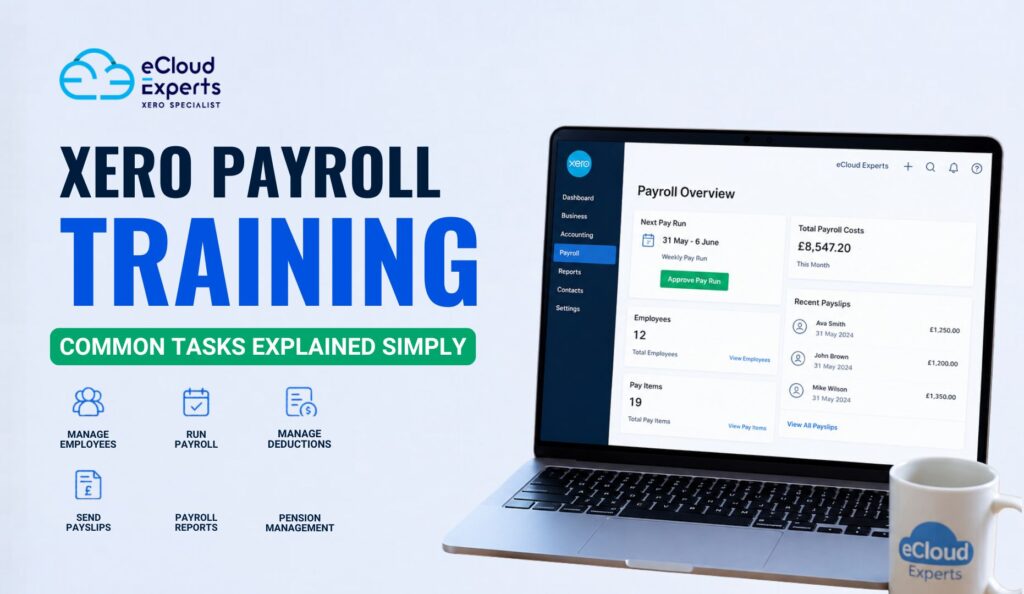
Payroll can quickly become one of the most stressful parts of running a business. One small mistake can lead to late payments, confused employees, or reporting problems. That is why more businesses are investing time in Xero payroll training before payroll issues start piling up. The good news is that Xero payroll is not difficult once you understand the basics. Many payroll tasks follow the same process each pay cycle. Once you learn how the system works, managing payroll becomes much easier and far less time consuming. In this guide, we will explain common payroll tasks in simple language. Whether you are a business owner, bookkeeper, or payroll beginner, this blog will help you understand how Xero payroll works and how proper Xero payroll training can make daily payroll management much smoother. What Is Xero Payroll Training? Many people think payroll training is only for accountants. That is not true anymore. Small business owners, admin staff, and managers now handle payroll themselves using cloud software like Xero. Xero payroll training teaches users how to: • Set up employees correctly• Process payroll runs• Manage taxes and pension deductions• Approve timesheets and leave requests• Generate payslips and reports• Avoid payroll mistakes Good Xero payroll training focuses on practical tasks instead of technical jargon. The goal is simple. Help users feel confident using the software daily. Businesses often choose Xero payroll because it connects payroll with accounting in one system. This helps reduce duplicate work and keeps financial records updated automatically. However, without proper training, users can still make setup errors that create problems later. That is why learning the right process from the start matters. Why Businesses Are Switching to Xero Payroll Payroll used to involve spreadsheets, printed payslips, and manual calculations. That approach creates unnecessary risk. Today, businesses want payroll software that is easier to manage remotely and updates automatically. Xero payroll helps businesses: • Store payroll records securely online• Process payroll faster• Reduce manual calculations• Manage employee leave• Generate reports instantly• Keep payroll connected with bookkeeping Another major reason businesses choose Xero payroll training is confidence. Staff feel less stressed when they understand what they are doing. A trained payroll user can often spot errors before payroll is processed. That saves businesses time and money. How Xero Payroll Works Many businesses start using payroll software without fully understanding the workflow. That often creates confusion later. Xero payroll works by bringing employee records, pay runs, deductions, and reporting into one cloud based system. Once everything is configured properly, most payroll tasks become repetitive and easier to manage. A standard Xero payroll process usually includes: • Adding employees• Setting salaries or hourly rates• Managing leave requests• Running payroll• Reviewing deductions• Sending payslips• Creating payroll reports Because everything is stored online, users can access payroll information from different locations. This is especially useful for remote teams and businesses with multiple managers. Setting Up Employees in Xero Payroll This is one of the first tasks covered in Xero payroll training. It is also one of the most important. If employee information is incorrect at the setup stage, payroll errors will continue every pay cycle. When adding employees into Xero payroll, you usually need: • Full legal name• Address details• Tax information• Payment method• Salary or hourly rate• Pension details• Start date Many beginners rush through this process. Later, they discover tax settings or payment details are wrong. That creates unnecessary corrections. A proper Xero payroll course teaches users how to check every detail carefully before activating employees. Tips for Better Employee Setup • Double check tax codes before saving• Confirm pension eligibility• Use clear employee names• Verify bank details carefully• Review salary frequency settings Taking extra time during setup prevents larger payroll problems later. Understanding Payroll Calendars and Pay Schedules One area many beginners overlook is payroll scheduling. Businesses may pay staff: • Weekly• Bi weekly• Fortnightly• Monthly Each payroll schedule affects reporting dates and payment timing. During Xero payroll training, users learn how to configure payroll calendars correctly to avoid missed pay runs or duplicate processing. Incorrect pay schedules can create serious confusion for employees. That is why businesses should set these rules carefully before processing payroll. Payroll calendars also help businesses stay organised throughout the year. How to Add Pay Items and Salary Details Once employees are added, payroll settings must match how staff are paid. This includes: • Basic salary• Hourly wages• Bonuses• Overtime• Commission• Deductions• Reimbursements This part of Xero payroll training is important because businesses often pay employees differently. For example: A retail business may pay hourly wages plus overtime. A consultancy business may pay fixed salaries monthly. A construction company may use varying pay rates. Xero payroll allows businesses to create custom pay items that match their payroll structure. Without training, many users apply incorrect pay items. That can affect reporting and tax calculations. Learning how pay items work helps payroll stay accurate and organised. Running Payroll in Xero Step by Step This is the task most people worry about. The good news is that running payroll becomes very straightforward once the system is configured properly. Most Xero payroll training sessions focus heavily on payroll processing because it is the core task users perform regularly. Here is a simple payroll process: Step 1: Review Employee Hours Check: • Timesheets• Overtime• Leave requests• Bonuses or adjustments Always review information before processing payroll. Step 2: Open the Payroll Run In Xero payroll, select the pay period you want to process. You can usually preview employee payments before finalising payroll. Step 3: Review Calculations Check: • Gross pay• Tax deductions• Pension contributions• Net pay Even automated systems need human review. Step 4: Approve Payroll Once everything looks correct, approve the payroll run. Payslips can then be generated automatically. Step 5: Process Payments Businesses can either: • Export payment files• Use bank integrations• Make manual transfers Good Xero payroll software training teaches users how to handle exceptions during payroll runs too. For example: • Sick leave• Backdated pay• Employee termination• Holiday
Xero Integration Guide: How to Connect Your Business Tools
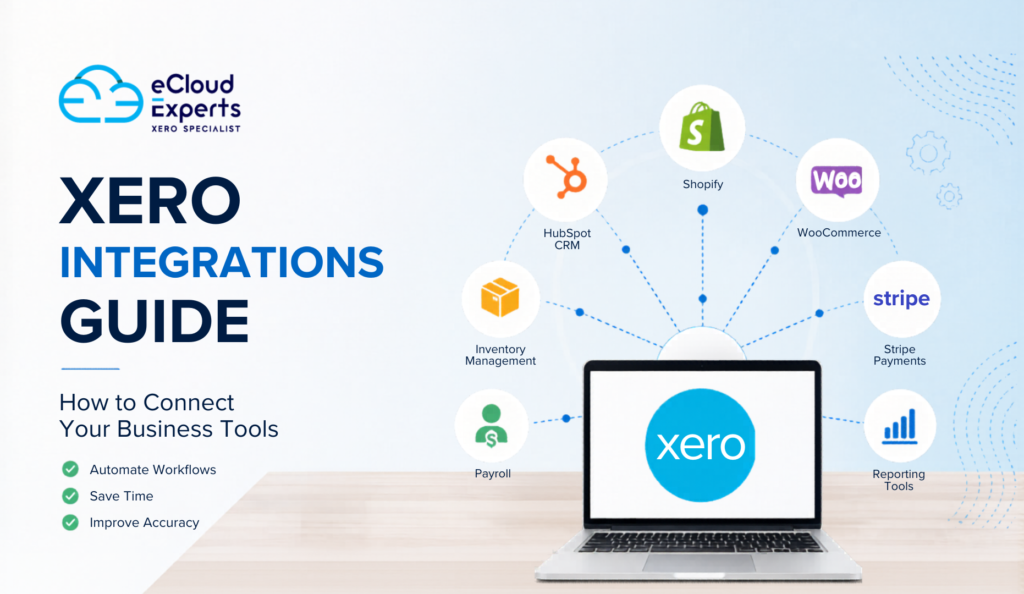
Running a business with disconnected software can quickly become frustrating. One platform manages sales. Another stores customer data. Payroll sits somewhere else. Then someone manually copies numbers into accounting software every week. That process wastes time and increases the risk of errors. This is why more businesses are investing in Xero integrations. By connecting your business tools directly with Xero, you can automate repetitive tasks, improve reporting, and reduce manual work across your company. Whether you run an ecommerce business, consultancy, agency, retail store, or service company, the right Xero integrations can help your systems work together more effectively. In this guide, you will learn:• What Xero integrations are• Why businesses use them• The most useful types of integrations• How to connect apps to Xero• Common mistakes to avoid• The best Xero integrations for growing businesses• How eCloud Experts help businesses set up and manage integrations What Are Xero Integrations? Xero integrations are connections between Xero and other business applications your company uses daily. These integrations allow information to move automatically between systems without manual data entry. For example:• Shopify sales can sync into Xero automatically• Payroll software can update wage expenses in Xero• Payment gateways can match transactions in real time• CRM systems can connect invoices and customer records• Inventory tools can update stock and purchase information Instead of switching between disconnected systems, businesses can manage operations more efficiently through connected workflows. Xero supports hundreds of integrations through the Xero App Store. Businesses can also use custom API connections for advanced automation needs. Popular categories of Xero integrations include:• Ecommerce platforms• CRM systems• Payroll software• Inventory management tools• Payment gateways• Time tracking apps• Reporting software• Point of sale systems Why Businesses Use Xero Integrations As businesses grow, manual processes become harder to manage. That is where Xero integrations create real value. Save Time on Manual Data Entry Without integrations, teams often:• Export spreadsheets manually• Re enter invoice information• Copy customer records between systems• Match transactions manually This process takes hours every week. When apps connect directly with Xero, information syncs automatically. Staff spend less time on repetitive admin work and more time on valuable business tasks. Improve Financial Accuracy Manual processes increase the chance of mistakes. Duplicate entries, incorrect VAT figures, and missing transactions can create reporting problems that affect business decisions. Xero integrations reduce these risks by allowing systems to exchange information automatically. That leads to:• More accurate bookkeeping• Better reconciliation• Cleaner financial reports• Fewer duplicate records Get Better Business Reporting Disconnected systems often create reporting gaps. For example:• Sales data may not match accounting records• Inventory figures may be outdated• Payment reports may not align with invoices Xero integrations help centralize financial information so businesses can generate clearer reports and make better decisions. Reduce Admin Work Business owners and finance teams already manage enough daily responsibilities. Automating processes through Xero integrations reduces:• Spreadsheet work• Manual imports• Duplicate tasks• Data correction work This helps businesses operate more efficiently without increasing administrative workload. Types of Xero Integrations Businesses Commonly Use Different businesses use different integrations depending on their operations. Here are some of the most common categories. Ecommerce Integrations Ecommerce businesses rely heavily on Xero integrations to manage sales and accounting data. Popular ecommerce integrations include:• Shopify• WooCommerce• Amazon• BigCommerce• Etsy These integrations can:• Sync orders automatically• Create invoices in Xero• Track taxes and VAT• Match payment transactions• Update sales reports For growing online stores, ecommerce Xero integrations can save many hours every month. CRM Integrations CRM systems manage customer relationships and sales activity. Popular CRM integrations with Xero include:• HubSpot• Zoho CRM• Salesforce• Pipedrive These Xero integrations help businesses:• Connect invoices to customers• Sync payment status• Improve customer reporting• Reduce duplicate data entry Sales and finance teams can work from connected information instead of separate systems. Payroll Integrations Payroll processing involves sensitive financial information and regular reporting requirements. Payroll integrations with Xero can:• Sync payroll journals automatically• Update employee expense records• Track pension contributions• Simplify payroll reconciliation Popular payroll integrations include:• Gusto• Employment Hero• Deputy• KeyPay Inventory Management Integrations Inventory tracking becomes difficult when businesses grow. Inventory Xero integrations help businesses:• Monitor stock levels• Track purchase orders• Manage warehouse inventory• Connect inventory costs with accounting records Popular inventory tools include:• Cin7• DEAR Inventory• Unleashed• Katana These Xero integrations are especially useful for wholesalers, manufacturers, and ecommerce brands. Payment Gateway Integrations Payment gateways handle online transactions. Integrating them with Xero helps automate reconciliation and payment tracking. Popular payment integrations include:• Stripe• PayPal• Square• GoCardless These integrations can:• Sync payment records automatically• Match invoices faster• Reduce reconciliation time• Improve cash flow tracking Time Tracking Integrations Service businesses often use time tracking apps to bill clients accurately. Popular Xero integrations include:• Harvest• WorkflowMax• Clockify• Deputy These apps help businesses:• Track billable hours• Create invoices faster• Improve project reporting• Monitor staff productivity How to Set Up Xero Integrations Step by Step Setting up Xero integrations is usually straightforward. However, planning properly is important to avoid reporting issues later. Step 1: Identify Your Business Needs Before connecting apps, review your workflow carefully. Ask questions like:• Which tasks are currently manual?• Where do errors happen most often?• Which systems need to share data?• What reporting problems exist today? Not every app needs integration. Focus on systems that create the biggest operational impact. Step 2: Choose Compatible Apps Next, confirm that the app supports Xero integration. You can check:• The Xero App Store• The software provider’s website• API documentation• Integration reviews When reviewing Xero integrations, consider:• Features• Reliability• Support quality• Sync frequency• Scalability• Pricing Cheap integrations sometimes create expensive accounting problems later. Step 3: Connect the App to Xero Most Xero integrations follow a similar setup process. Typically, businesses: Some integrations are simple. Others require advanced configuration depending on the workflow. Step 4: Test the Integration Never assume the integration works perfectly immediately. Before going live:• Run test transactions• Check tax mappings• Verify invoice syncing• Confirm reconciliation settings• Review customer data syncing Testing helps identify issues before they affect live financial data. Step 5:
QuickBooks Online vs Desktop Which One Should You Use Today
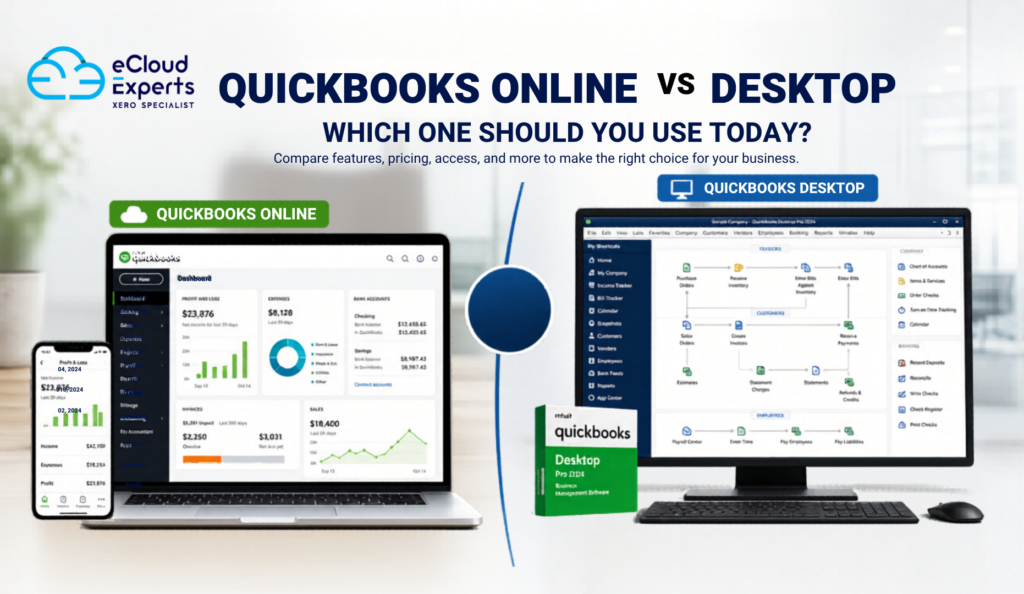
You might already be using QuickBooks. Or maybe you are just getting started and trying to choose the right version. Either way, you are facing a common problem. You are stuck between QuickBooks Online vs Desktop, and the differences are not always easy to understand at first. At a glance, they look similar. They both handle invoices, expenses, reports, and day to day accounting. But once you start using them, the experience is very different. One gives you flexibility and access from anywhere.The other gives you more control and deeper features on a local system. That is where the confusion begins. Many business owners pick one without fully understanding how it will affect their daily work. Then a few months later, they run into problems like limited access, missing features, or tools that do not connect properly. And fixing that later is not always simple. It can mean redoing your setup, cleaning up data, or even migrating your entire system. That is why this decision matters more than it seems. Choosing between QuickBooks Online vs Desktop is not just about software. It is about how you manage your business finances every day. Get it right, and your accounting becomes smoother and easier to manage.Get it wrong, and it can slow you down without you even noticing at first. So in this guide, we will break down QuickBooks Online vs Desktop in a clear and practical way. No technical jargon. No complicated explanations. Just simple insights so you can confidently choose the version that actually fits your business today and in the future. Quick Overview of QuickBooks Online vs Desktop Before we go deeper, let’s simplify this in the easiest way possible. At the core, the difference between QuickBooks Online vs Desktop comes down to how and where you use the software. That one difference may sound small, but it changes how you work every single day. With QuickBooks Online, your business is not tied to one place. You can check reports, send invoices, or review expenses whether you are in the office, at home, or on the move. With QuickBooks Desktop, everything stays on one machine unless you set up hosting or remote access. This gives you more control, but less flexibility. So when comparing QuickBooks Online vs Desktop, you are really deciding how you want to run your business operations. There is no one size fits all answer here. What matters is how your business works today and how you expect it to grow over time. As we go further, you will see how this core difference affects everything from pricing and features to teamwork and long term scalability. Key Differences Between QuickBooks Online vs Desktop Instead of guessing, let’s break it down clearly. Feature QuickBooks Online QuickBooks Desktop Access Anywhere with internet One computer or hosted setup Setup Quick and simple More technical setup Updates Automatic Manual updates Backup Cloud based automatic Manual or paid backup Users Easy multi user access Limited and costly Speed Depends on internet Faster locally Integrations Strong ecosystem Limited options Reporting Standard reports Advanced customization Security Cloud level security Depends on local system This table explains most of the QuickBooks Online vs Desktop confusion. QuickBooks Online Benefits Now let’s talk about why so many businesses are switching. Access anytime, anywhere This is the biggest advantage. You can check your accounts from your office, home, or even your phone. For business owners who travel or manage remote teams, this is a game changer. Real time collaboration Your accountant does not need files. They log in and see everything instantly. This removes delays, confusion, and version issues. Automatic backups If your laptop crashes, your data is still safe. No manual backup. No panic. App integrations You can connect tools like: This reduces manual work. Always up to date You never worry about updates. New features appear automatically. When comparing QuickBooks Online vs Desktop, these benefits clearly show why Online fits modern businesses better. QuickBooks Desktop Features and Strengths Now let’s be fair. Desktop still has strong advantages. Advanced reporting If you need detailed reports with custom filters, Desktop does more. This matters for businesses with complex finances. Industry specific versions Desktop offers tailored solutions like: These include features that Online may not fully match. Inventory management Desktop handles inventory better. You get deeper tracking and more control. Offline access No internet? No problem. You can still work on your system. Performance speed Desktop can feel faster because it runs locally. So in the QuickBooks Online vs Desktop comparison, Desktop is still powerful for certain use cases. QuickBooks Online vs Desktop Pricing Comparison Now let’s talk about money. This often decides everything. QuickBooks Online pricing Good for cash flow since you pay gradually. QuickBooks Desktop pricing Looks cheaper at first, but costs can add up. When comparing QuickBooks Online vs Desktop, Online is predictable, while Desktop can have hidden costs. Real World Example to Make It Clear Let’s make this simple. Case 1 Small business owner Runs an online store. Works from different locations. Best choice: QuickBooks Online Why: Case 2 Manufacturing company Handles complex inventory and costing. Best choice: QuickBooks Desktop Why: This is how you should think about QuickBooks Online vs Desktop in real life. Which One Is Better for Your Business Let’s break it down further. Choose QuickBooks Online if: Choose QuickBooks Desktop if: For most businesses today, QuickBooks Online vs Desktop is no longer a close fight. Online is leading. Is QuickBooks Desktop Being Phased Out Let’s be honest here. This is one of the biggest concerns people have when comparing QuickBooks Online vs Desktop. QuickBooks Desktop is not fully gone. You can still buy and use it. Many businesses still rely on it every day. But the direction from Intuit is very clear. They are focusing more on QuickBooks Online. Over the past few years, most new features, updates, and improvements have been released in the Online version first. Desktop updates are slower and mostly focused on maintenance rather than